Back to Spaced
Updated
How to Group Menu Bar Icons on Mac
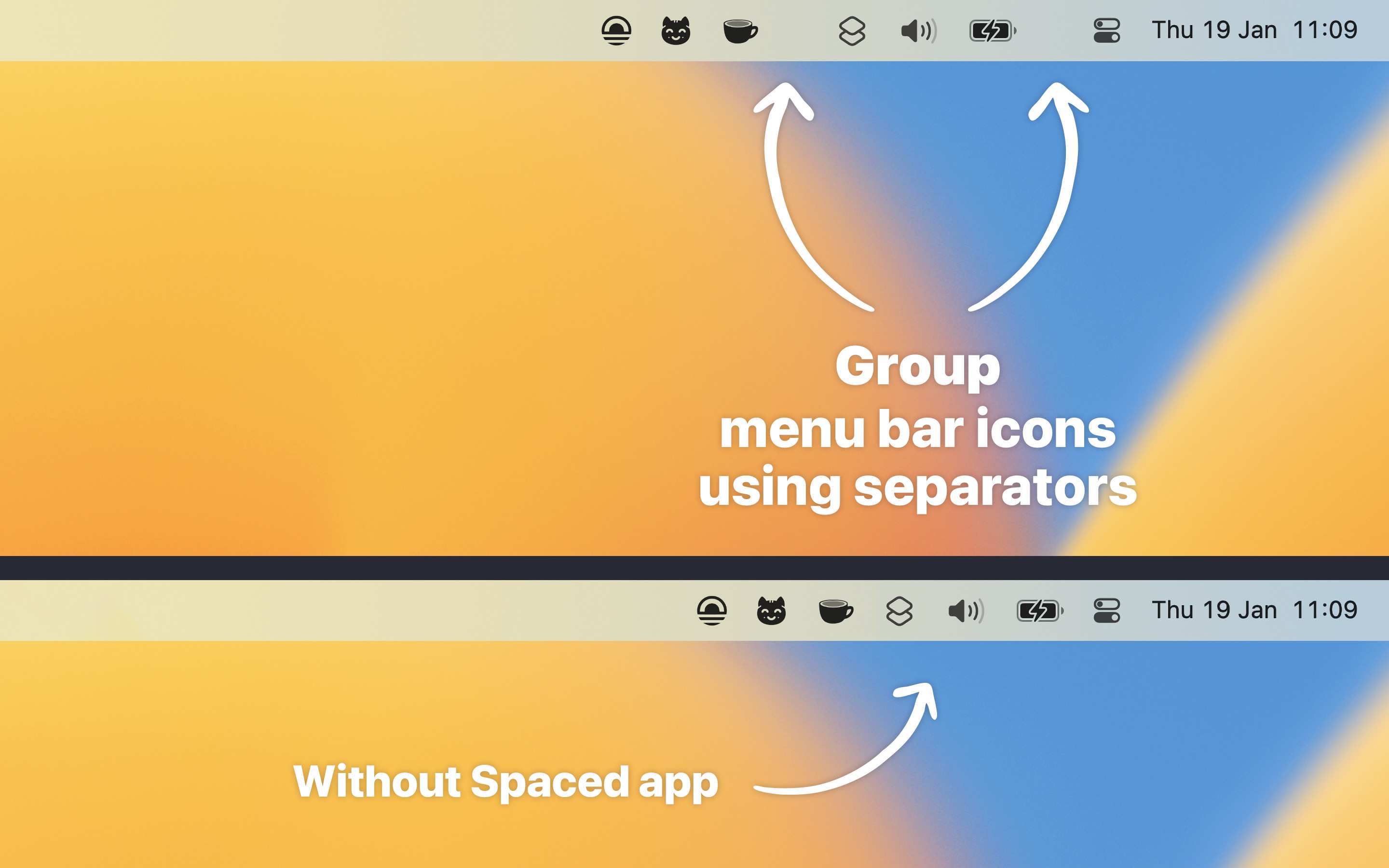
With Spaced
- Open Spaced. It adds a separator to the menu bar.
- To add another separator, click a separator, and choose “New”.
- Hold Command, and drag the separators and the icons of your apps, so each group has a separator between it and the next.
Tips
- Click a separator to choose its look, like a dot, a space, or a tab, which is an empty gap.
- To remove a separator, click it, and choose “Remove”.
- Turn on “Reduced opacity” in the settings, so the separators draw less attention.
Spaced only adds separators. It does not hide icons. To fit more icons in the menu bar of a MacBook, make the gap between them smaller with Menu Bar Spacing, which works on macOS 26 and earlier.
Get Spaced
Organize your menu bar items into groups

Free
- Platform
- macOS
- Requires
- macOS 26 or later
- Category
- Utilities
- Released
- January 2023
- Privacy
- No data collected
- Updated
- March 2026
- Version
- 1.3.0
- Size
- 4 MB
Without an app
macOS has no separators for the menu bar, but you can change the order of the icons and turn some off:
- Move an icon: Hold Command, and drag the icon to another place in the menu bar.
- Turn off an icon: On macOS 26 and later, open “System Settings › Menu Bar”, and turn off the app in the “Allow in the Menu Bar” section. The icon is then gone until you turn it on again.
With the order alone, you can put related icons next to each other, but the groups are hard to see without a gap between them.