Updated
How to Show the Date in the Mac Menu Bar
With Dato
- Open Dato. It shows the day of the week and the time in the menu bar.
- Right-click the Dato item in the menu bar, and choose “Settings…”.
- Click “Menu Bar”, and below “Show”, turn on “Date”. Turn on “Week number” too, if you want it.
- To use your own format, like with the year, write a pattern in “Custom date & time format”, like
EEEE d MMMM yyyy. Below the setting, Dato shows how the menu bar will look.
The custom format replaces the “Show” settings. For example, yyyy-MM-dd HH:mm shows the date and the time in the ISO 8601 format, and D shows the day of the year. More about the format.
Click the date in the menu bar to see a calendar with your events. To show the date above the time, and use less space in a full menu bar, turn on “Two lines”.
macOS always shows its own clock in the menu bar. So that the date does not show two times, set “Show date” to “Never” in the clock options of macOS, like in the steps below. How to hide the clock of macOS.
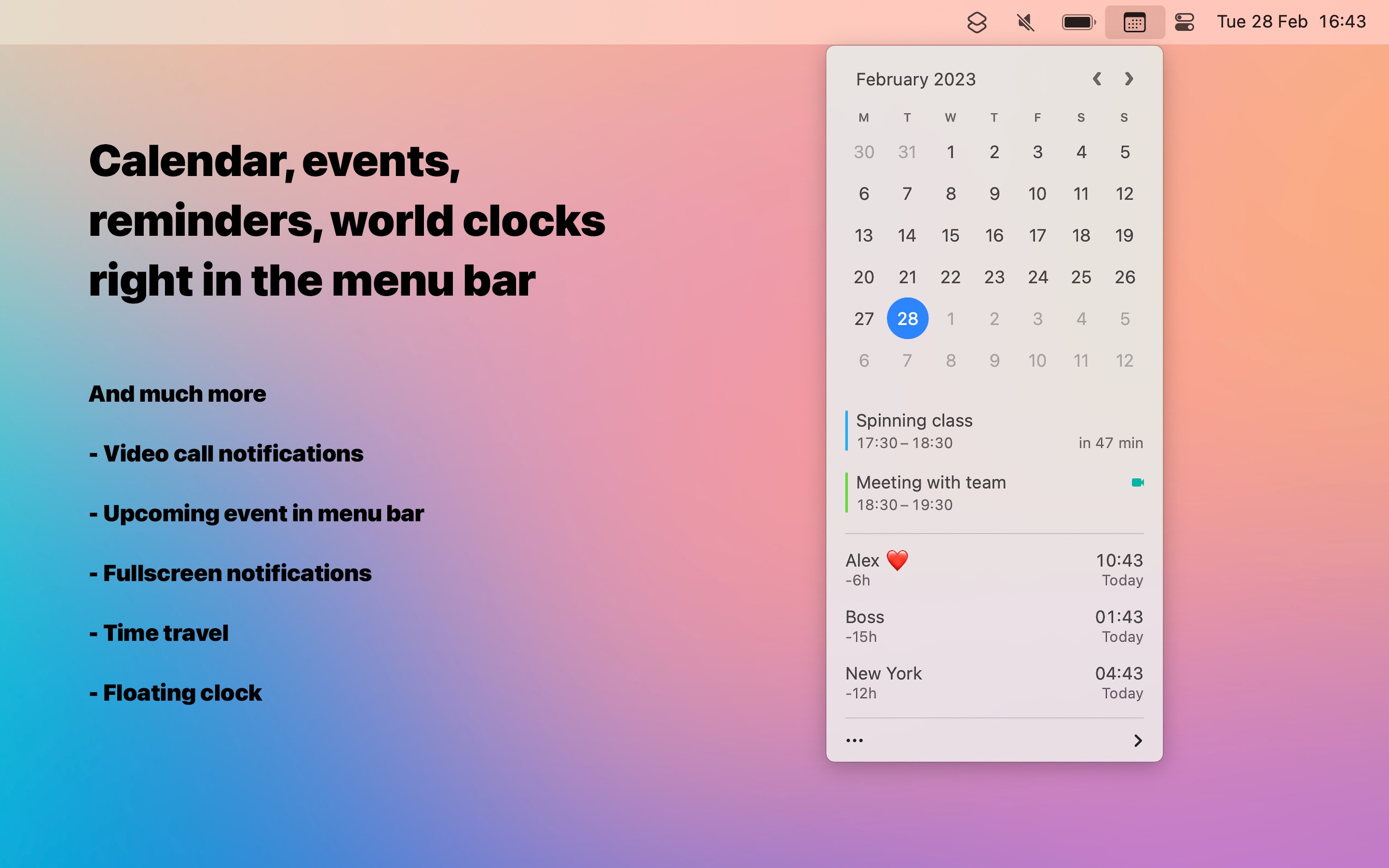

Get Dato
Menu bar calendar and world clocks, plus fullscreen meeting notifications


$18, one-time purchase
- Platform
- macOS
- Requires
- macOS 26 or later
- Category
- Productivity
- Released
- July 2019
- Privacy
- No personal data collected
- Developer
- Sindre Sorhus
Without an app
The menu bar clock of macOS can show the date:
- Open “System Settings › Menu Bar”.
- In “Menu Bar Controls”, click “Clock Options…”.
- Below “Date”, set “Show date” to “Always”. “When Space Allows” hides the date when the menu bar is full.
- To show the day of the week, turn on “Show the day of the week”.
The order of the day and the month comes from the region in “System Settings › General › Language & Region”. This is enough if you only want to see the day and the month. macOS cannot show the year or the week number in the menu bar, and you cannot write your own format.