Updated
How to Show a Calendar in the Mac Menu Bar
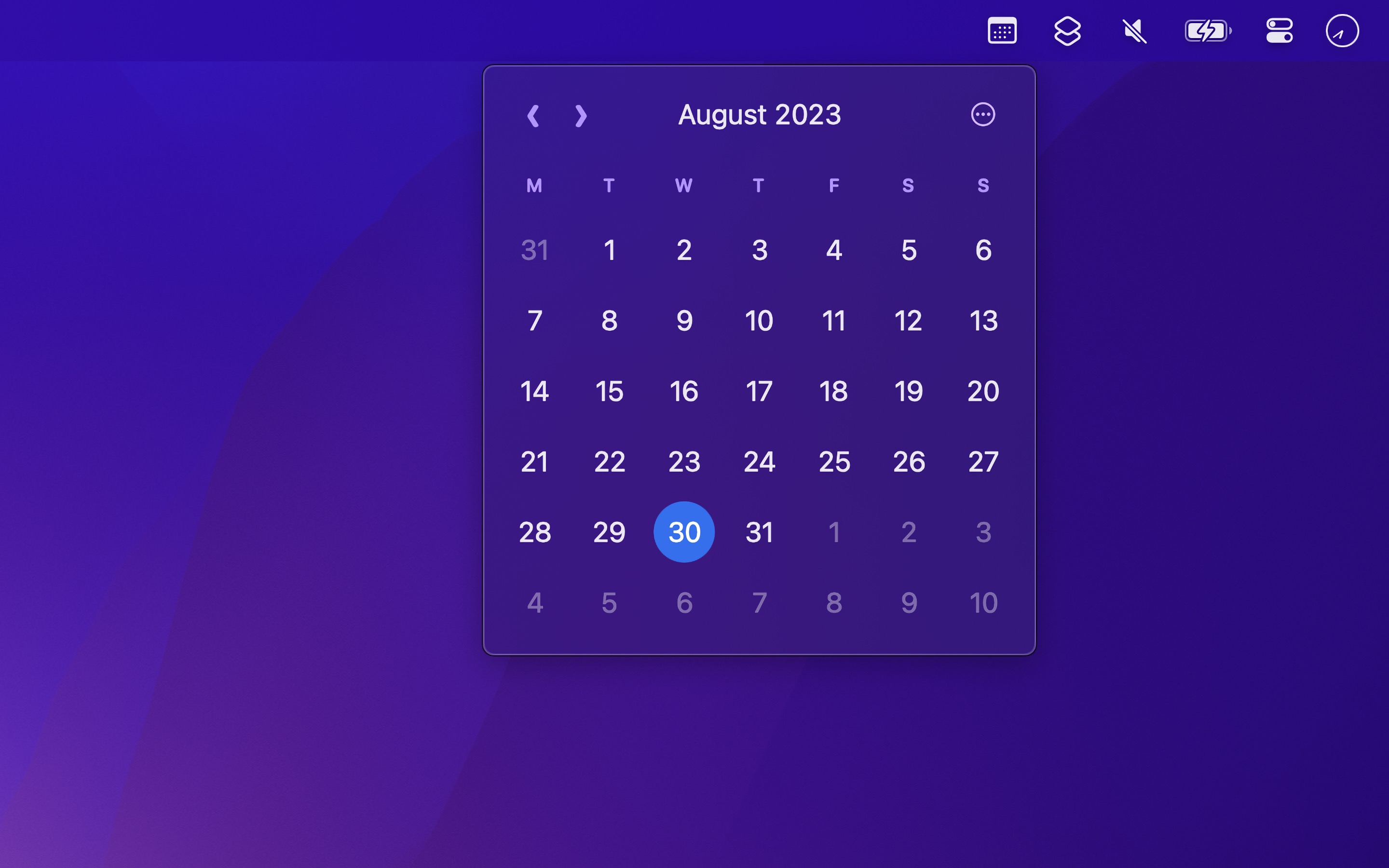
With Menu Bar Calendar
- Open Menu Bar Calendar. Its icon is in the menu bar.
- Click the icon to see the calendar of this month.
- Click a date to open it in the Calendar app, or right-click a day to make an event.
Press the arrow keys, or swipe on the calendar, to go to another month. Press Space to go back to the current month. To open the calendar from any app, set the “Toggle calendar” keyboard shortcut in the settings. You can also show the week numbers, and choose a menu bar style with the date.
Menu Bar Calendar does not show your events. For that, use Dato: its calendar shows your events and reminders, it can show the next event in the menu bar, and it has world clocks and notifications that fill the screen before a meeting.

Get Menu Bar Calendar
A monthly calendar, one click away

Free
- Platform
- macOS
- Requires
- macOS 26 or later
- Category
- Productivity
- Released
- August 2023
- Privacy
- No data collected
- Developer
- Sindre Sorhus
More about Menu Bar Calendar →
Without an app
macOS has no calendar in the menu bar, but you can see one in Notification Center:
- Click the date and time in the menu bar to open Notification Center.
- At the bottom, click “Edit Widgets”.
- Search for “Calendar”, and add the widget that shows the month.
You can also drag the widget to the desktop. Notification Center takes more clicks than a menu, and it covers the right side of the screen.