Updated
How to Add a Folder to the Mac Menu Bar
With Folder Peek
- Open Folder Peek. Its icon is in the menu bar.
- Click the icon, and choose “Add Folder…”.
- Choose the folder, like Downloads, and click “Add”. The folder is now in the menu bar.
- Click the folder in the menu bar to see its files, and click a file to open it.
Each folder is a menu bar item of its own. To show the name of the folder next to its icon, open the submenu of the first item of the menu (the name of the folder), choose “Configure Folder…”, and set “Show” to “Icon & Title”. In the same window, you can change the icon, the sort order, and the maximum number of items. If the menu bar has little space, set “Show folders” to “in a single menu bar item” in the settings, so all folders share one menu.
Tips
- Hold Option when you click a file to show it in Finder.
- Drag a file from the menu to another app or folder.
- Set a keyboard shortcut for a folder to open its menu from anywhere.
- To use Folder Peek as an app launcher, add the Applications folder, or a folder with aliases of the apps you use. More about the app launcher.
- To show files and folders from many places in one menu, put aliases of them in one folder, or use Super Menu.
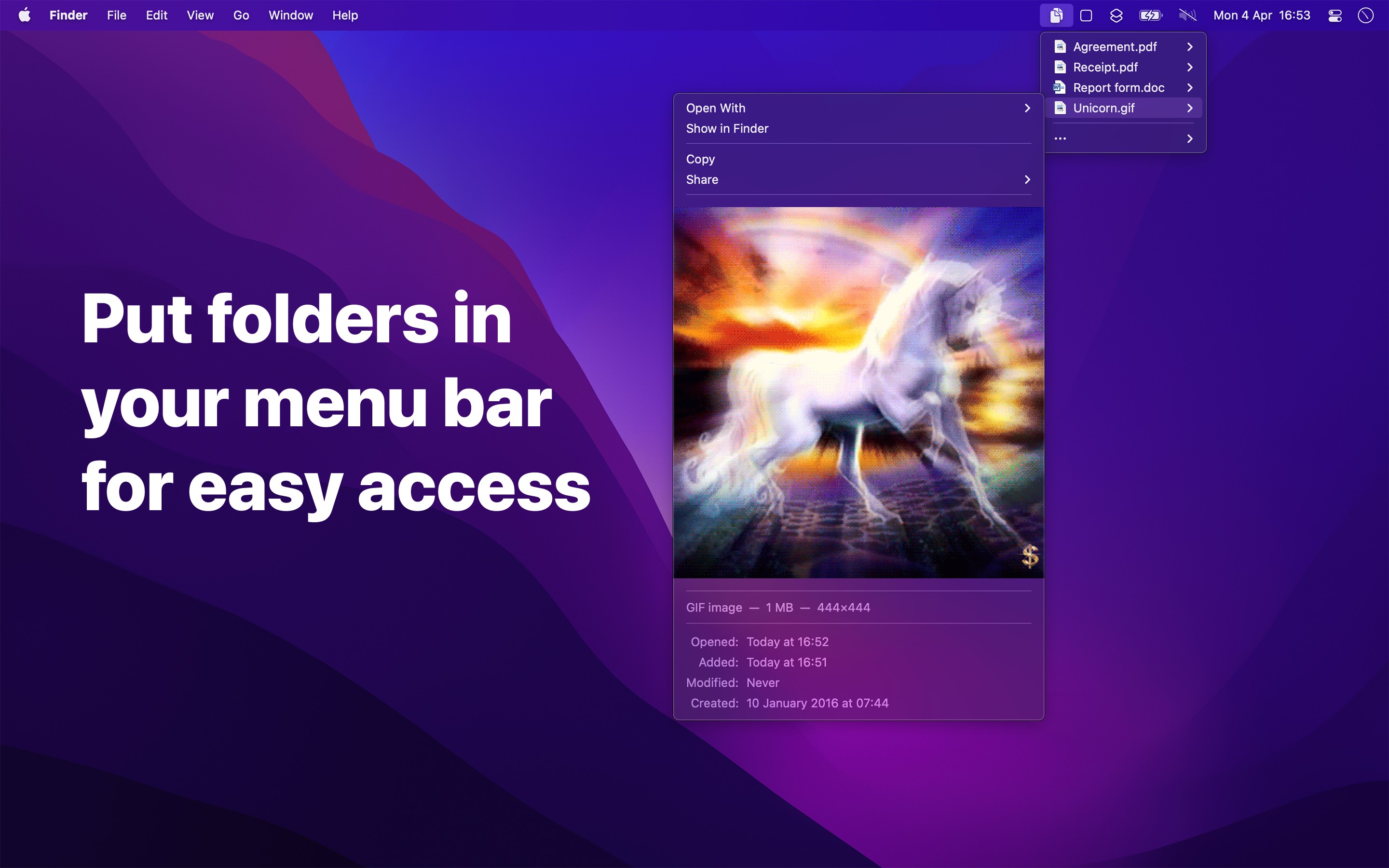

Get Folder Peek
Put folders in your menu bar

$6, one-time purchase
- Platform
- macOS
- Requires
- macOS 26.4 or later
- Category
- Utilities
- Released
- April 2022
- Privacy
- No personal data collected
- Family Sharing
- Yes
- Updated
- October 2026
- Version
- 1.13.8
- Size
- 8 MB
Without an app
The menu bar of macOS has no place for folders, but the Dock does:
- Drag the folder from Finder to the right side of the Dock, next to the Trash.
- Control-click the folder in the Dock. Set “Display as” to “Folder” or “Stack”, and “View content as” to “Fan”, “Grid”, or “List”. “Sort by” changes the order.
- Click the folder in the Dock to see its files, and click a file to open it.
The Downloads folder is already in the Dock. A folder in the Dock works well when the Dock is always visible. If you hide the Dock, or if you want a preview of the files and a keyboard shortcut, Folder Peek is faster. How Folder Peek is different from folders in the Dock.
You can also add a folder to the “Favorites” in the sidebar of Finder windows: drag the folder to the sidebar. It is then one click away in each Finder window, but you must open a Finder window first.