
Super Menu
Your files, folders, apps, links, and shortcuts in one menu
Build one fast, personal menu for everything you open often, like your project folders, your work apps, a few websites, and the shortcuts you run every day.

$4, one-time purchaseRequires macOS 27 or laterNo data collected
Scan with your phone to open this page
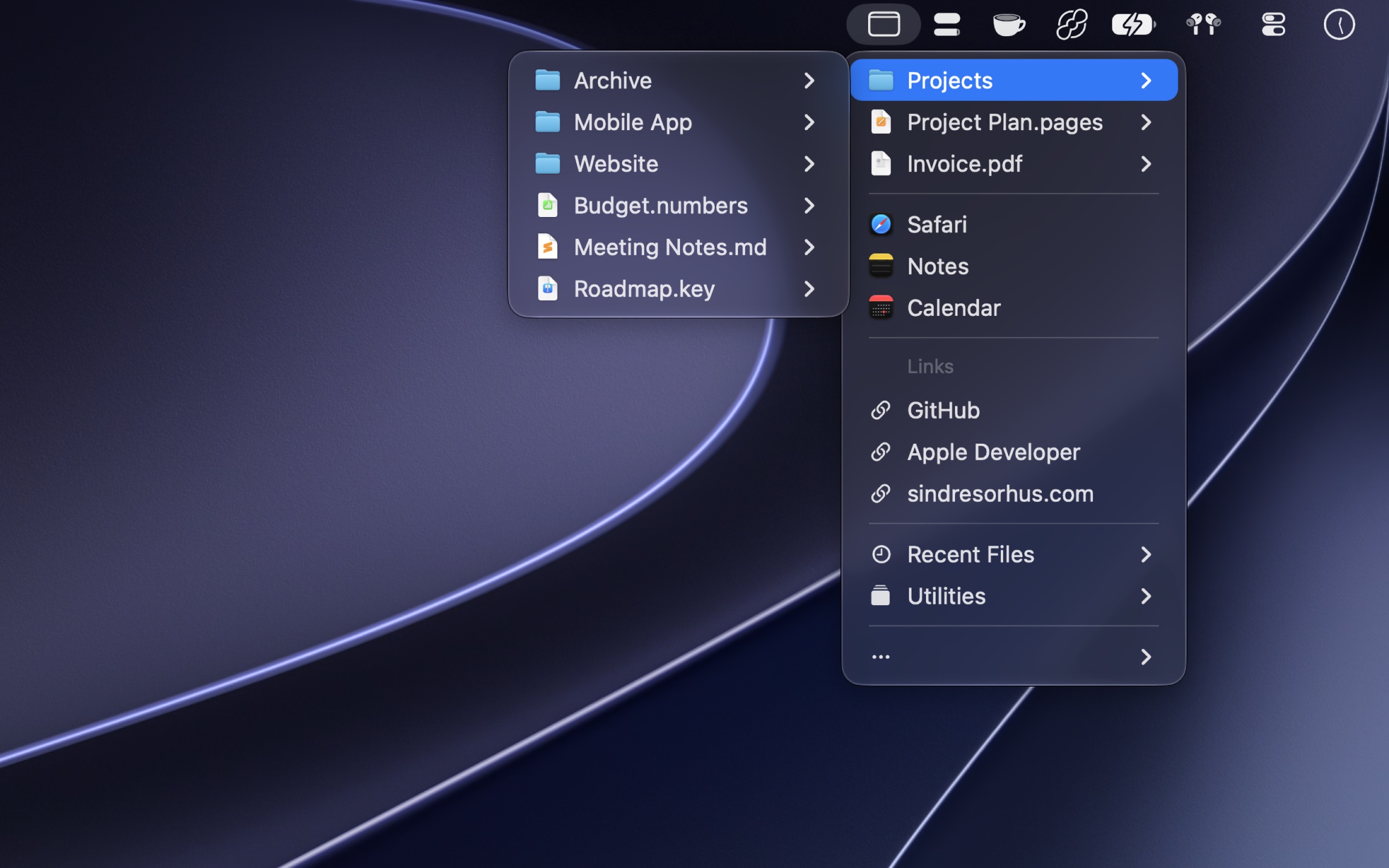
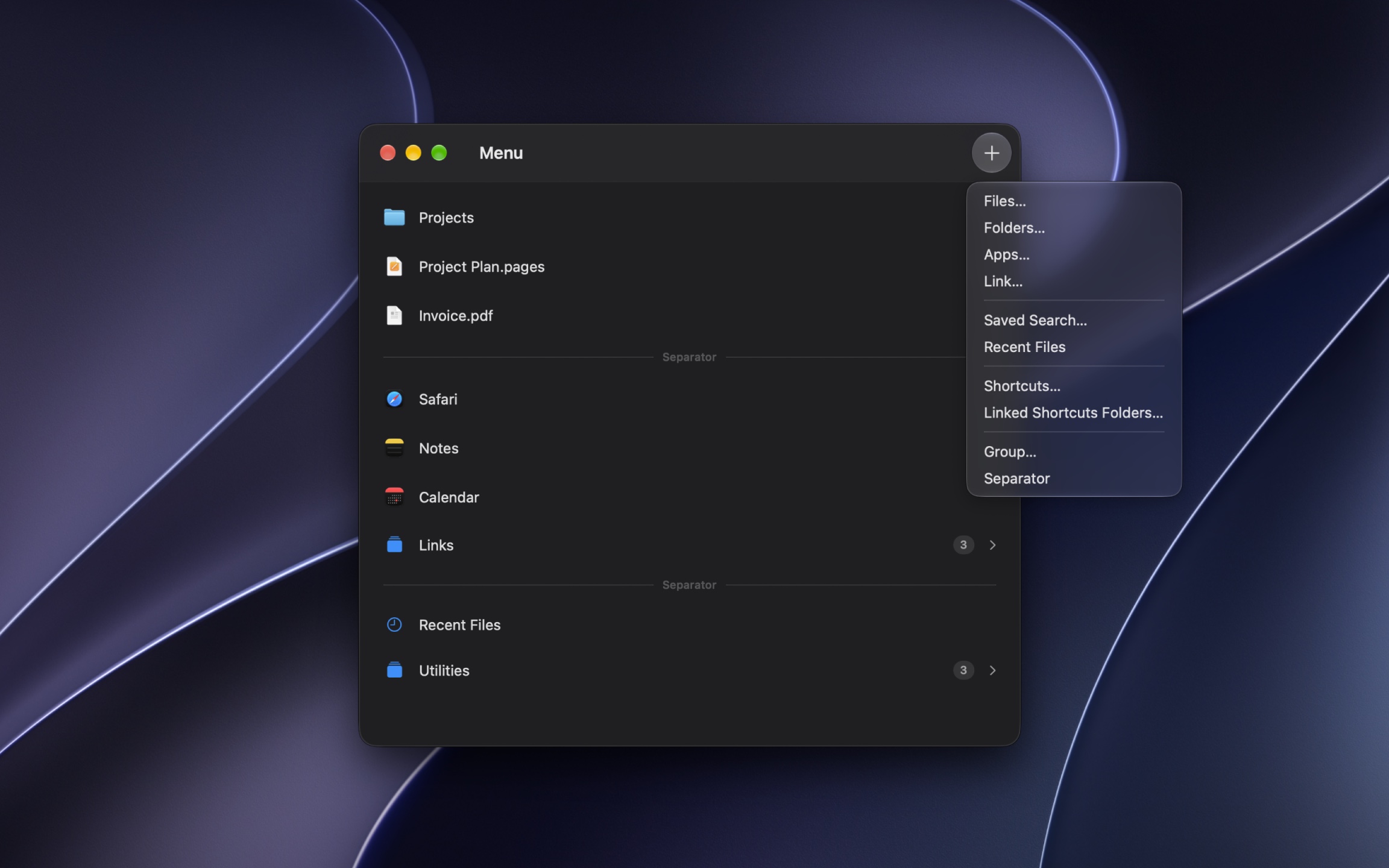
Developer Sindre Sorhus has released Super Menu, a new Mac app meant to make quick access to frequently used files, folders, apps, and websites easier. The app adds a customizable menu to the macOS menu bar, from which Shortcuts can also be run.
Arranged your way
Add files, folders, apps, links, and shortcuts from anywhere, and arrange them in sections and nested submenus, or show apps as icons, like a small Dock. Show groups only in the apps they are for, or only while you hold Option. Open the menu from the menu bar, or at the pointer with a keyboard shortcut. Drag items into the organizer to fill the menu in a minute.
Browse folders without opening Finder
Hover over a folder to browse it, and preview files with Quick Look right in the menu. Give each folder its own sorting, filter, and item limit, make smart folders, like all the PDFs in your Documents, or show a Finder Saved Search. Paste copied files into a folder, and eject drives.
Your shortcuts and recent files too
Run shortcuts, or add a Shortcuts folder that stays in sync with the Shortcuts app. Add links that do things in other apps, with the date, the copied text, or text you enter inserted. Get back to recent files, switch between running apps, and see what you copied.
Guide
To open the organizer, choose “Manage Menu” from the … submenu, or press ShiftCommand, while the menu is open. Use the Add button in the toolbar to add an item, a group, or a separator, or drag items into the organizer.
Drag rows to reorder them. Create groups for related items, and show each group as a section of the menu or as a submenu. A group of only apps can show them as icons, like a small Dock.
A group can show only while you use certain apps, like your Xcode projects while you use Xcode, or only while you hold Option, to keep rarely used items out of the way. Choose “Never” to hide a group without removing it. To show or hide groups automatically, for example for a Focus, use the “Set Group Visibility” action in Shortcuts.
Give an item a note, like “Client A” or “Needs VPN”, to show it below the name. Files and folders with the same name show the folder they are in.
A folder can show its contents as a section of the menu instead of a submenu, like “Latest Downloads” with a low item limit.
Opening items
- Click an item to open or run it. An app shows a dot while it is running, like in the Dock.
- Click a folder to open it in Finder, or hover over it to browse its contents.
- A drive, disk image, or network share has “Eject” at the end of its submenu. An added drive, like Macintosh HD, shows how much space is free.
- When you have copied files or an image, a folder’s submenu ends with “Paste”, which saves them in the folder. Hold Option to paste copied text as a text file.
- Files that you add directly and recent files show a Quick Look preview in their submenu. Files in a folder show it when the “Show file preview” setting of the folder is on.
The submenu of a file has Show in Finder, Open With, Quick Look, Share, Copy File, Copy Path, and Move to Trash, and more actions for some files:
- Text files, rich text, Word documents, and PDFs: Copy Contents, so a folder of text files works as a collection of snippets
- Images: Copy Image, which keeps the format, so an animated GIF still moves, Copy Text, which copies the text in the image, Copy QR Code Contents, and Copy Image Without Location
- Images and videos: Copy Dimensions
- Files in iCloud Drive: Download Now, or Remove Download to free space
- While a checksum is copied: Compare with Copied Checksum, to check a download
- Files in a folder or a Saved Search: Add to Menu
Alternative actions
Hold Option while clicking an item to use its alternative action:
- File, folder, or app: Show in Finder
- Link: Copy the URL
- Shortcut: Edit in the Shortcuts app
Hold OptionCommand while clicking an app to open it and hide the other apps. Hold Shift while clicking to open an item in the background, so you can open several in a row.
Hold Option in a submenu to show more actions:
- Group: “Open All”, which opens everything in the group, like the things you need for one project
- Folder: “Copy Path”
- Item in a folder you added: “Pin to Top”, which keeps it at the top of that folder, like your current project in a big Projects folder. Remove pins in the settings of the folder.
Folder settings
Each folder has its own browsing settings:
- File icon size: Small, medium, or large
- Sort order: Name, date added, modified, created, last opened, or accessed, kind, tags, or size
- Sort direction: Ascending or descending
- Layout: Hierarchy, or Flattened to show the items of subfolders in one list, up to 5 levels deep
- Show: Files and folders, files only, or folders only
- Details: Show the date or size of each item below its name
- Show hidden items: Include hidden files
- Browse package contents: Treat app and document packages as folders
- Keep folders on top: Show folders before files
- Browse folder contents: Show folders as submenus. Turn this off to only open folders directly.
- Show file preview: Show a Quick Look preview in file submenus
- Item limit: The maximum number of items to show. Use a low limit for very large folders. The last row then shows how many more there are.
- Hide when empty: Leave the folder out of the menu while it lists nothing. For example, Downloads with the filter “Added Within 1 day” shows only when you downloaded something today.
- Filter: Show only the items that match a name, extension, kind, Finder tag, date, or size. In Hierarchy, the filter applies only to files, so you can still open the folders.
Smart folder options
Make a smart folder with a filter and the Flattened layout. For example, add your Documents folder, choose Flattened with 3 subfolder levels, and filter by the extension pdf to see all your PDFs in one list.
Finder Saved Searches
Add a .savedSearch file to show the results of a Smart Folder that you made in Finder. Edit the search in Finder, and the menu shows the new results, in the sort order of Finder’s list view. Super Menu asks once for access to your home folder (why). If you drag or paste a Saved Search into the organizer, right-click it and choose “Authorize Search Results…”.
Recent files
Add Recent Files to show up to 50 files you opened through Super Menu. The history stays on your Mac. Choose “Add to Menu” in the submenu of a recent file to keep it, or “Clear Menu” to remove the history.
Running apps
Add Running Apps to list the running apps. Choose one to switch to it.
Clipboard
Add Clipboard to show what you copied, like “3 Files”, a link, an image, or the first line of copied text. Click it to see it in Quick Look, or to open a copied link. It is hidden while nothing is copied, and while a password is copied.
Settings
- Keyboard shortcut: Open the menu from anywhere, at its menu bar icon or at the pointer. Then use the arrow keys and Return.
- Max menu width: Make the menu wider, so long names are not cut off.
- Text size: Make the text in the menu larger.
- Menu bar icon: Choose from a set of icons.
- Launch at login
Privacy
Your menu, recent-file history, and settings stay on your Mac, and your files are never uploaded. Super Menu can only read the files and folders that you add, and your home folder if you add a Saved Search. It reads the clipboard only when a feature needs it, like a link with {clipboard}, the Clipboard item, or “Paste” in a folder. Text in images is recognized on your Mac.
Tips
The fastest way to fill your menu is to drag items into the organizer, many at once. Drop them between items, or on a group to add them to it:
- Files, folders, and apps from Finder
- A website from the address bar of a browser, or a link from a web page
- Web location files (
.weblocand.inetloc) - Shortcuts from the Shortcuts app
Hidden features
- Paste copied items into the organizer with CommandV.
- Hold Option when you drop items in the organizer to copy them instead of moving them.
- Drop items on a group in the path bar to move them out to it.
- To add files without opening the organizer, select them in Finder, right-click, and choose “Add to Super Menu” in Quick Actions.
- To add a web link, copy it and choose “Add Copied Link” in the
…submenu. You can also use the “Add to Super Menu” action in Shortcuts, for example from the Share menu in Safari. - The “Add” menu has presets: “Latest Downloads”, “Recent Screenshots”, “Apps”, like the Applications stack in the Dock, and “Volumes”, which lists your drives and ends with “Eject All”, to eject all of them before you unplug your Mac from a dock.
- Use a group as a workspace for a project, like a “Client A” group with the project folder, the app you work in, the Figma file, and the issue tracker. Open all of it at once with “Open All” (hold Option in the submenu of the group).
Links
A link can be any URL that an app on your Mac opens, not only a website:
x-appleopens the Wallpaper settings (more pages).systempreferences:com .apple .Wallpaper-Settings .extension mailto:[email protected]starts an email to that addressshortcuts:/runs the “Morning” shortcut/ run-shortcut?name=Morning things:/adds a to-do in Things/ / add?title=Call%20mom obsidian:/opens a vault in Obsidian/ open?vault=Notes smb://nas.local/Mediamounts a network share with one clickmessage:/opens one email in Mail (how to get the ID)/ %3Cmessage-id%3E
Many apps have a URL scheme like this. Look in the documentation of the app.
Placeholders
Add a placeholder to a link to insert a value when the link opens:
{clipboard}: The copied text{clipboard url},{clipboard email},{clipboard address},{clipboard phone},{clipboard date}: The first web address, email address, street address, phone number, or date in the copied text, like “next Friday at 3 pm”{clipboard path}: The path of a copied file, or a copied path{clipboard text-in-image},{clipboard qr}: The text in a copied image, like a screenshot, or what a QR code in it contains{input}: Text you enter when you open the link, like a search query. Use{input multiline}for several lines, and{input password}for hidden text, like a token, which is not stored. With| shortcut, it is in a temporary file while the shortcut runs.{input date},{input datetime},{input number},{input file}: A date, a date and time, a whole number, or a file or folder that you choose{date},{time},{datetime}: Today’s date (2026-10-18), the time (14:05), or both with the time zone{day},{weekday},{month},{year},{week}: Parts of today’s date, like Monday for{weekday}.{week}is the ISO week, so{year}-W{week}can be wrong for a few days around 1 January.{timestamp}: The Unix time in seconds, or{timestamp milliseconds}{uuid},{random}: A new unique ID, or a random number from 1 to 100{app},{app-id},{app-version}: The name, bundle identifier, or version of the app you were in{os-version},{mac-model}: The version of macOS and the model of your Mac
Options
Dates and times, also {clipboard date} and {input date}:
format="d MMMM": Your own format, like 18 Octoberstyle="long": The format of your region, in the styleshort,medium,long, orfulltime-zone="UTC": Another time zone, likeAmerica/New_Yorklocale="en": The language of names, like months and weekdaysoffset="+7d": Move the date by minutes (m), hours (h), days (d), weeks (w), months (M), or years (y), like-1dfor yesterdaystart="month": The start of theday,week,month, oryear, before the offset, sostart="month" offset="-1d"is the last day of the previous month
{input}:
name="To": A label, so a link can ask for several things at onceoptions="en, de, ja": Choices, shown as a pop-up menuhint="123": Gray example text in the empty field
{random}: min=1 max=6 for the range, or options="Run, Bike, Swim" to pick one of them.
Modifiers
Add modifiers after | to change the value, like {input | slug | raw}. They apply in order. Arguments go in quotes or as one word, like | replace "-" " " or | truncate 80, and can use \n, \t, and \".
| default "none": The text to use when the value is empty. For{input}, it fills in the field, except{input date}and{input datetime}, which start at today.| edit: Change the value in a dialog before the link opens| choose: Pick one line of the value in a pop-up menu| each: Open the link once for each line of the value. Put| shortcutand| editbefore it, as they run once. A value with more than 50 lines opens nothing. Only the first| eachin a link counts.| shortcut "Translate": Run a shortcut on the value and use its output, like a translation or a summary. It runs after the dialog for{input}, so put| editand| choosebefore it. A| matchafter it does not hide the link, and gives an empty value when it finds nothing.| match "#(\d+)",| match-all "…": The first part, or all the parts, one on each line, that match a regular expression, or its first group| replace-match "(\w+), (\w+)" "$2 $1": Replace each match of a regular expression, where$1is its first group| replace "a" "b": Replace eachawithb. Use""to remove it.| json-value "repository: A value in copied JSON. Use.full_name" items.0.idfor a position in a list.| lowercase,| uppercase,| capitalize-words,| capitalize: Change the case| slug,| camel-case,| snake-case,| safe-filename: Make a URL slug (my-new-note), a name (myNewNote,my_new_note), or a safe file name| truncate 80,| truncate-words 8: At most 80 characters, or 8 words| unwrap: Join the lines of each paragraph, like in text copied from a PDF| first-line,| after-first-line,| line 2: The first line, the text after it, or the second line.| line -1is the last line.| join-lines ",",| unique-lines,| sort-lines: Join the lines, remove duplicate lines, or sort them| digits,| add 1: Only the digits, or a whole number plus 1| url-host,| url-path,| url-parameter "v",| url-decode: The host, path, or a query parameter of a URL, or decode percent-encoded text| filename,| stem,| extension,| parent: The file name, the name without the extension, the extension, or the folder of a path or URL| json-escape,| base64-encode,| sha256: Encode or hash the text| raw: Insert the value without encoding/,?,&, and the like, so it can change the link, like a copiedowner/repoin a path. Otherwise, the value is encoded.
A link that needs something copied, like {clipboard path} when no file is copied, is hidden until you copy something it can use. Add | default "…" or | edit to show it anyway. A copied password never goes into a link.
A placeholder can be in the path or the query of a web address, but not in the domain. A space or a quote outside the braces is encoded for you.
The link editor shows mistakes in a placeholder, like a typo, and suggests a fix. Search links from other apps work as they are: %s from Firefox and Chrome, {{{s}}} from DuckDuckGo, and {query} from Alfred become {input}.
Examples
https:/asks what to search for on GitHub/ github .com/ search?q={input} https:/searches for the copied text/ www .google .com/ search?q={clipboard} things:/adds a to-do that is due in a week/ / add?title=Pay%20rent&deadline={date offset="+7d"} vscode:/opens the copied file in Visual Studio Code/ file{clipboard path | raw} https:/asks for the language and the text/ translate .google .com/ ?tl={input name="To" options="en, de, ja"}&text={input name="Text"} https:/opens the issue in a copied “Fixes #123”, and is hidden while no issue number is copied/ github .com/ sindresorhus/ ky/ issues/ {clipboard | match "#(\d+)"} https:/plays a copied YouTube video without the rest of the page/ www .youtube-nocookie .com/ embed/ {clipboard url | url-parameter "v"} maps:/gets directions to an address in copied text, like an email signature/ ?daddr={clipboard address} https:/translates the text in a copied screenshot/ translate .google .com/ ?sl=auto&tl=en&text={clipboard text-in-image} things:/adds a copied note as a to-do, with its first line as the title/ / add?title={clipboard | first-line}¬es={clipboard | after-first-line} https:/asks for the title and the details of a new issue/ github .com/ owner/ repo/ issues/ new?title={input name="Title"}&body={input multiline name="Details"} https:/opens next month in Google Calendar/ calendar .google .com/ calendar/ r/ month/ {date start="month" offset="+1M" format="yyyy/ M/ d" | raw} https:/opens each issue in copied release notes/ github .com/ sindresorhus/ ky/ issues/ {clipboard | match-all "#(\d+)" | unique-lines | each} https:/opens an issue in copied release notes, and asks which one when there are several/ github .com/ sindresorhus/ ky/ issues/ {clipboard | match-all "#(\d+)" | unique-lines | choose} https:/searches for the copied text after your shortcut translates it/ www .google .com/ search?q={clipboard | shortcut "Translate to English"} https:/opens the repository in copied JSON, like from GitHub/ github .com/ {clipboard | json-value "repository .full_name" | raw} https:/searches code for a name, like/ github .com/ search?q={input | camel-case}&type=code isEmptyfor “is empty”https:/opens the next page of a copied link/ news .ycombinator .com/ news?p={clipboard url | url-parameter "p" | add 1} https:/translates text copied from a PDF, without the line breaks in its sentences/ www .deepl .com/ translator#en/ de/ {clipboard | unwrap} https:/starts a WhatsApp chat with a copied phone number/ wa .me/ {clipboard | digits} obsidian:/creates a note from copied text, named after its first line/ new?vault=Notes&name={clipboard | first-line | safe-filename}&content={clipboard} https:/starts a bug report with the details of your Mac and the app you were in/ github .com/ owner/ repo/ issues/ new?body=macOS%20{os-version},%20{mac-model},%20{app}%20{app-version} mailto:?subject=Report%20for%20{date style="long"}starts an email with today’s date written out, like “Report for 24 December 2026”
Keyboard Shortcuts
Menu
| Shortcut | Action |
|---|---|
| ▲ / ▼ | Select the previous/next item |
| ▶ | Open the submenu of the selected item |
| Return | Open the selected item |
| Option | Show the groups and actions that only show with Option |
| ShiftCommand, | Open the organizer |
Organizer
| Shortcut | Action |
|---|---|
| ▲ / ▼ | Select the previous/next item |
| Return | Open a group or a shortcut, or edit the selected item |
| Space | Quick Look the selected file or folder |
| Command▼ | Open the selected group |
| Command▲ | Go back to the enclosing group |
| OptionCommand▲ / OptionCommand▼ | Move the selected items up/down |
| Delete | Remove the selected items from the menu. The files stay where they are. |
| CommandI | Edit the selected item |
| CommandO | Open the selected items |
| CommandR | Show the selected items in Finder |
| CommandD | Duplicate the selected items |
| ControlCommandN | Put the selected items in a new group |
| OptionCommandC | Copy the paths of the selected items, or the links of links |
| CommandV | Add the copied items below the selected items |
Frequently Asked Questions
I have a feature request, bug report, or some feedback
Click the feedback button in the app or send it here.
How is this different from Folder Peek?
Folder Peek is for folders only: it shows them in the menu bar, either as a separate menu bar item for each folder or as one shared menu, where each folder is a submenu or a section. You can drag files out of its menus.
Super Menu is one menu for everything, and super customizable:
- Files, apps, links, shortcuts, and scripts next to your folders
- Groups as sections or submenus, shown only in some apps or only while you hold Option
- Filtering, flattened subfolders, smart folders, and Finder Saved Searches in a folder
- Links with placeholders, “Paste” into a folder, and Recent Files
Both apps are fully maintained. Choose Folder Peek for a menu bar item per folder, each with its own icon, also a custom one, and its own keyboard shortcut. Choose Super Menu for one menu with everything. They work well together.
How is this different from Short Run?
Short Run is a menu of only shortcuts, and has two things for them that Super Menu does not have:
- Quick keys: press 1 to 9, or a letter, to run a shortcut while the menu is open
- A
shortrun://URL scheme to run a shortcut in the background, for automation
Super Menu runs shortcuts too, next to files, folders, apps, links, and scripts.
Both apps are fully maintained. Choose Short Run for a menu of only shortcuts. Choose Super Menu to have your shortcuts next to everything else. You can use both.
Can Super Menu replace the Dock?
Not fully. Minimized windows and badges stay in the Dock. But for the things you open often, the menu bar is always visible, and each folder has its own sorting, filtering, and previews.
How is this different from Spotlight, Raycast, or Alfred?
Those are search tools: you type, and they find anything. Super Menu is a menu that you build once and browse. They work well together.
Do I still need a folder of aliases to gather related items?
No. Add items from anywhere, and organize them with groups. An alias folder you already have still works.
Can I use it as an app launcher, like Launchpad?
Yes. Add the apps you want, or choose “Apps” in the presets of the “Add” menu to show all of them. Unlike the Apps view that replaced Launchpad, you choose the apps and arrange them yourself.
Can I add a Smart Folder from Finder?
Yes. Add its .savedSearch file (how). Super Menu can also make its own smart folders.
Can I show the files of several folders in one list?
Yes, with a Smart Folder from Finder. For example, an “Inbox” with the files you added recently, wherever they are:
- In Finder, choose “File” › “New Smart Folder”, and choose where to search.
- Click the plus button and add a rule, like “Date Added” is within the last 7 days.
- Click “Save”, and sort it by Date Added in list view to show the newest first.
- In Super Menu, add the
.savedSearchfile (how).
How can I show my most recent screenshots?
Choose “Recent Screenshots…” in the presets of the “Add” menu, and choose the folder where your screenshots are saved. It lists your 20 newest screenshots and screen recordings, even on a busy desktop.
Can Super Menu show the system’s recent files?
No. macOS does not let an App Store app read the system’s recent files, so the menu cannot show the files that other apps opened. It can show the files that you opened through Super Menu: add Recent Files directly to the main menu for a flat list, or to a group or submenu, and rename it there.
Can I have different menus for different workflows?
Yes, with groups in one menu. Edit a group, and use “Add Apps…” to show it only while one of those apps is active, like your coding links only in Xcode. Or set “Show” to “Never”, and use the “Set Group Visibility” action in the Shortcuts app to show it when you need it. For example, an automation can show your work groups only at work, or a keyboard shortcut can toggle them.
Can I rename an item in the menu?
Yes, in the organizer. The file on disk keeps its name. A shortcut uses its name from the Shortcuts app, so rename it there.
Can I give an item its own keyboard shortcut?
No. The keyboard shortcut opens the menu. Then use the arrow keys and Return.
Can I drag a file out of the menu?
No. Option-click it to show it in Finder, and drag it from there, or use “Copy File” in its submenu.
Can I drop files into a folder in the menu?
No, macOS menus cannot receive drops. Instead, copy the files and choose “Paste” at the end of the folder’s submenu.
Can folders open in Path Finder or another app instead of Finder?
Yes. Choose the app for the folder in the organizer, like Path Finder, Xcode, or Zed. Otherwise, folders open in your default file browser.
Can I add a folder from the Shortcuts app?
Yes. Add a linked Shortcuts folder. It stays in sync with the Shortcuts app.
Can I run a shortcut on a file, like a Quick Action?
Yes. Edit a shortcut in the organizer and turn on “Show in file submenus”. It then shows in “Run Shortcut” in the submenu of each file, and gets the file as its input. Put the shortcut in a group with “Show: Never” to have it only there.
My shortcut fails when it needs “Full Disk Access”
Give Super Menu “Full Disk Access” too (“System Settings › Privacy & Security › Full Disk Access”). Super Menu runs the shortcut, so it needs the same permission.
Can I pass input to a shortcut from the menu?
Yes. For a file, see above. For text, use a link with placeholders, like shortcuts:/, or &text={clipboard} for the copied text. Use input=clipboard to give it what is on the clipboard, such as an image.
Why does running a shortcut sometimes add a “Stop and Output” action to it?
The Shortcuts app adds it when a shortcut has no clear output, like one that only opens an app. It is out of my control, and I have reported it to Apple: FB19805797
Does the menu reorder itself based on what I use?
No. The menu stays as you arranged it. Only Recent Files and Running Apps change with use.
I removed an item by mistake. Can I undo it?
Yes. Press CommandZ in the organizer. Changes save immediately.
Why don’t I see my latest folder changes right away?
A submenu that is already open does not change under your pointer. Close and reopen it.
Does it watch or index my folders?
No. Super Menu reads the folders in your menu when needed, like right after the menu closes, so they are ready the next time. Subfolders are read only when you open them. Nothing is cached on disk.
Will it download my iCloud files?
No. Browsing never downloads cloud files. Opening a file downloads it, like in Finder.
What happens when a file moves or a drive disconnects?
The item leaves the menu but stays in the organizer, where Locate and Reauthorize fix it. It comes back when the drive reconnects. Network shares are not mounted automatically (why).
Why did Super Menu ask for access to my home folder?
Only when you add a Finder Saved Search, as its results can be anywhere in your home folder.
Does it need Accessibility, Input Monitoring, or Screen Recording permission?
No. The only prompts are the standard file-access prompts when you add or reauthorize items.
Does it track what I open?
Only the files you open through Super Menu, so Recent Files can show them. The history stays on your Mac, and “Clear Menu” in Recent Files clears it.
Can Super Menu modify or delete my files?
Only when you ask it to, with “Move to Trash” in the submenu of a file, or “Paste” in the submenu of a folder, which adds files and never replaces one. Otherwise, the only thing it edits is the menu.
Can you add sync?
No. The file access that you give only works on the Mac where you added the items. iCloud sync is also unreliable and adds a large support burden, so sync is not planned.
You can export the settings to another Mac, but you must give access to each file and folder again there.
Can I run scripts or add plug-ins?
No, by design, as it is a security and reliability risk. Use shortcuts instead, or Short Run for a menu of them.
Get Super Menu
Your files, folders, apps, links, and shortcuts in one menu
$4, one-time purchase
- Platform
- macOS
- Requires
- macOS 27 or later
- Category
- Utilities
- Released
- October 2026
- Privacy
- No data collected
- Developer
- Sindre Sorhus