← Back to Short Run
Updated
How to Add a Shortcut to the Menu Bar on Mac
With Short Run
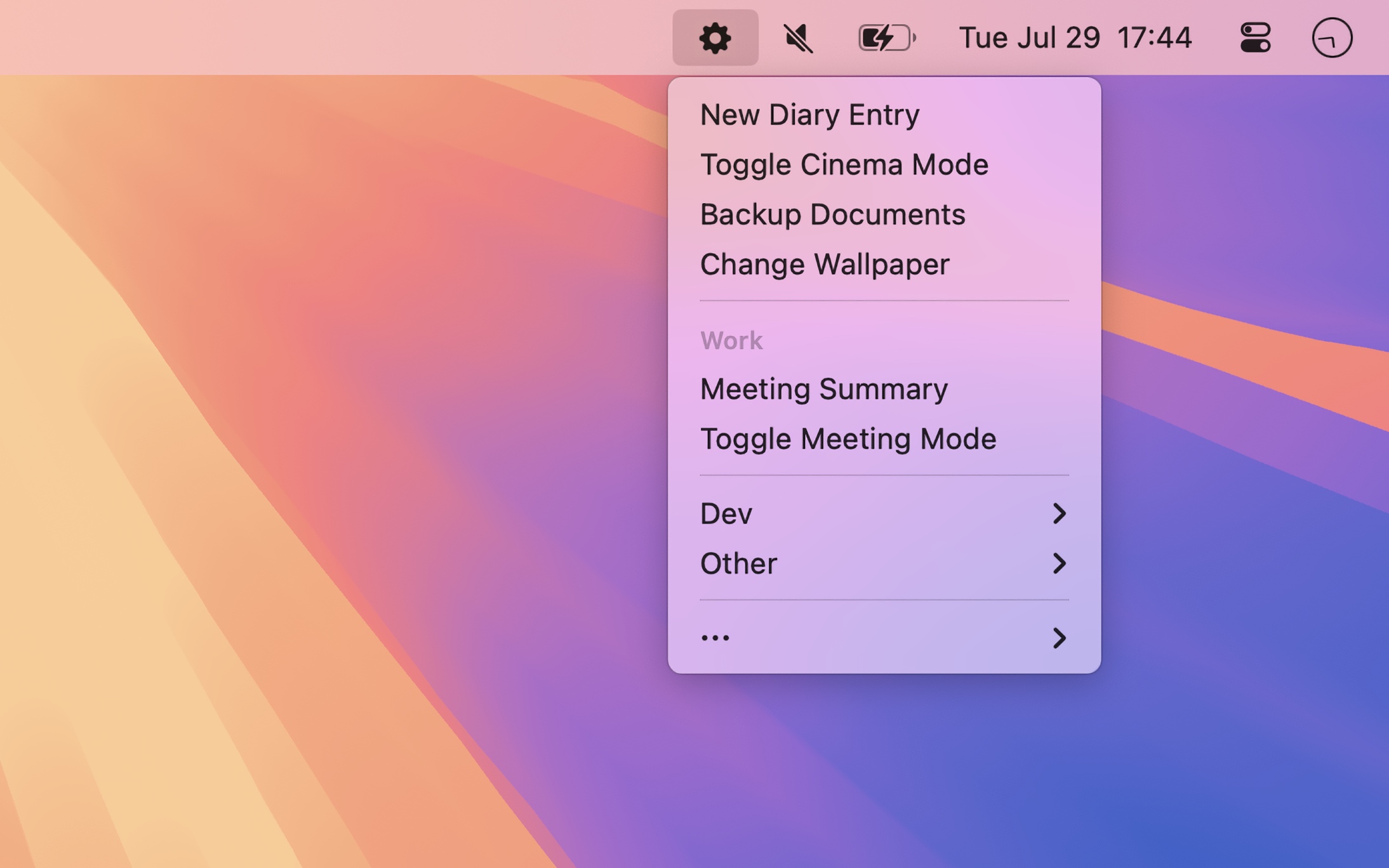
- Open Short Run. Its icon is in the menu bar.
- Open its settings, and click “Manage…” next to “Shortcuts”.
- Click the add button, and choose “Add Shortcuts…”. Select the shortcuts, and add them.
- Click the Short Run icon in the menu bar, and choose a shortcut to run it.
The shortcut runs in the background, without opening the Shortcuts app. You can put shortcuts in folders, which show as submenus, and show some shortcuts only when a certain app is active, in “App-specific shortcuts”.
Tips
- Set a keyboard shortcut for “Toggle menu” in the settings. Assign quick keys, like 1 or A, in the same settings. Then press the keyboard shortcut and the quick key to run a shortcut.
- A shortcut can open a folder, a website, or an app, so you can put almost anything in the menu.

Get Short Run
Run shortcuts from your menu bar

$6, one-time purchase
- Platform
- macOS
- Requires
- macOS 26 or later
- Category
- Productivity
- Released
- August 2025
- Privacy
- No data collected
- Developer
- Sindre Sorhus
Without an app
macOS has controls for shortcuts, which you add in Control Center:
- Click Control Center in the menu bar, and click “Edit Controls”.
- Click “Shortcuts”, and choose “Run Shortcut” for one shortcut, or “Show ‘Menu Bar’ Collection” for the shortcuts in the “Menu Bar” collection of the Shortcuts app.
- Choose “Add to Control Center”, and click “Done”.
To run a shortcut, click Control Center in the menu bar, and click the shortcut. While you edit the controls, you can also drag a control directly to the menu bar. Apple’s instructions.
This is good for a few shortcuts. Short Run adds folders, shortcuts that show only in some apps, and quick keys, in one menu for many shortcuts.