Updated
How to Send a Link from iPhone to Mac
With Hyperduck
- Install Hyperduck on your iPhone and on your Mac. Both must use the same Apple Account.
- Open Hyperduck on the Mac. Its icon is in the menu bar. Turn on “Launch at Login” in its settings, so it is always ready.
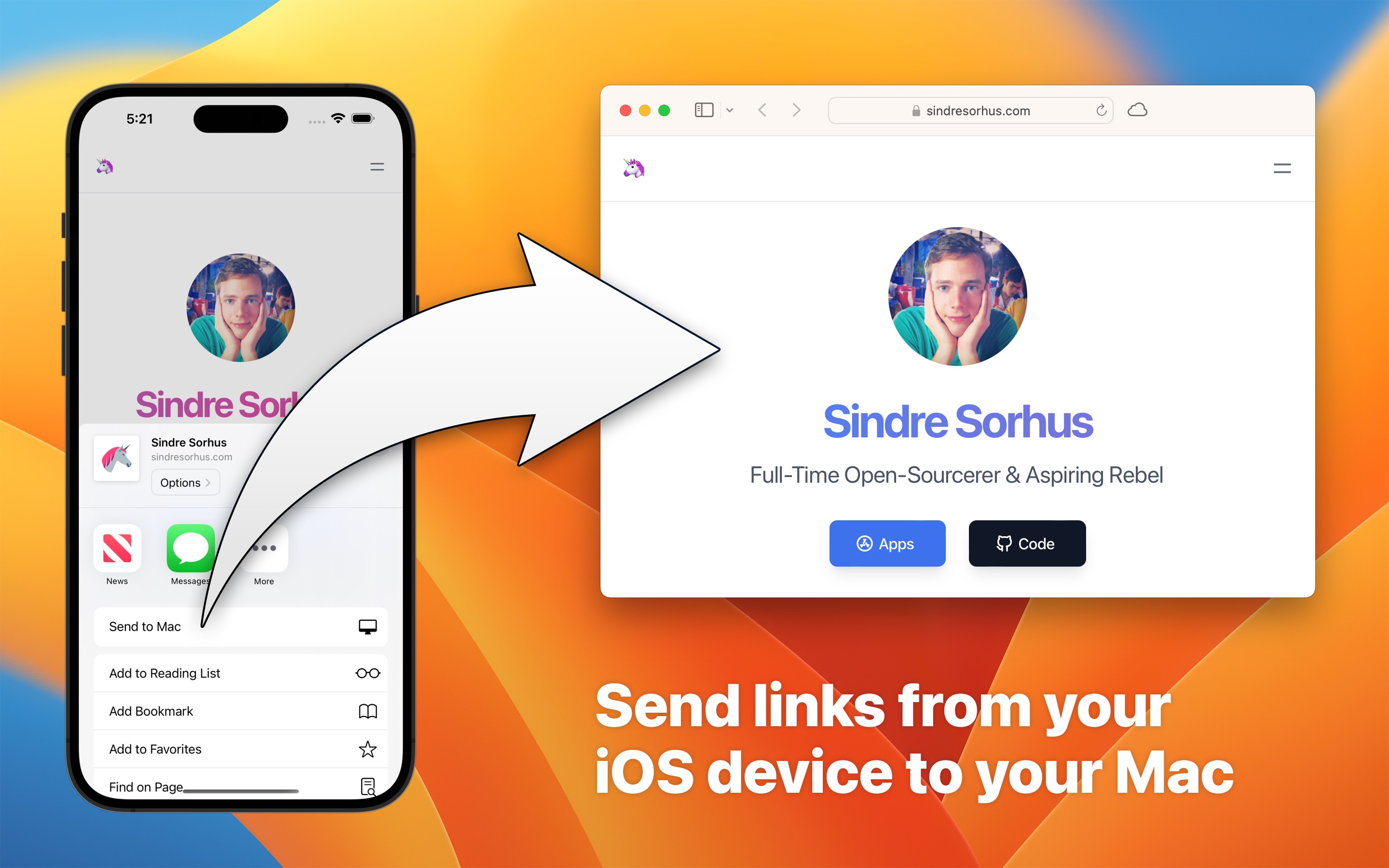
- On the iPhone, open the page in Safari, or in another app with links, like X or Reddit, and tap “Share”.
- Tap “Send to Mac”. If it is not in the list, tap “Edit Actions…” at the bottom of the share sheet, and add it. Sometimes iOS shows it only after you restart the iPhone.
- The link opens in the default browser of your Mac, in the background.
Hyperduck sends the link with iCloud, so the Mac does not need to be near you, or even on. When the Mac is off or offline, the link opens the next time it is online. You can send many links at a time.
Tips
- Hyperduck sends to one Mac. Install the Mac app only on the Mac that must open the links.
- To open the links in another browser or a browser profile, use Velja with a rule for links from Hyperduck. How to do it.
- Hyperduck can also run a shortcut on your Mac from your iPhone. How to do it.
- When a link does not open, see the troubleshooting.
Get Hyperduck
Send links from your iOS & visionOS devices to your Mac

$5, one-time purchase for all platforms
- Platforms
- macOS, iOS, visionOS
- Requires
- macOS 26 or later, iOS 26 or later, visionOS 26 or later
- Category
- Productivity
- Released
- January 2023
- Privacy
- No data collected
- Developer
- Sindre Sorhus
Without an app
Your iPhone and Mac have four ways to move a link. Universal Clipboard, iCloud Tabs, and Handoff need the same Apple Account on both devices. AirDrop also works between different accounts.
Universal Clipboard: Copy the link on the iPhone, and soon after, press CommandV on the Mac. The devices must be near each other, with Wi-Fi, Bluetooth, and Handoff on. How Hyperduck compares.
AirDrop: On the iPhone, tap “Share”, tap “AirDrop”, and tap your Mac. The Mac must be awake and near you, with Wi-Fi and Bluetooth on. If the Mac does not show, set “AirDrop” to “Contacts Only” or “Everyone” in “System Settings › General › AirDrop & Continuity” on the Mac. How Hyperduck compares.
iCloud Tabs: Safari shows the tabs that are open on your iPhone. In Safari on the Mac, show the sidebar, click your iPhone below “iCloud Tabs”, and click the page. The page must stay open in Safari on the iPhone, and private tabs do not show. Safari must be on in the iCloud settings of both devices. How Hyperduck compares.
Handoff: Open the page in Safari on the iPhone, and click the Handoff icon of Safari at the end of the Dock on the Mac. The devices must be near each other. Turn on Handoff in “System Settings › General › AirDrop & Continuity” on the Mac, and in “Settings › General › AirPlay & Continuity” on the iPhone. How Hyperduck compares.
These work well when your Mac is next to you. Hyperduck is for links from all apps, to a Mac that can be far away or off, and it opens them in your browser, so you do not forget them.