Updated
How to Change the Default Browser on Mac
With Default Browser
- Open Default Browser, and give it the access that it asks for in “Device Control and Data Access”.
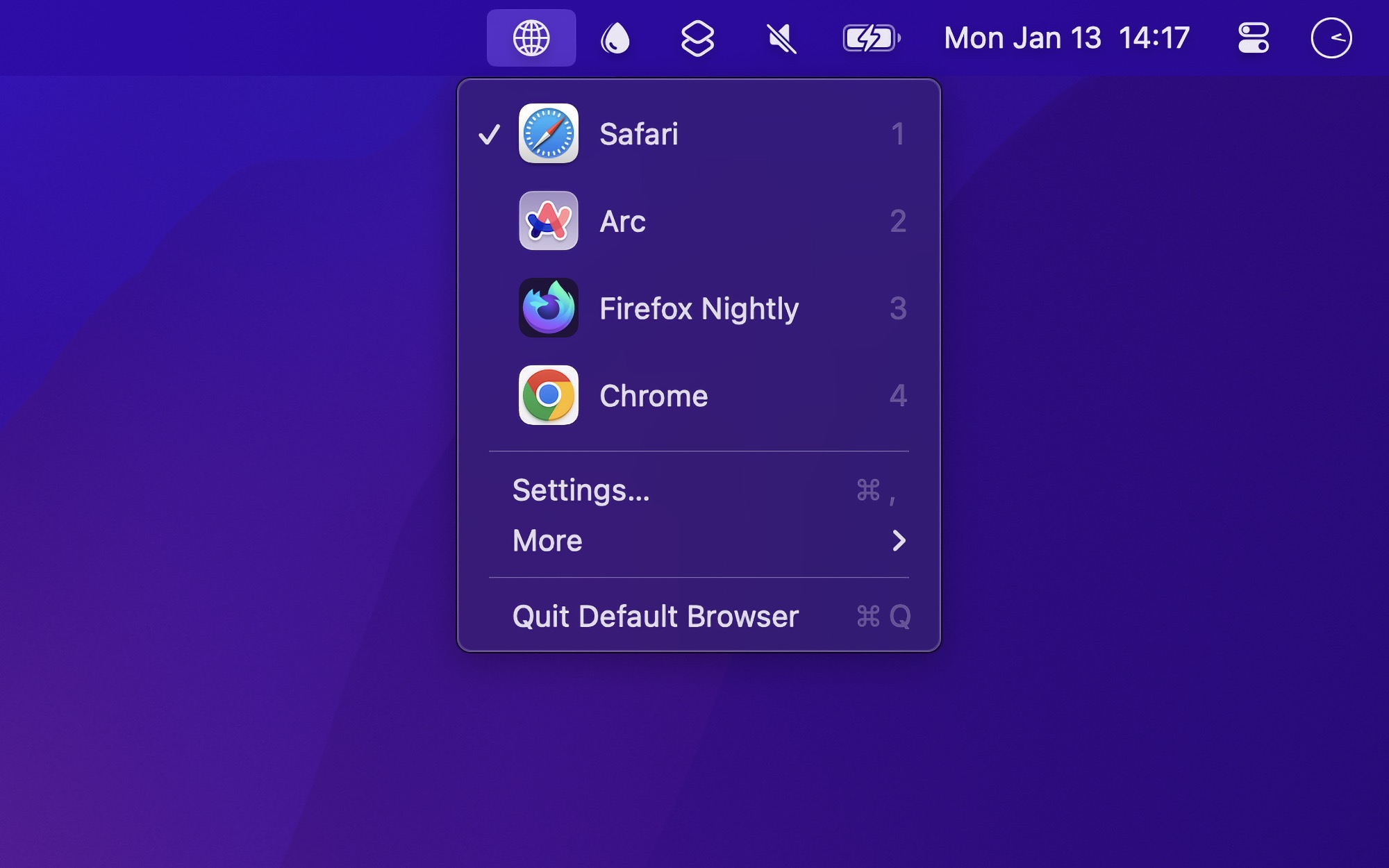
- Click its icon in the menu bar.
- Choose a browser. It is now the default browser of macOS.
A dialog of macOS can show for a moment, but you do not need to click it. To choose the browsers in the menu, or to show the icon of the default browser in the menu bar, open the settings of the app.
Tips
- Set a keyboard shortcut for “Toggle menu” in the settings. Then press a number key to choose a browser.
- Hold Option while you click a browser to open it, without making it the default.
- To switch automatically, like to another browser on the Wi-Fi network of your work, use the “Set Default Browser” action in a Shortcuts automation.
To open some links in one browser and other links in another, like Google Meet links in Chrome, you need rules, not a new default browser. How to open links in a specific browser.

Get Default Browser
Switch default browser from your menu bar
$6, one-time purchase, plus tax where applicable
- Platform
- macOS
- Requires
- macOS 26 or later
- Released
- January 2025
- Privacy
- No data collected
- Updated
- September 2026
- Version
- 1.2.1
- Size
- 7 MB
- Gumroad rating
- 5.0/5 (12 ratings)
Without an app
- Install the browser that you want to use.
- Open “System Settings › Desktop & Dock”.
- Scroll down, and choose the browser in “Default web browser”.
Most browsers can also make themselves the default browser, with a button in their settings. Then macOS asks if you want to change the default browser or keep the current one. Apple’s instructions.
This is fine if you change the browser one time. If you use one browser for work and another for everything else, the menu bar is faster.