← Back to Velja
Updated
How to Open Links in a Specific Browser on Mac
With Velja
- Open Velja and click “Get Started”. Velja works by being the default browser, so it asks to become it.
- Choose the browser for most links in “Primary Browser” in the menu bar menu.
- Open the settings, go to “Rules”, click “Add Rule”, and give the rule a name.
- Choose the browser in “Open in”. For a browser with profiles, like Chrome, you can choose the profile.
- Click the plus button next to “URL Matchers”, keep “Domain”, and type the domain, like
figma.com. - Click “Save”.
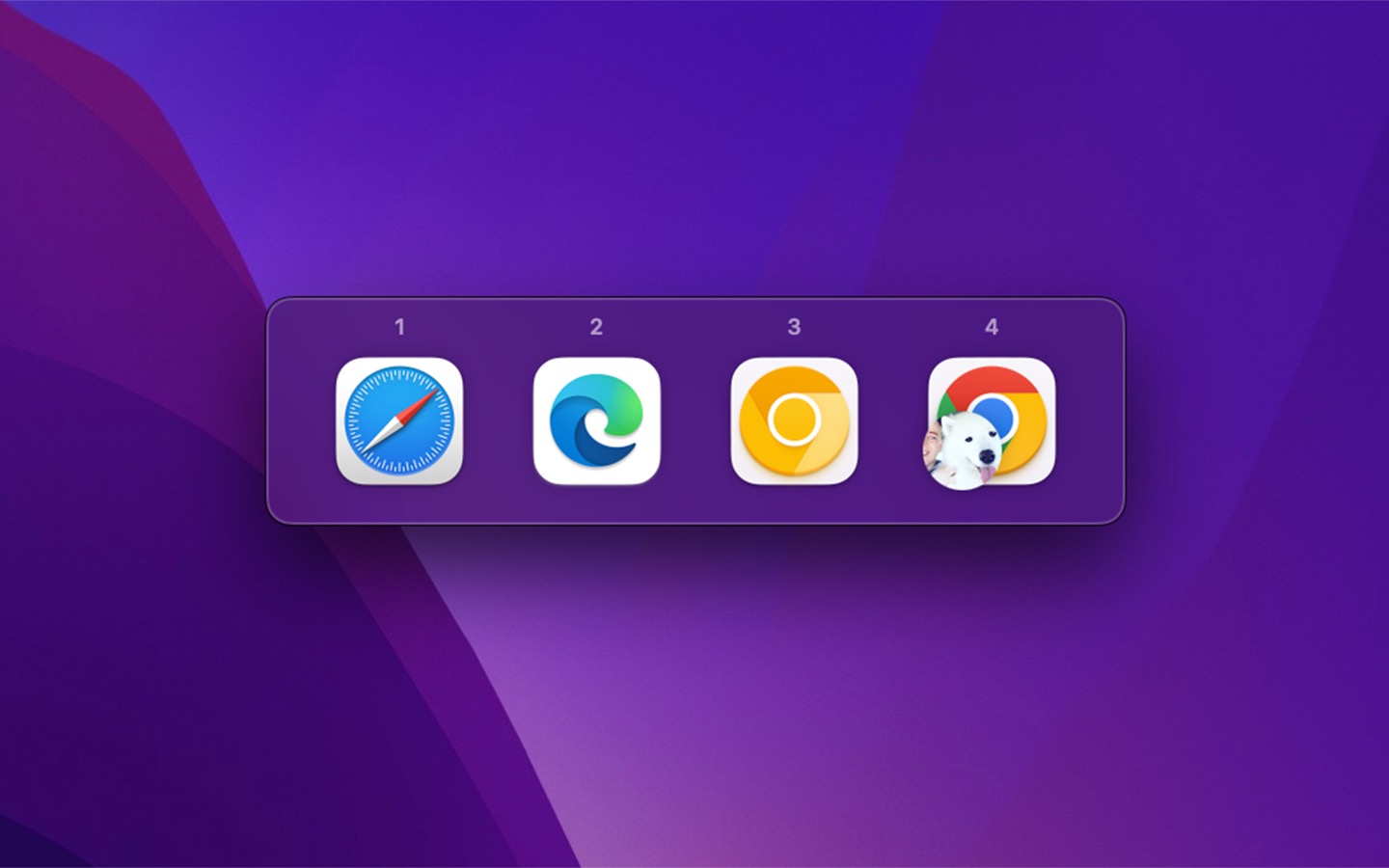
A rule can also match the app that you click the link in, like all links from Slack. Or hold Fn while you click a link to pick a browser from a prompt.

Get Velja
Powerful browser picker

$10, one-time purchase
- Platform
- macOS
- Requires
- macOS 26 or later
- Category
- Utilities
- Released
- April 2022
- Privacy
- No personal data collected
- Developer
- Sindre Sorhus
Without an app
macOS has one default browser, which opens all links that you click outside a browser. Change it in “System Settings › Desktop & Dock › Default web browser”. You cannot set a browser for some websites or for some apps.
To open one link in another browser, Control-click the link, choose “Copy Link”, and paste it in the address bar of the other browser.