
Command X
Cut and paste files in Finder
Cut and paste files and folders in Finder with CommandX and CommandV, instead of copying (CommandC) and then remembering to move (OptionCommandV).

$4, one-time purchaseRequires macOS 26 or laterSince 2023No personal data collected
Scan with your phone to open this page
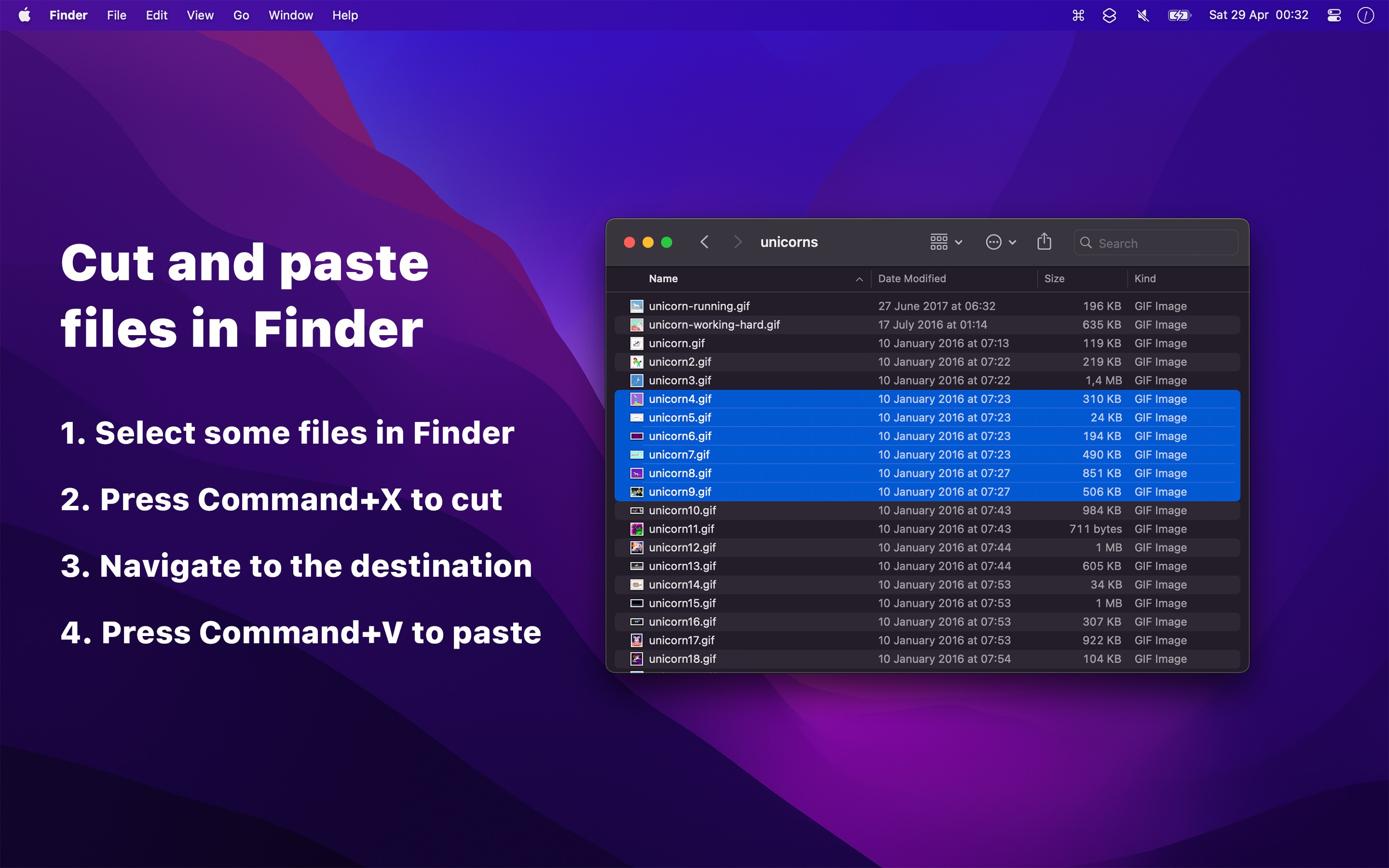
If you do a lot of file management and need to move items in Finder, this app will make your work much more straightforward. It’s objectively better than Apple’s standard shortcut, and pretty much everyone can benefit from it.
Courtesy of renowned macOS utilities developer Sindre Sorhus, Command X does exactly what it implies. Once installed, the app simply enables a Command + X shortcut on your Mac to move files in Finder. It’s that simple.
It also works in ForkLift.
Known limitation: You cannot cut the name of a file when editing a filename in Finder or cut when using the search field. More about this limitation.
Mentions
TIP
You may also like my Supercharge app which has an improved implementation of this.
Recent Reviews, all with five stars
Very useful
So useful it’s hard to know why it’s not just natively baked into Mac OS. Not fancy, but I’ve found it reliable.
💯 X 💯
This is one of those apps that works soo WELL––until the moment it’s not running–– I feel completely truncated in navigating and organizing the o.s. finder and file system. Why!? Great app, much appreciated for doing the simple well 🙏
An app that should be native.
I switch between macOS and Windows frequently, everything BUT Cmd+X is an official feature so far and it’s disappointing. I’ve been using this pretty much since launch and it has never failed me, I’d support the guy or girl that made this if I could, thank you <3
It’s The Little Things In Life
Thank you so much for introducing this capability. It’s basic at the most fundamental level. Having to work between Windows & Mac OS all the time. It is nice to just have this simple command to work within Files.
Frequently Asked Questions
I have a feature request, bug report, or some feedback
Click the feedback button in the app or send it here.
The app randomly quits
If there is no crash report, macOS most likely quit the app to free up memory or disk space. Keep at least 10–20 GB of free disk space, and do not use tools that “free up purgeable space”, like CleanMyMac, as they make macOS quit apps too. A restart of the computer can also help. This is a common problem for macOS apps.
The app does not work
First try relaunching the app. If that doesn’t help, try restarting your computer.
Then, make sure you pressed CommandX and not CommandC.
To make sure you used the app correctly, try this: Select a file in Finder, press CommandX, change to a different folder, press CommandV. The file should have been moved to this new folder.
Note: You cannot cut, highlight a folder, and then paste. You have to actually go into the folder to paste to it. That’s just how Finder works. Same with copy-pasting.
It could also be that certain apps (password managers and browsers) are interfering with the app.
If still not working, try closing down all apps and menu bar items, just to rule out some other app interfering.
Then try toggling the setting “Use more reliable way of handling CommandX”, and try the above steps again. If it works then, please report it to me.
If it’s still not working, try this: Select a file in Finder, press CommandC, change to a different folder, press OptionCommandV. The file should have been moved to this new folder. If this did not work, the problem is not this app, as those are the keyboard shortcuts it simulates.
If it’s a work computer, your company may have something installed that prevents the app from working.
Try uninstalling and reinstalling the app, and restart your computer.
If it’s still not working, try re-granting access:
- Open “System Settings › Privacy & Security › Device Control and Data Access”
- Remove Command X from the list
- Quit and reopen Command X
- Give it the access when it asks for it
Note: “Device Control and Data Access” is “Accessibility” on macOS 26 and earlier. More about this access.
The last thing you could try is to reset the permissions. Either use App Buddy, or quit the app, and run this in the Terminal app:
tccutil reset All com.sindresorhus.Command-X
To help me figure out the issue, make sure the “Use more reliable way of handling CommandX” setting is enabled, press CommandX and CommandV in Finder, click the “Copy Debug Info” button in the Command X menu bar menu, and then send the debug info to me, including a short explanation of what didn’t work.
How does the app work?
The app works by overriding the normal cut CommandX keyboard shortcut when Finder is active and executes a copy CommandC instead. When you then paste CommandV, it executes the native move OptionCommandV keyboard shortcut. So really, it’s Finder moving the files. This app just makes the keyboard shortcuts more intuitive.
Is there any risk of data loss if I forget to paste?
No. The files are not touched until you paste. If you don’t paste, the files just stay in place.
Can it make the cut files in Finder have less opacity?
This is not possible. The app works by overriding some key combinations. It doesn’t and cannot modify Finder in any way.
Can I change the volume of the cutting sound?
The cutting sound is a macOS system sound effect, so its volume follows the alert volume in “System Settings › Sound”. The sound also requires “Play user interface sound effects” to be enabled there. To turn off the sound, disable “Play sound effect when cutting” in the settings of the app.
It does not work when I try to paste directly to an expanded subfolder shown in its parent folder
This is a Finder bug. You can reproduce it even without Command X by selecting the file to move, pressing CommandC, selecting the destination folder, and then pressing OptionCommandV.
It does not work when I try to paste into a folder in column view where the parent is a tag
Same as the above.
I am not able to cut text when editing a filename in Finder
This is a known issue that is unfortunately not fixable. The app works by overriding the normal cut keyboard shortcut when Finder is active, which also affects cutting text in a filename. There is no way to differentiate between cutting a file and cutting text in a filename in Finder. The main reason this is not possible is because of restrictions (sandboxing) imposed on apps on the App Store. My Supercharge app has the Command X feature without this rename limitation because it’s not on the App Store.
Why CommandX? I can already move files with CommandC and OptionCommandV
- It’s more logical to cut & paste than copy & move.
- Consistency and muscle memory benefits if you also use Linux or Windows.
Older Versions
These are free for everyone but they will not run on newer macOS versions.
Get Command X
Cut and paste files in Finder
$4, one-time purchase
- Platform
- macOS
- Requires
- macOS 26 or later
- Category
- Utilities
- Released
- April 2023
- Privacy
- No personal data collected
- Developer
- Sindre Sorhus