← Back to Command X
Updated
How to Cut and Paste Files on Mac
With Command X
- Open Command X, and give it the access that it asks for in “Device Control and Data Access”. It needs this access to change what the keys do in Finder.
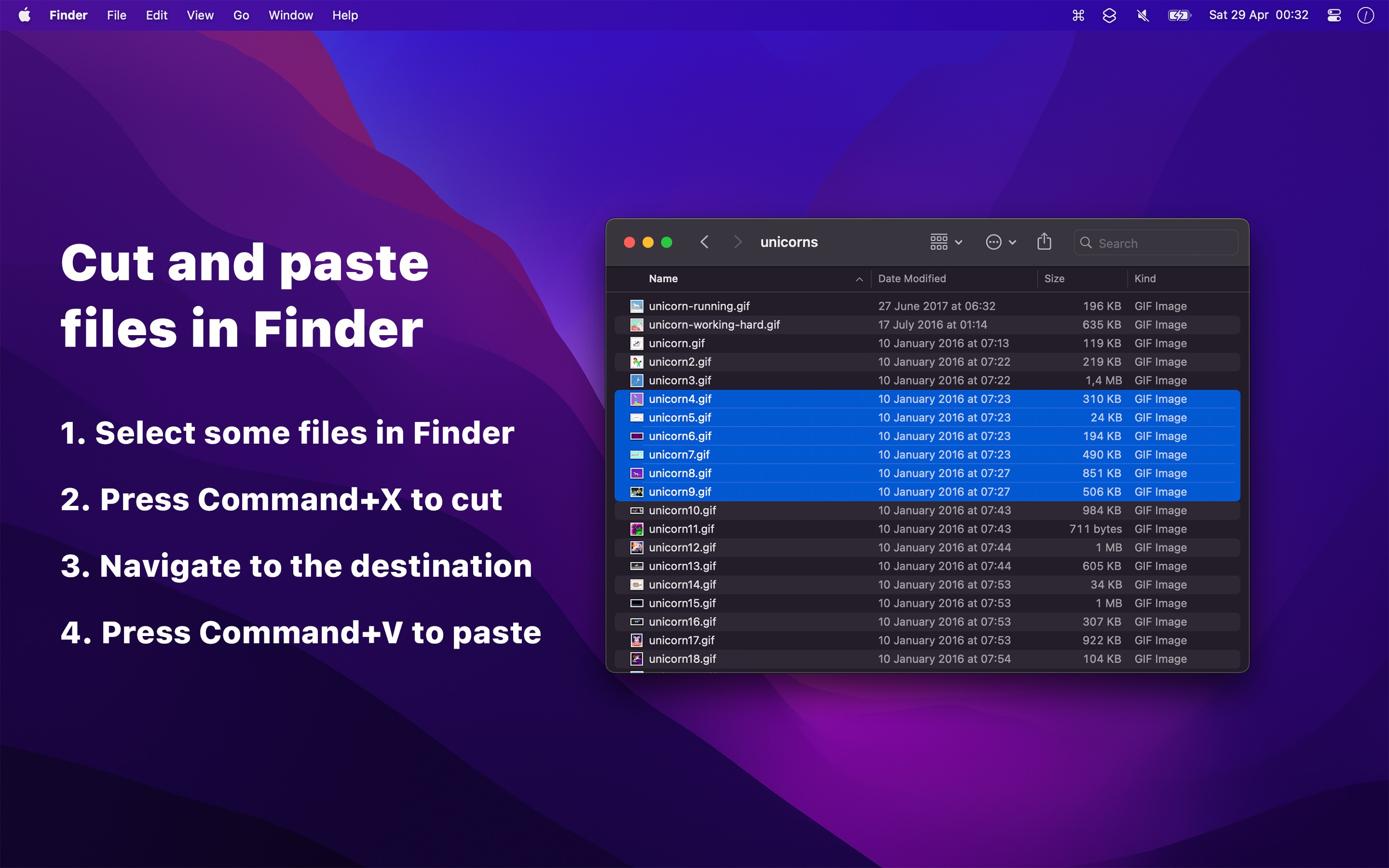
- Select the files or folders in Finder, and press CommandX.
- Open the folder to move them to, and press CommandV. The files move.
Command X makes Finder copy when you press CommandX and move when you press CommandV, so Finder itself moves the files. Nothing happens to the files until you paste.
- Open the folder before you paste. Like with copy and paste, a selected folder does not get the files.
- Only the keys work, not the “Paste” command in the menu.
- Command X cannot cut text when you rename a file or type in the search field of Finder. Supercharge has the same feature without this limitation.

Get Command X
Cut and paste files in Finder

$4, one-time purchase
- Platform
- macOS
- Requires
- macOS 26 or later
- Category
- Utilities
- Released
- April 2023
- Privacy
- No personal data collected
- Developer
- Sindre Sorhus
Without an app
Finder can move files with a copy and a “Move Item Here”:
- Select the files or folders in Finder, and press CommandC.
- Open the folder to move them to.
- Press OptionCommandV. Or open the Edit menu, hold Option, and choose “Move Item Here”, which replaces “Paste Item”.
You can also drag the files to the other folder. On the same disk, Finder moves them. To another disk, Finder copies them, so hold Command while you drag to move them.
The built-in way works well when you remember OptionCommandV. Command X is for when your fingers expect CommandX, like when you also use Windows or Linux.