Bare
Minimal grocery shopping list
A shopping list that is fast to add to and fast to check off.

$2, one-time purchase for all platformsAvailable on macOS, iOS, watchOS, and visionOSRequires version 27 or laterNo data collected
Scan with your iPhone to open Bare on the App Store
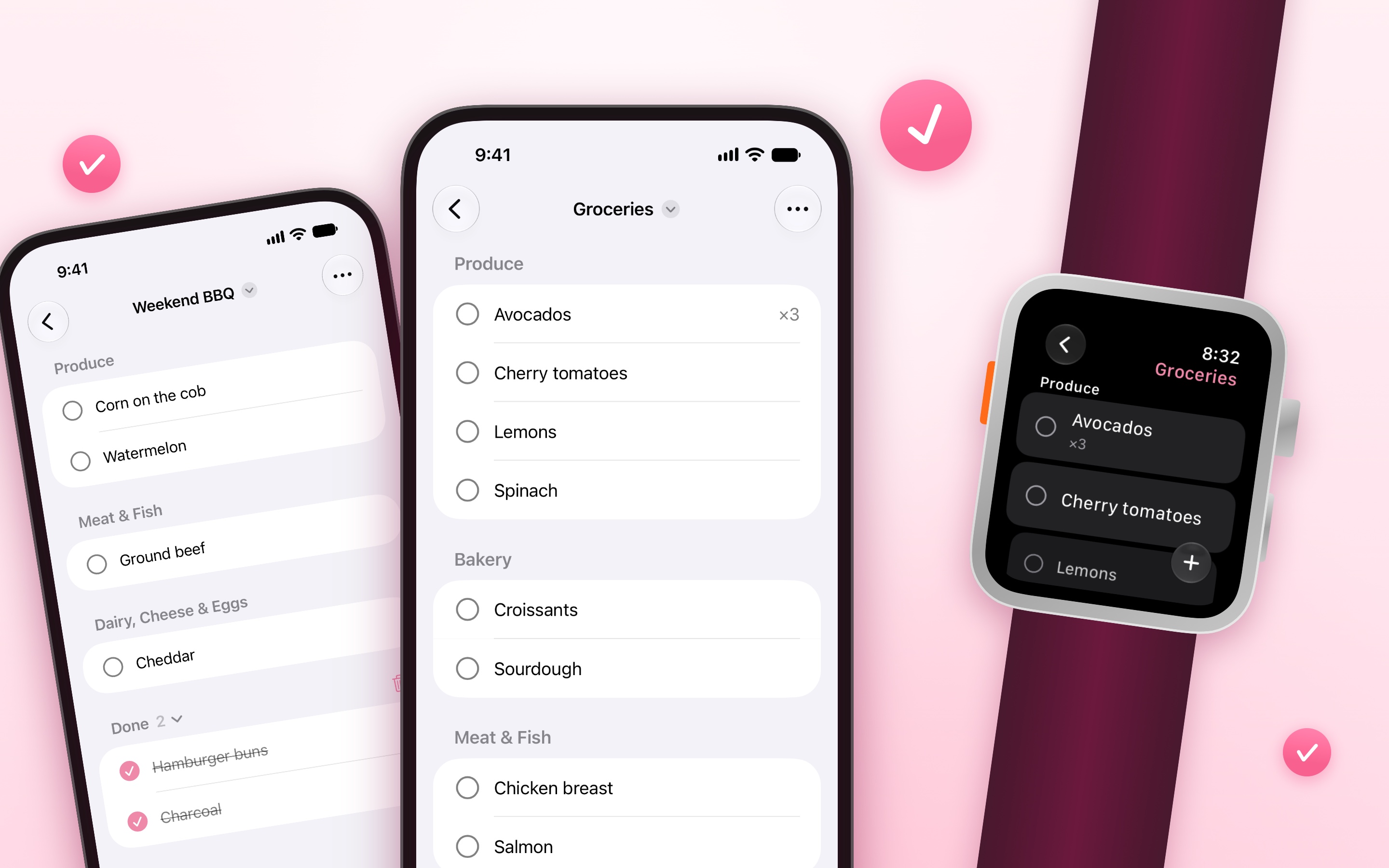
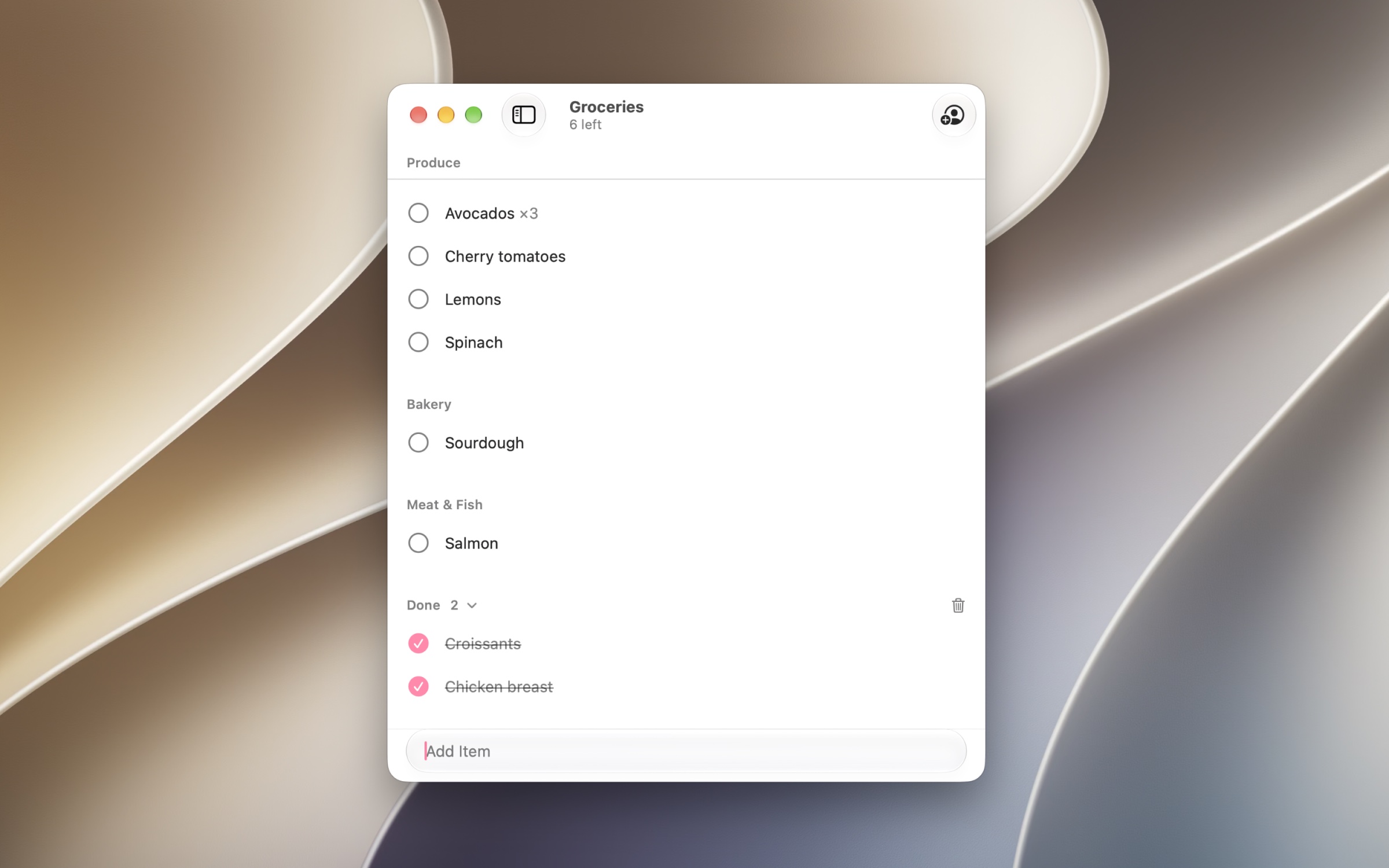
Type an item and press return. It goes into the right store section automatically, like Produce, Dairy, or Household, so your list follows your path through the store. Tap an item to check it off.
The app is intentionally simple. No accounts, settings, ads, recipes, meal plans, or prices. Nothing to set up. It does one thing well: your shopping list.
Available in English and Norwegian. I may add more languages, but no promises.
Highlights
- Sorted by store section automatically, with Apple Intelligence
- Share a list with your family and see their changes right away
- Check off items from a widget, without opening the app
More features
- Suggestions as you type, from your earlier items and common groceries
- Type “2 milk” to set the quantity
- Multiple lists, for example, one for each store
- The screen stays on while you shop
- Send a list as text to someone without an iPhone
- Syncs across your devices with iCloud
- Paste a copied list to add one item per line
- Lock Screen widgets, a Control Center control, and the Action button
- Siri and Shortcuts: “Add to Bare”
- Apple Watch app that works on its own
Frequently Asked Questions
I have a feature request, bug report, or some feedback
Click the feedback button in the app or send it here.
The widget does not show up in the widget picker, is stuck, or is missing
The iOS widget system is quite buggy and can fail a lot. This is not a problem with the app and is out of my control. See how to fix a widget that does not show up.
The Lock Screen widget sometimes disappears
Make sure Lock Screen widgets are allowed when locked: “Settings › Face ID & Passcode › Allow Access When Locked › Lock Screen Widgets”. If it’s “off”, iOS may hide the widget until you unlock.
An item is in the wrong section
Touch and hold the item, tap “Category”, and pick another one. The app remembers it for the next item with the same name. To let the app choose again, pick “Automatic”.
How does the app know which store section an item goes in?
In this order:
- The section you picked for an item with the same name.
- The section an earlier item with the same name got.
- A built-in list of common groceries.
- Apple Intelligence, with Private Cloud Compute or the on-device model. The item is added right away and sorted a moment later.
How do I join a list someone shared with me?
Open the invitation link on a device with the app, while signed in to iCloud. The app shows “Joining List…” until the list appears. If it fails, tap “Try Again”.
iCloud syncing does not work
There is no sync setting. The app syncs when you are signed in to iCloud. Troubleshooting.
How do I set the quantity?
Type it with the name, like “2 milk”, “2x milk”, or “milk x2”. Text like “500 g flour” stays in the name.
You can also swipe right on an item to add or remove one. Adding an item that is already on the list increases its quantity.
How do I edit an item?
Touch and hold the item and tap “Edit”, or swipe left on it and tap the pencil button. You can change the name, quantity, category, and notes. A renamed item keeps its section. To sort it again, set its category to “Automatic”. On Apple Watch, notes are read-only.
Where do checked items go?
They move to Done at the bottom of the list. Tap one to put it back. To remove them all, tap the trash button in the Done header.
How do I use the same list again?
Tap the “…” menu and then “Uncheck All”. All items in Done go back on the list.
Does it work without Apple Intelligence?
Yes. Common groceries are still sorted, and other items go in Other, where you can move them yourself. The app remembers your choice. See which devices have Apple Intelligence.
Why is an item in Other?
The app could not find a section for it, or could not sort it yet, for example, when you added it on Apple Watch while offline. Touch and hold the item, tap “Category”, and pick one. The app remembers it.
Can I change the order of the sections to match my store?
No. The sections are in the order most stores use, starting with Produce. Custom orders and categories will not be supported, as they need setup, and the app is designed to work without it.
Does the Apple Watch app need my iPhone?
No. It syncs directly with iCloud, so it works even when your iPhone is at home. Items you add on the watch are sorted with Private Cloud Compute, or, when it is not available (for example, offline), the next time you open the app on your iPhone, iPad, or Mac.
The widget does not show my latest changes
The widget gets its data from the app, so after you force-quit the app, it may not update until you open the app again. You do not need to quit apps on iOS. The system can also delay background updates, for example, in Low Power Mode or when “Background App Refresh” is off. On Mac, the widget updates only while the app is open.
Does it work without an internet connection?
Yes. Your lists are on your device, so you can add and check off items without a connection, like in a store with bad coverage. Changes sync when you are online again.
How do I add many items at once?
Copy a list with one item per line, for example, from Notes or a message, and use “Paste” in the “…” menu of the list. Bullets like “- ” are removed.
Can I import my list from Reminders or another app?
Yes. Copy the items as text, one per line, and use “Paste” in the “…” menu of a list. Bullets like “- ” are removed.
Can I change the order of the items?
No. Items are sorted A to Z in each section, so they are easy to find. Done shows the last checked item first.
How do I move an item to another list?
Touch and hold the item and tap “Move to List”. If the other list has an unchecked item with the same name, the quantities are added together.
Can I add details like the brand or size?
Yes. Touch and hold the item, tap “Edit”, and write it in “Notes”. Keep the name short, like “Milk”, so the app can sort and suggest it.
How can I add an item with Siri?
Say “Add to Bare” or “Add to Groceries in Bare”, and then the item. Without a list name, it adds to your first list. The app also has Shortcuts actions.
Can I undo?
Yes, on iPhone, iPad, and Mac: shake the iPhone, swipe left with three fingers, or press CommandZ. You can undo checking off, deleting, and “Uncheck All”. On Apple Watch, you can put an item back from Done, but you cannot undo a delete.
How do I stop sharing or leave a shared list?
Open the list, tap the “…” menu, and then “Manage Sharing”. There, the owner can remove people or stop sharing, and others can leave the list. You can also swipe left on the list in the lists screen and tap “Leave”.
Can the people I share with use Android or a computer?
They need the app on an iPhone, iPad, or Mac. For anyone else, use “Send as Text”.
Is my data private?
Your lists are stored on your devices and in your iCloud account. I cannot see them. Categorization uses Apple Intelligence on your device or Apple’s Private Cloud Compute, which does not store your data.
Is there a Mac app?
Yes. On Mac, click an item to check it off, and right-click instead of touch and hold. The actions of the “…” menu are in the “List” menu in the menu bar, and the Share button is in the toolbar.
How do I remove a suggestion?
Touch and hold the suggestion above the keyboard and tap “Remove Suggestion”. You can only remove suggestions from your earlier items, not the built-in common groceries.
Why are the suggestions in the wrong language?
The built-in suggestions follow the app language. To change it, go to “Settings › Apps › Bare › Language” on iPhone and iPad, or add the app in “System Settings › General › Language & Region › Applications” on Mac. Suggestions from your earlier items always show, in any language.
Why do I get suggestions I never typed?
The app has a built-in list of common groceries, about 5,000 in English and 3,900 in Norwegian. You cannot remove them, but your own items are suggested first.
Why does the screen not turn off?
The screen stays on while a list is open, so the phone does not lock between aisles. Auto-lock comes back after ten minutes without changes.
How do I turn off the haptic feedback?
The app follows the system setting: “Settings › Sounds & Haptics › System Haptics”.
Where are the settings?
There are none. The app is designed to work without setup. It follows system settings, like “System Haptics” and the app language.
How do I add items on Apple Watch?
Open a list, tap the “+” button at the bottom, and dictate, type, or scribble the item. You can also add a list to a watch face as a complication.
The watch goes back to the clock while I shop
On the watch, open “Settings › General › Return to Clock”, tap Bare, and turn on “Return to App”. The list then stays open when you raise your wrist.
How do I choose which list the widget shows?
Touch and hold the widget, tap “Edit Widget”, and choose a list. If that list is deleted, the widget shows your first list.
Are there keyboard shortcuts?
Yes, on iPad and Mac:
- CommandN: Add an item
- ShiftCommandN: Make a new list
- Command1 to Command9: Go to one of the first nine lists
- CommandZ: Undo
How do I rename or delete a list?
In the lists screen, touch and hold the list, and tap “Rename” or “Delete”. To rename the open list, you can also use “Rename” in the “…” menu.
Can I see who added or checked off an item?
No. To keep the list simple, the app does not show who did what.
Do I get a notification when someone adds an item?
No. The list updates by itself, and on iPhone, iPad, and Apple Watch, the widgets update in the background.
We added the same item at the same time, and now it is there twice
This can happen when two devices add a new item at the same moment, before they sync. Delete one of them.
Can I use the app without iCloud?
Yes. Your lists work on the device. To sync and share them, sign in to iCloud in Settings.
The app says the iCloud account changed
The lists on the device belong to another iCloud account, so the app pauses syncing to not mix them. To use the current account, tap “Delete Lists on This Device”. This downloads the lists of the current account and does not affect lists in iCloud, but changes that were not uploaded yet are lost.
The app says the iCloud data was deleted
The app’s data in iCloud was deleted, for example, in Settings, but your lists are still on the device. Tap “Upload Lists Again” to keep them. Shared lists must be shared again.
My iCloud storage is full
Your changes stay on the device and sync when there is space again. A note about it shows below your lists in the lists screen.
What happens if I delete the app?
Lists that synced to iCloud come back when you reinstall the app. Lists that did not sync, for example, without iCloud, are lost.
How do I delete an item?
Swipe left on the item and tap the trash button, or touch and hold it and tap “Delete”. You can undo it on iPhone, iPad, and Mac.
Do I need to buy the app again for my Mac or Apple Watch?
No. One purchase works on iPhone, iPad, Mac, and Apple Watch.
What can I not do on Apple Watch?
Share lists, leave a shared list, rename lists, edit notes, and move items. Do these on your iPhone, iPad, or Mac.
Can I change the order of my lists?
No. Lists are in the order you made them, so your first list is the oldest one.
Can you localize the app into my language?
The app is in English and Norwegian. I may add more languages, but no promises.
Can you add prices, photos, barcode scanning, recipes, or meal plans?
No. The app is intentionally simple, and these features would make it slower to use for most people.
The Lock Screen widget does not show the text after restarting the device, before unlocking it
This is an iOS limitation and is out of my control. It shows a placeholder until the first unlock. This is how all Lock Screen widgets work.
Get Bare
Minimal grocery shopping list
$2, one-time purchase for all platforms
- Platforms
- macOS, iOS, watchOS, visionOS
- Requires
- macOS 27 or later, iOS 27 or later, watchOS 27 or later, visionOS 27 or later
- Category
- Productivity
- Released
- October 2026
- Privacy
- No data collected
- Developer
- Sindre Sorhus