Aiko
AI-powered audio transcription
Turn recordings of meetings, lectures, and voice memos into text. The transcription runs on your device, so your audio is never uploaded.

$24, one-time purchase for all platformsAvailable on macOS, iOS, and visionOSRequires version 26.6 or laterSince 2023No data collected
Scan with your iPhone to open Aiko on the App Store
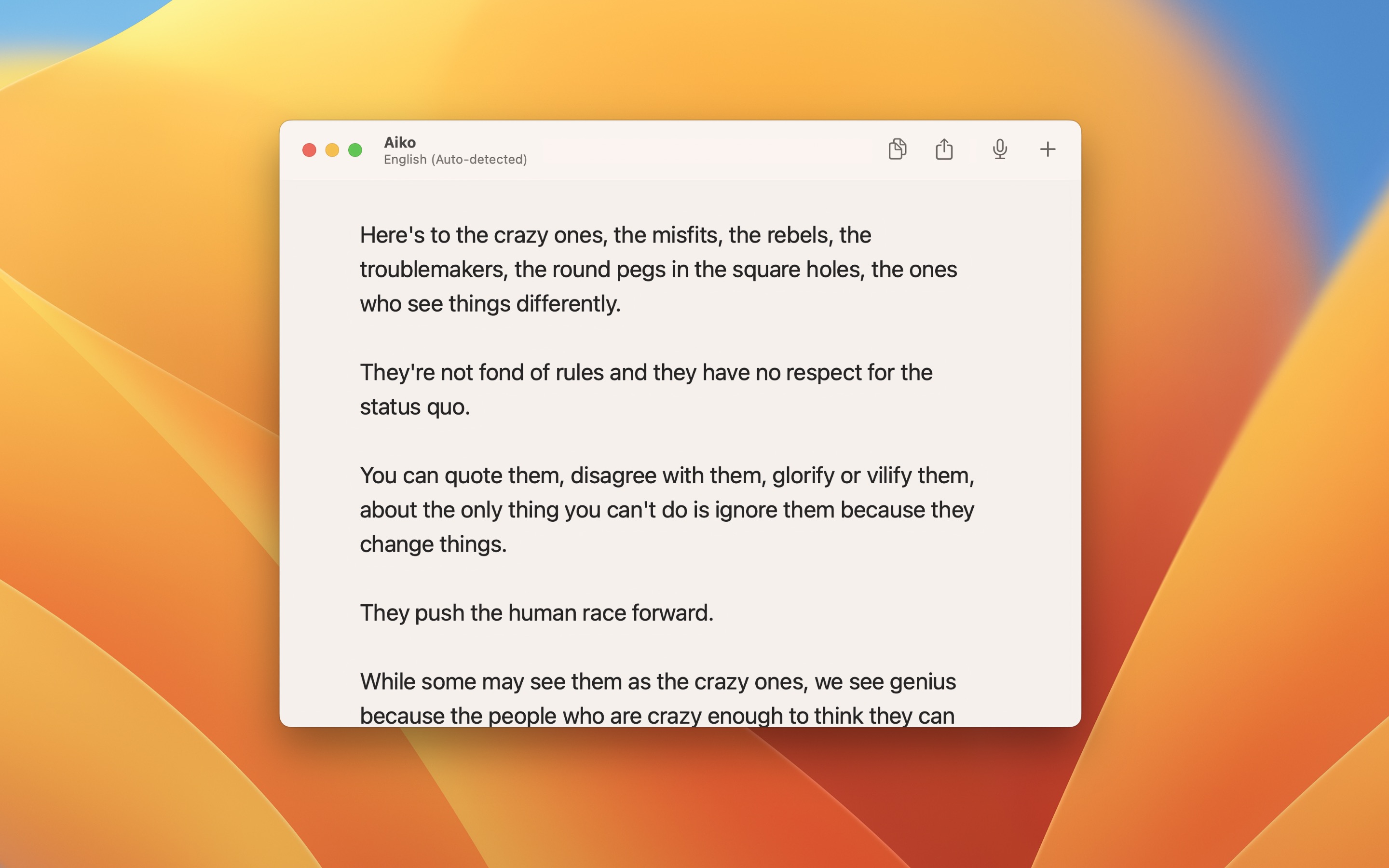
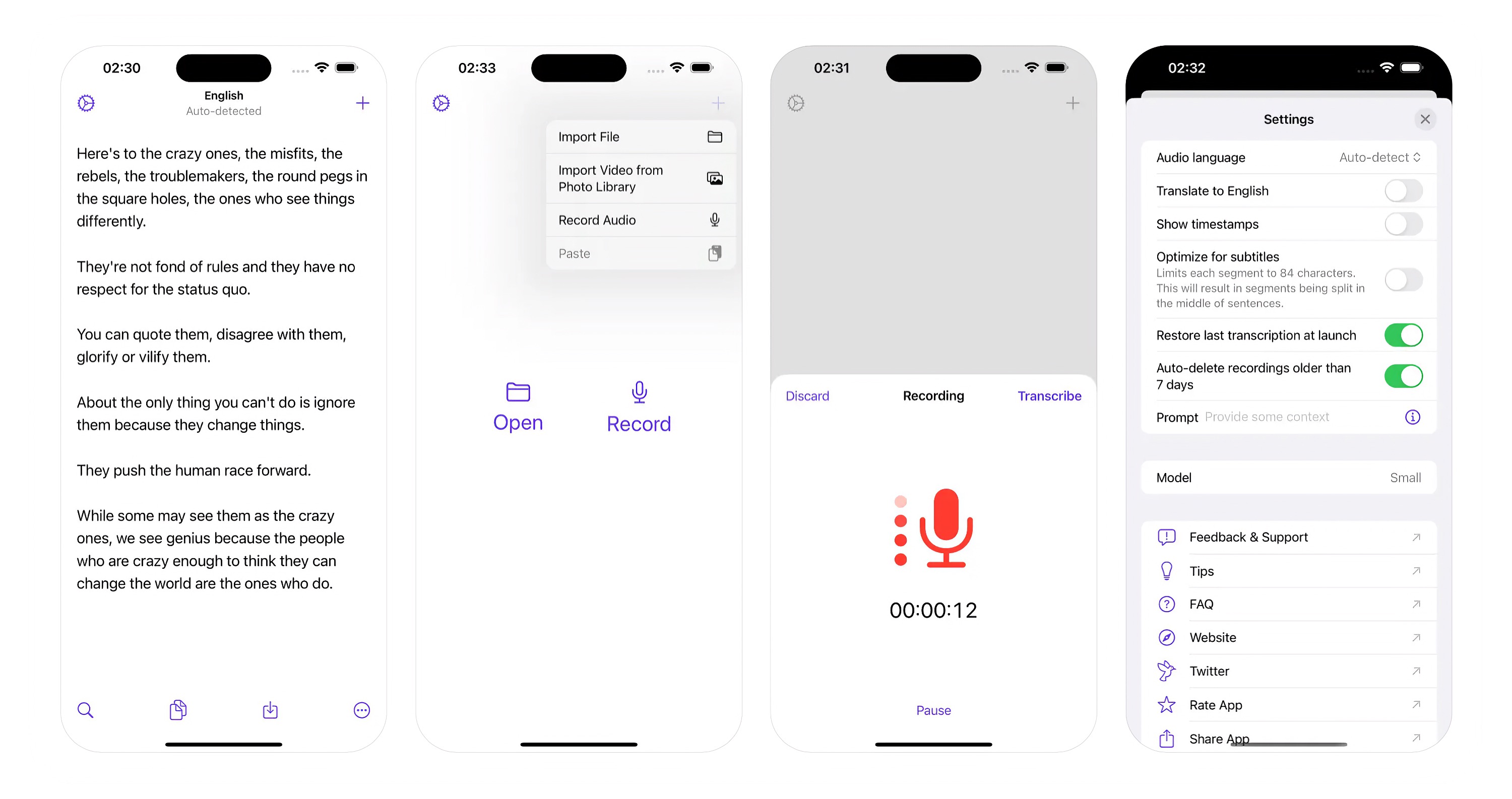
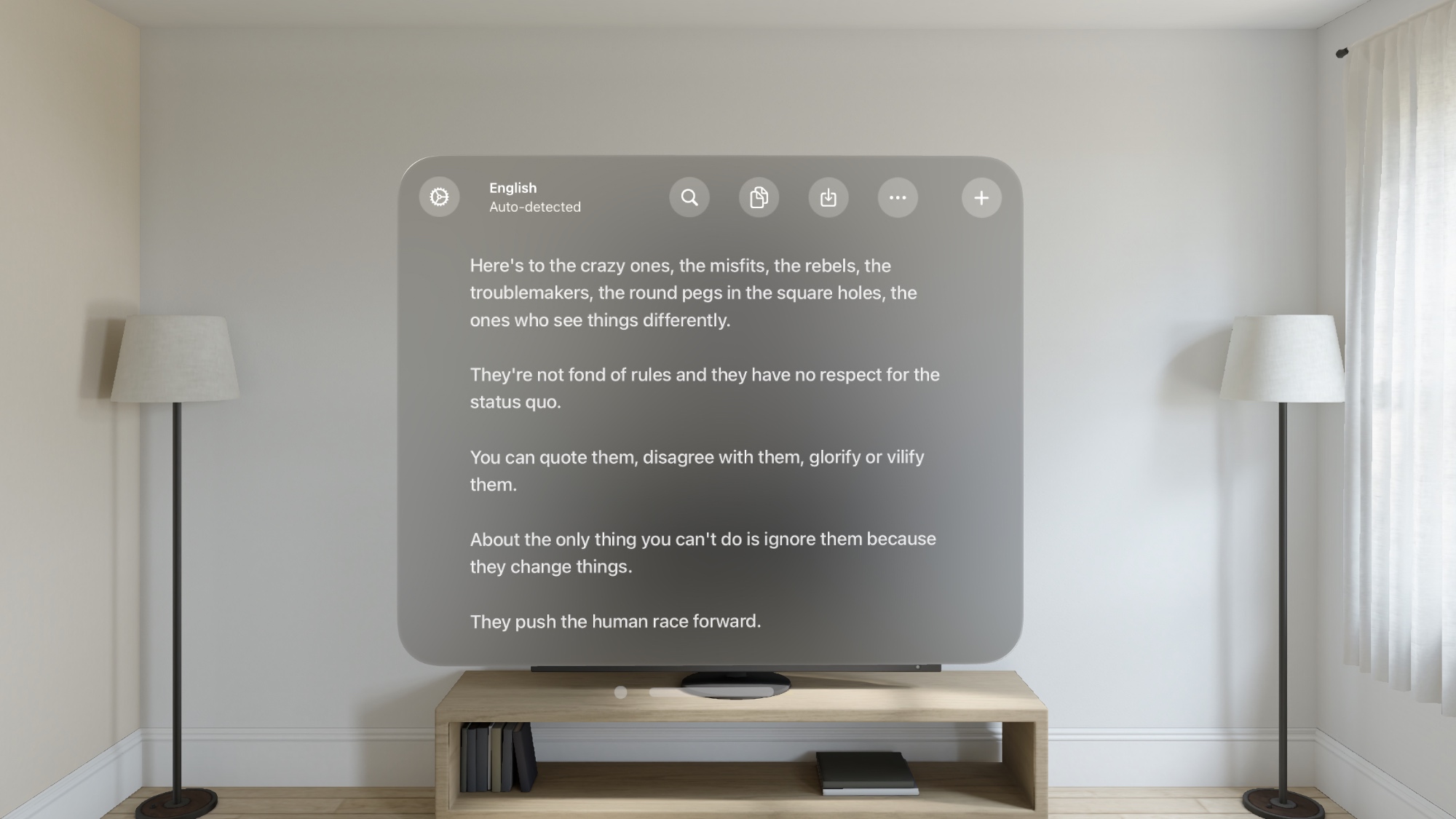
Aiko does not upload the file to the cloud to make the transcription; everything happens on your device. And it works fairly quickly, too: I was able to transcribe a half hour radio drama in just a few minutes.
However, you can use Aiko for iOS or macOS to convert recordings you’ve already made. […] and powered by an AI engine from ChatGPT developer OpenAI. Your recordings are kept private on your device too.
The transcription is powered by OpenAI’s Whisper model running locally on your device.
The app also includes support for Shortcuts.
Supports audio in 100 languages
Some languages have worse quality than others. Try the trial first.
- Afrikaans
- Albanian
- Amharic
- Arabic
- Armenian
- Assamese
- Azerbaijani
- Bangla
- Bashkir
- Basque
- Belarusian
- Bosnian
- Breton
- Bulgarian
- Burmese
- Catalan
- Chinese
- Croatian
- Czech
- Danish
- Dutch
- English
- Estonian
- Faroese
- Finnish
- French
- Galician
- Georgian
- German
- Greek
- Gujarati
- Haitian Creole
- Hausa
- Hawaiian
- Hebrew
- Hindi
- Hungarian
- Icelandic
- Indonesian
- Italian
- Japanese
- Javanese
- Kannada
- Kazakh
- Khmer
- Korean
- Lao
- Latin
- Latvian
- Lingala
- Lithuanian
- Luxembourgish
- Macedonian
- Malagasy
- Malay
- Malayalam
- Maltese
- Marathi
- Mongolian
- Māori
- Nepali
- Norwegian
- Norwegian Nynorsk
- Occitan
- Pashto
- Persian
- Polish
- Portuguese
- Punjabi
- Romanian
- Russian
- Sanskrit
- Serbian
- Shona
- Sindhi
- Sinhala
- Slovak
- Slovenian
- Somali
- Spanish
- Swahili
- Swedish
- Tagalog
- Tajik
- Tamil
- Tatar
- Telugu
- Thai
- Tibetan
- Turkish
- Turkmen
- Ukrainian
- Urdu
- Uzbek
- Vietnamese
- Welsh
- Yiddish
- Yoruba
Privacy
Aiko transcribes audio directly on your device, ensuring complete privacy. It’s perfect for sensitive recordings.
Technical details
The app uses the Whisper large v2 model on macOS and the medium or small model on iOS depending on available memory.
Recent Reviews, all with five stars
Rated 4.7 out of 5 from 329 ratings on the App Store
The best
This is the best audio recorder/transcriber I’ve come across. I used to work in a noisy warehouse and could never hear our team leader during morning meetings. Using this, I was able to catch all the words even with the surrounding noise. Also great with non-English languages. It does what it’s supposed to do- simple as that.
Excellent app easy to use.
I absolutely love this app! Very clear and simple to use and you can copy and paste to anywhere. Definitely worth all the money I paid!
A fantastic app for language learners!
Aiko helps me create subtitles from Chinese videos without captions, making it much easier to study and understand native speech. Simple, accurate, and extremely useful. Thank you for this wonderful tool! 🙏
Great App - Thank You
For me it’s a great app. I have a bit of a problem remembering an entire conversation. This app has helped me quite a bit in recalling them. It is nice to have an instant replay to job my memory!
Trial
Try Aiko free for 14 days with TestFlight. It’s the full app, no limitations. No auto-charges or commitment. Simply purchase it from the App Store after the trial if you want to continue using it.
If you get asked for a code, just click the above link again instead.
Disregard where it says how many days there are left. It means the days left of the current TestFlight build, not how long you have left on your trial.
Tips
Divide text into paragraphs
Aiko divides the transcription text by sentences. If you want the text divided into paragraphs, paste the text into an app like Notes, select it, and use Apple’s Writing Tools with the following prompt. You can also use ChatGPT, but then the text leaves your device.
Divide the text into paragraphs
Fix missing punctuation
A flaw of the Whisper model is that transcriptions can sometimes be missing punctuation. Try setting the “Prompt” setting to, for example:
Hello. I like cake.
If that still doesn’t fix it, paste the text into an app like Notes, select it, and use Apple’s Writing Tools with this prompt: Fix the missing punctuation You can also use ChatGPT, but then the text leaves your device.
Batch transcribe
Aiko does not have built-in batch transcription, but you can do it with shortcuts.
Get this (iOS) or this (macOS) shortcut and then share the audio files you want to transcribe (e.g. from Voice Memos or Files/Finder) and choose the shortcut in the share sheet. You can also run the shortcut directly from the Shortcuts app or even add the shortcut to the Home Screen.
Transcribe files directly in Finder
On macOS, you can transcribe files simply by right-clicking audio files in Finder and choosing the “Transcribe multiple files in Finder” shortcut (add it first) in “Quick Actions”. Preview. In the shortcut you can choose whether you want text or subtitles.
Record and transcribe by pressing the iPhone action button
The Record & Transcribe shortcut records, transcribes, and then shows the result in the Aiko app. Save the shortcut and then select it in the action button settings.
If you want to record, transcribe, and then do something with the transcription in your shortcut workflow, check out the “Record, Transcribe, Show” shortcut. You could, for example, pass the transcription to the ChatGPT shortcut action for further processing.
Quickly record and transcribe (iOS)
Do the same as the above, but instead add the shortcut to the Home Screen (can be done in the shortcut settings).
Quickly record, transcribe, and add transcription to the Notes app (iOS)
Use the “Record and create note” shortcut.
Quickly record and transcribe (macOS)
You can use the “Record and Transcribe” shortcut to be able to quickly record, transcribe, and have the result copied to the clipboard. The shortcut can be triggered from the menu bar or you can set a global keyboard shortcut for it.
Start recording in Aiko when tapping the Home Screen icon
Get this shortcut and add it to the Home Screen. Then tap it instead of the original Aiko app icon.
Frequently Asked Questions
I have a feature request, bug report, or some feedback
Click the feedback button in the app or send it here.
Can you use the large v3 model for the Mac app?
The v3 model is worse than v2 in too many cases. I tried releasing v3, but got a lot of emails about the quality being worse, so I ended up reverting it.
Can you add support for v3 turbo?
Not currently. It cannot be the default model as it’s worse than v2, so it would need support for downloading models, which is a huge amount of work.
Can you include the large model on iOS?
Even the latest iPhone is not powerful enough to run the large model. It can maybe be done when the Whisper Distilled project supports multiple languages.
Can you support the new Apple SpeechTranscriber API?
Not currently. Compared to Whisper, the SpeechTranscriber API:
- Supports far fewer languages
- Has no automatic language detection
- Has lower quality
The screen turned off during transcription
The app tells the system not to turn off the screen. However, if you have enabled “low power mode”, the system may do so anyway. Try turning it off.
Can I edit the text in the app?
I don’t plan to support any editing. Export the transcription and edit it in a proper text editor.
How is this better than the built-in transcription on Apple devices?
The built-in transcription in iOS 26 and macOS 26 is fast and works well for the languages it supports. If it does what you need, use it. Aiko gives you more:
- Whisper supports about 100 languages.
- Transcribe any audio or video file.
- Export to text, text with timestamps, subtitles (SRT and WebVTT), JSON, and CSV.
How is this different from MacWhisper?
- Aiko is a one-time purchase that works on Mac, iPhone, iPad, and Apple Vision Pro.
- Aiko is simple and only transcribes on your device.
- MacWhisper has more features, like speaker labels, more AI models, and optional cloud services.
Try both (see the Aiko trial) and see for yourself.
I found a mistake in the transcription
The app uses the OpenAI Whisper model and I have no control over the quality of its output. You could provide feedback about the problem in the Whisper discussions.
For names and technical terms, add the correct spelling in “Word replacements” in the settings.
My language is not in the list of supported languages. Can you support it?
I have no control over the supported languages. You could try to request it in the Whisper discussions.
The transcription repeats itself many times
This is unfortunately a flaw in the Whisper AI model and out of my control. This is usually caused by the audio not being clean (for example, a lot of background noise).
Some things you could try:
- Restart your device.
- Try enabling the “Skip silent parts” setting.
- Try enabling the “Reduce repetitions” setting.
- Try enabling the “Reduce repetitions even more” setting.
- If you don’t need timestamps, you can disable them being produced, which can sometimes reduce repetitions. Triple-tap on the “Translate to English” text in the settings and then disable the “Produce timestamps” setting.
Every sentence is on its own line
Aiko divides the transcription text by sentences. Divide it into paragraphs.
Where did my previous transcription go?
Aiko shows one transcription at a time. A new transcription replaces the previous one, so export or copy a transcription you want to keep. The last transcription is shown again when you open the app (the “Restore last transcription at launch” setting).
Start a new transcription with the “+” button in the toolbar. Your recordings are kept, so you can transcribe an old recording again.
The transcription is missing punctuation
This is unfortunately a flaw in the Whisper model. Workaround.
The transcription includes text that was not in the audio, like “Thanks for watching!” or subtitle credits
This is unfortunately a flaw in the Whisper model. It learned from videos with subtitles, so in silent parts or at the end, it can add text like “Thanks for watching!”, Untertitel der Amara, Sous-titres réalisés par la communauté d’Amara, or Teksting av …, or repeat “you” or “…” again and again. These texts have no meaning, and there is not much I can do about this.
Workaround: Try enabling the “Skip silent parts” setting.
The transcription is not in the same language as the source audio
Choose the language of the audio in the “Audio language” setting, instead of “Auto-detect”. Automatic detection can pick a similar language, like Welsh for English.
Ensure the “Translate to English” setting is disabled.
The language used in the “Prompt” setting may also affect the transcription language.
Can it transcribe audio with multiple languages?
Not reliably. The Whisper AI model used by the app detects one language from the start of the audio and transcribes everything as that language, so parts in another language may come out translated. Writing a sentence that mixes the languages in the “Prompt” setting can sometimes help.
The transcription is in Traditional Chinese while the audio was in Simplified Chinese or the inverse
The Whisper AI model used by the app does not differentiate between Traditional Chinese and Simplified Chinese, so the result could unfortunately end up with either. Learn more in the Whisper discussion.
Try writing a sentence in Traditional Chinese or Simplified Chinese in the “Prompt” setting in the app to steer the model into using the right one.
Why must I keep the iOS app open while it transcribes?
iOS apps are fundamentally restricted from operating in the background for extended periods. This ironically even affects Apple’s official apps.
What file formats does it support?
Any audio and video format that macOS and iOS supports. For example: .m4a, .wav, .mp3, .mp4, .mov. It does not support .ogg.
Can I get both the original transcription and the English translation at the same time?
No, the AI model processes either transcription or translation, not both simultaneously. You need to run the process twice: once for the original transcription, and again with the “Translate to English” setting enabled.
Where can I find the audio recordings?
The audio recordings can be found in the “Aiko” folder in the Files app.
How can I delete audio recordings?
Recordings are not automatically deleted after transcription.
macOS: Click “File › Show Recent Recordings” in the menu bar to open the recordings folder in Finder. Delete them from there.
iOS: Open the Files app and navigate to the “Aiko” folder.
You can also enable “Auto-delete recordings older than 7 days” in settings.
When trying to import an audio file, I get error -50
The error comes from iOS and means that it could not read the audio file. Sometimes converting the audio file to a different format, like MP3, resolves the issue.
How can I transcribe audio from the Voice Memos app?
macOS: Drag and drop the memo into the Aiko window. Note that because of a macOS bug, this can sometimes crash Aiko. If this happens, try sharing the memo from the Voice Memos app to Aiko instead.
iOS: In the Voice Memos app, tap the memo, tap the … button, tap Share, and choose Aiko in the app list.
iOS 26: Sharing from Voice Memos is broken due to an iOS bug. See workaround.
Sharing from Voice Memos does not work on iOS 26
This is caused by an iOS 26 bug outside of my control. As a workaround, you can use a shortcut that appears in the Voice Memos share sheet:
- Install the “Transcribe with Aiko” shortcut.
- In Voice Memos, share the recording.
- Look for Transcribe with Aiko in the share sheet. If you don’t see it, scroll to the end of the app row and tap
Edit Actions. - If it’s still not listed, open the Shortcuts app, tap the Transcribe with Aiko shortcut, tap the
ⓘbutton, and enable “Show in Share Sheet”.
Why does it take so long to transcribe?
On an Intel Mac, transcription is very slow, as the model is optimized for Apple silicon.
Several factors can affect the transcription speed, including the performance of your device and the amount of available memory and CPU. Try closing down other apps or restarting your device before transcribing.
In the settings, make sure “Reduce resource usage” is off and “Use flash attention” is on.
Why does the app take up so much space on disk and memory?
The app includes the Whisper AI models, which support 100 languages. The download is 2.8 GB on Mac and 1.8 GB on iPhone and iPad.
On Mac, it uses the large model, which needs an Apple silicon Mac with at least 16 GB of RAM. On iPhone and iPad, it uses the medium model, or the small model when there is less free memory.
The app is overheating my device
The role of the operating system (iOS/macOS) is to effectively manage the system’s resources and to safeguard against overheating. Apps are designed to utilize as many resources as they need to function optimally. In the event that resource consumption reaches a point that threatens to overheat the device, it’s the operating system’s job to limit such usage automatically.
If your device is experiencing overheating while using the app, it’s important to understand that the issue likely originates either from the operating system’s inability to manage resources effectively, or from an underlying hardware problem. In either case, the app itself is not responsible for the overheating.
To make the app use less CPU and battery, turn on “Reduce resource usage” in the settings. Transcription is then slower.
Can I delete some of the languages to save space?
This is unfortunately not possible. The model has all the languages stored together in a way that makes it impossible to remove just some languages.
Can you support real-time transcription?
Not currently. Record the audio first, and then transcribe the recording.
Can you support naming the people in the audio?
This is called Diarization. It’s something I would like to support, but it has to first be implemented in the library the app uses.
How can I transcribe a Zoom meeting?
The app does not support live transcription, but you could record the Zoom meeting, and after the meeting is finished, drop the recording into the Aiko window to transcribe.
How can I transcribe a Telegram voice note?
Telegram voice notes are stored in the format Ogg, which macOS/iOS cannot handle.
Workaround for iOS:
- Download this app.
- In Telegram, share the voice note to “Audio Converter”.
- Select “AAC” as output format and tap the convert button.
- Tap the share button and then choose Aiko.
Workaround for macOS:
- Download this app
- In Telegram, right-click the voice note and save it.
- Open the saved voice note with the “Audio Converter” app.
- Select “AAC” as output format and tap the convert button.
- Save the converted file and open it with Aiko.
I would also recommend sending feedback to Telegram that they should support M4A for voice notes.
How can I export the transcription as subtitles (SRT)?
When the transcription is done, click the save button in the toolbar, and choose “SRT”.
For shorter subtitle lines, turn on “Optimize for subtitles” in the settings before you transcribe.
The app supports translating to English, can it support more languages?
The translation support is built into the AI model and it only supports translating to English. You could translate the result with Apple’s built-in translation (select the text, right-click, and choose “Translate”), or paste it into ChatGPT or Google Translate, but then the text leaves your device.
How can I trigger Aiko with a custom URL scheme?
Aiko does not have a custom URL scheme, but you can trigger Aiko from the Shortcuts app, and the Shortcuts app does have a custom URL scheme.
What is Flash Attention?
Flash Attention is a special technique that helps the app process audio more efficiently while using less memory on your device. Think of it as a smarter way to handle the heavy lifting of transcription. It’s a setting in case it causes any problem. It should not though.
How can I change the app icon on macOS?
You can do it manually for free. See this guide.
You can also use the Replacicon app (paid).
How can I get back the old robot icon?
iOS: There is a setting for it in the app.
macOS: Unlike iOS, macOS does not have the ability to have alternative icons. See the above FAQ. Here’s the old app icon.

How is Aiko pronounced?
IPA (International Phonetic Alphabet): [a.i.ko̞]
English approximation: ah-ee-ko
How can I turn off automatic filename suggestions when saving?
On macOS:
- Open Finder.
- Click Finder in the menu bar, then Settings.
- Go to the General tab.
- Uncheck “Suggest file names”.
Older Versions
These are free for everyone but they will not run on newer macOS versions.
Get Aiko
AI-powered audio transcription
$24, one-time purchase for all platforms
- Platforms
- macOS, iOS, visionOS
- Requires
- macOS 26.6 or later, iOS 26.6 or later, visionOS 26.6 or later
- Category
- Productivity
- Released
- March 2023
- Privacy
- No data collected
- Developer
- Sindre Sorhus