Back to Camera Preview
Updated
How to See Yourself on the Camera of Your Mac
With Camera Preview
- Open Camera Preview. A window without a frame shows the camera. If you see yourself, the camera works.
- By default, the image is not mirrored. To see yourself like in a mirror, choose “Camera › Flip Horizontally”, or press ShiftCommandH. The app remembers this for each camera.
- To keep the window above your other windows, choose “Window › Stay on Top”, or press ControlCommandT.
- When you are ready for the call, close the window. The camera turns off.
Tips
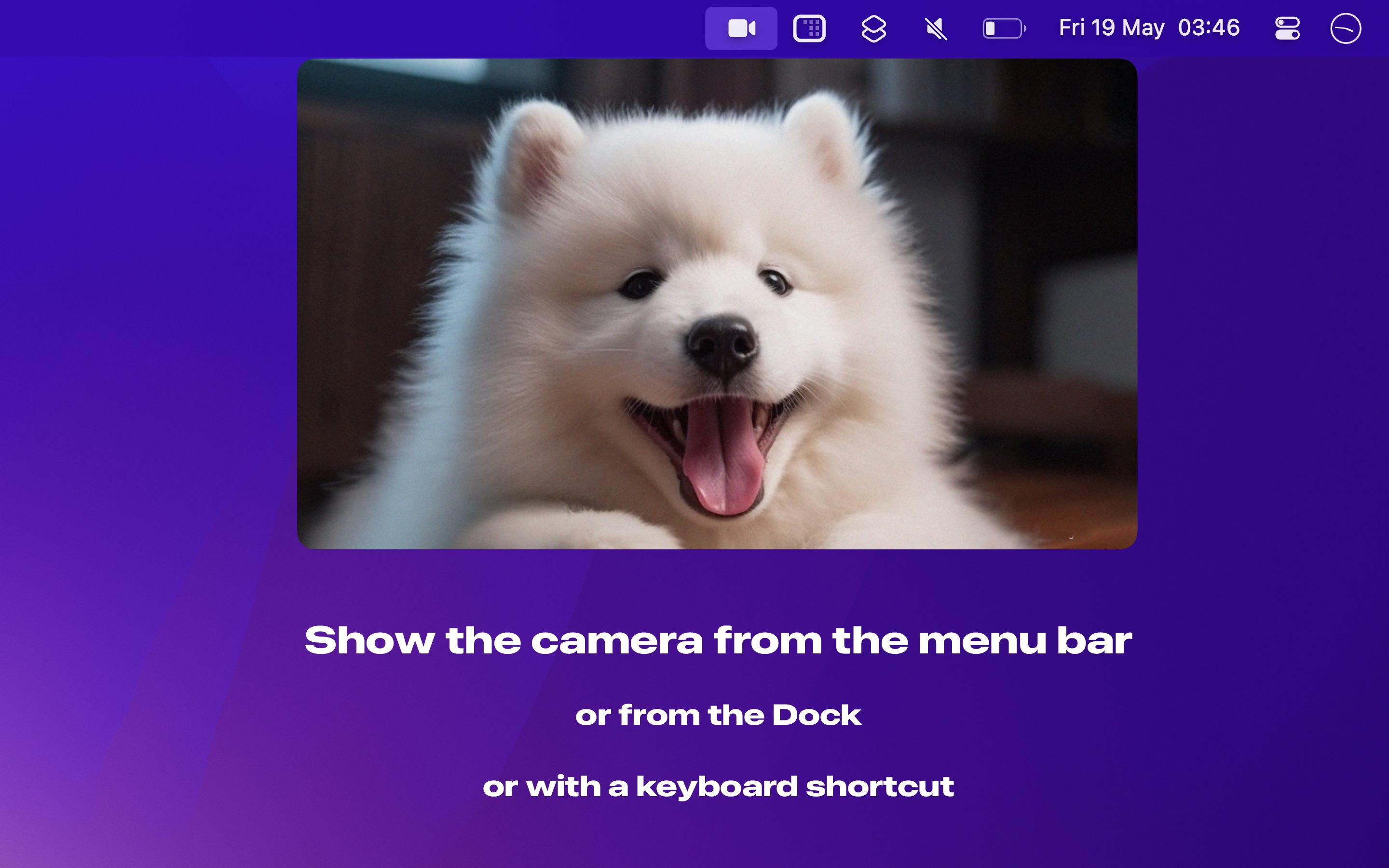
- To show the camera from the menu bar, open the settings, and in “Show in”, choose “Menu Bar”. Then click the menu bar icon to show and hide the camera. You can also set a keyboard shortcut for “Toggle window” in the “Shortcuts” settings.
- On a Mac with a notch, turn on “Toggle window when clicking notch” in the settings, and click the notch to show and hide the camera.
- To use an external camera, choose it in the “Camera” menu.
- Press Return or Space to take a photo. The photos go to the “Camera Preview” folder in your Pictures folder.
Get Camera Preview
Preview your webcam and take photos

$6, one-time purchase
- Platform
- macOS
- Requires
- macOS 26 or later
- Category
- Photo & Video
- Released
- May 2023
- Privacy
- No data collected
- Family Sharing
- Yes
- Updated
- September 2026
- Version
- 1.8.2
- Size
- 4 MB
Without an app
Photo Booth: Open Photo Booth from the Applications folder. It shows the camera like a mirror. To flip the new photos that you take, choose “Edit › Auto Flip New Items”. Photo Booth is good for a quick check, but it is a full app window with effects and photos, and it does not stay on top of other windows. How Camera Preview is different.
QuickTime Player: Open QuickTime Player, and choose “File › New Movie Recording”. The window shows the camera. You do not need to click the record button. Close the window when you are done. How Camera Preview is different.