Updated
How to Take Quick Notes on Mac
With Scratchpad
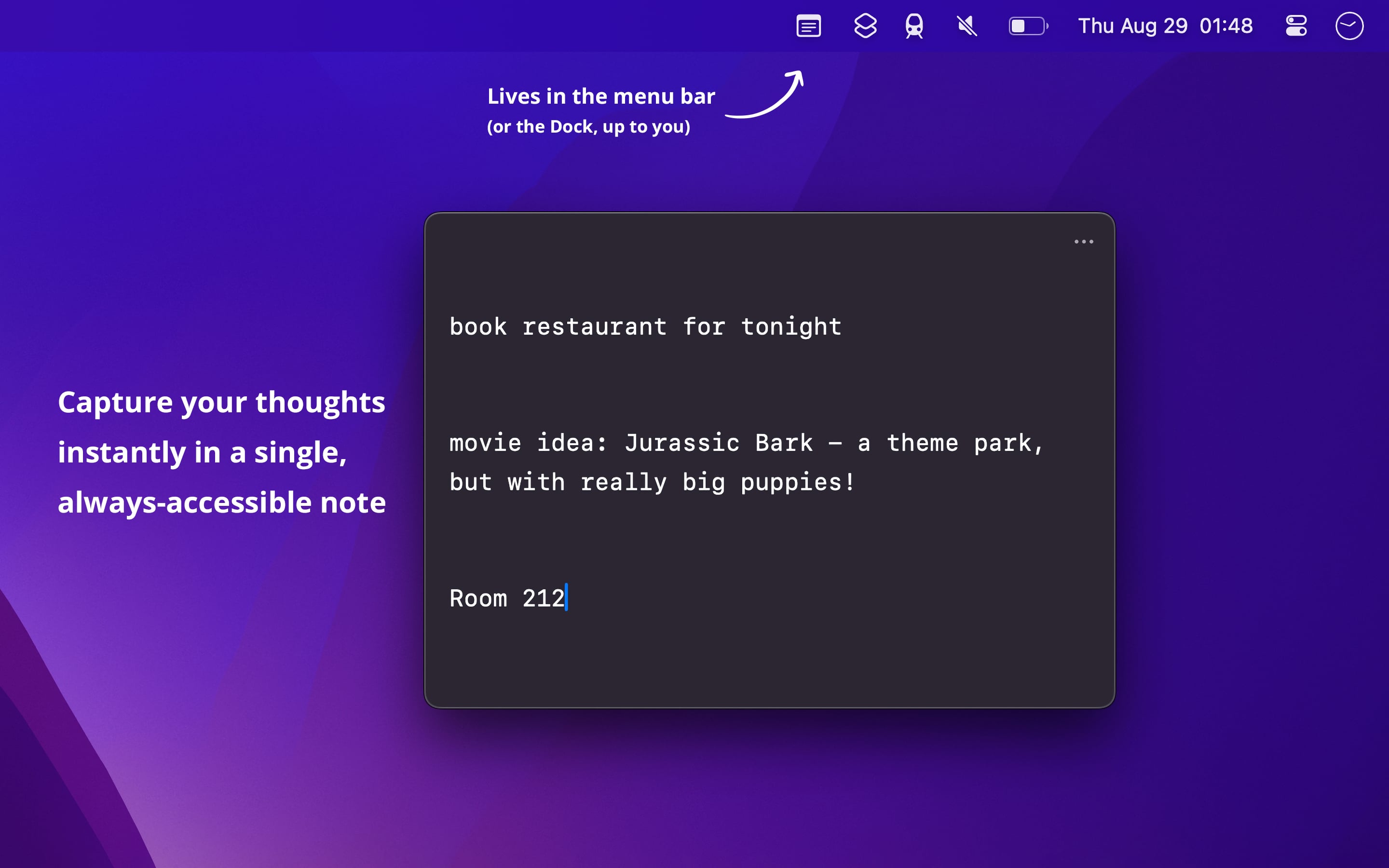
- Open Scratchpad. Its icon is in the menu bar.
- Click the icon, and type your note. The text is saved as you type.
- To write from any app, set a keyboard shortcut in the settings.
Scratchpad has only one note, in plain text, so it is good for a thought, a phone number, or a draft that you use soon. To see the number of words, turn on “Show word count” in the settings. To have the note on your iPhone and iPad too, turn on “iCloud Sync” in the settings on each device.
To add text from another app, select it, right-click, and choose “Services › Add to Scratchpad”. Scratchpad also keeps backups of the note, in case you delete text by accident.
Get Scratchpad
Quick notes, always available

$12, one-time purchase for all platforms
- Platforms
- macOS, iOS, watchOS, visionOS
- Requires
- macOS 27 or later, iOS 27 or later, watchOS 27 or later, visionOS 27 or later
- Category
- Productivity
- Released
- August 2024
- Privacy
- No data collected
- Developer
- Sindre Sorhus
Without an app
The Notes app has Quick Note, a small note window that opens from any app:
- Press and hold Fn (or the Globe key), and press Q. Or move the pointer to the bottom-right corner of the screen, and click the note that shows.
- Type your note.
- Close the window. The note is saved in the Quick Notes folder in Notes.
Quick Notes are notes in the Notes app, so they sync with iCloud, and you find them with your other notes. Apple’s instructions. This is good if you already keep your notes in Notes. Scratchpad is faster for text that you need only for a short time, as it is one note in the menu bar.