Updated
How to Use a Plain Text Editor on Mac
With Plain Text Editor
- Open Plain Text Editor. A new document opens.
- Type your text.
- Press CommandS to save it as a text file.
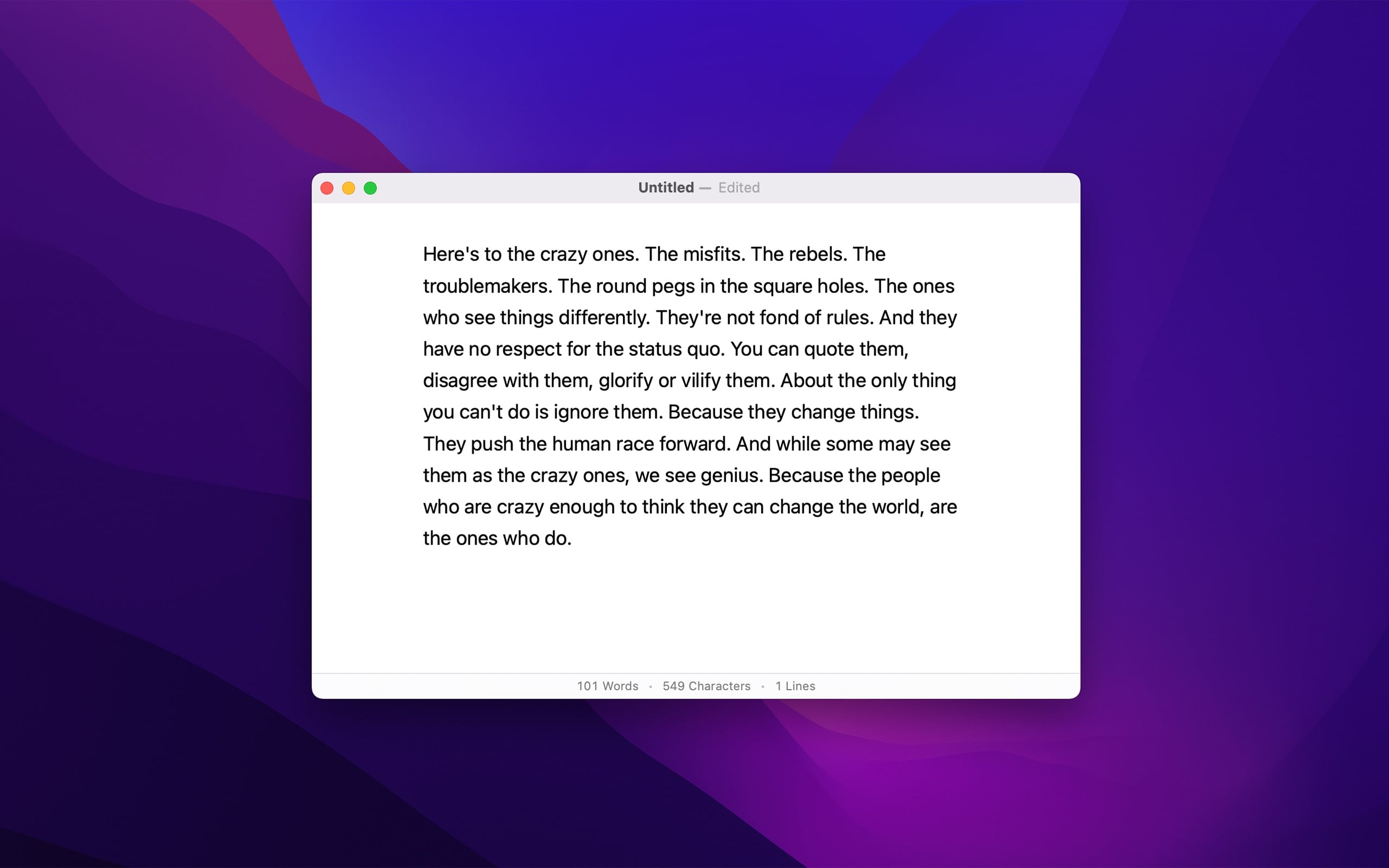
Plain Text Editor has a calm window, with space around the text and a comfortable line length. The bottom of the window shows the word count. In the settings, you can hide the title bar, and keep the window on top of other windows. Smart quotes and smart dashes are off by default, so the characters that you type stay as they are. It opens and saves UTF-8 text files.

Get Plain Text Editor
Simple distraction-free notepad

$5, one-time purchase for all platforms
- Platforms
- macOS, iOS, visionOS
- Requires
- macOS 26 or later, iOS 26 or later, visionOS 26 or later
- Category
- Productivity
- Released
- October 2022
- Privacy
- No data collected
- Developer
- Sindre Sorhus
More about Plain Text Editor →
Without an app
TextEdit, which comes with macOS, writes rich text by default. To use it for plain text:
- Open TextEdit, and make a new document.
- Choose “Format › Make Plain Text”.
To make all new documents plain text, open the TextEdit settings, and choose “Plain text” in “New Document”. A plain text document is saved as a .txt file. Apple’s instructions.
TextEdit is enough for a short note. Plain Text Editor is nicer to write in for a long time, as it has space around the text and a word count.