Updated
How to Paste Without Formatting on Mac
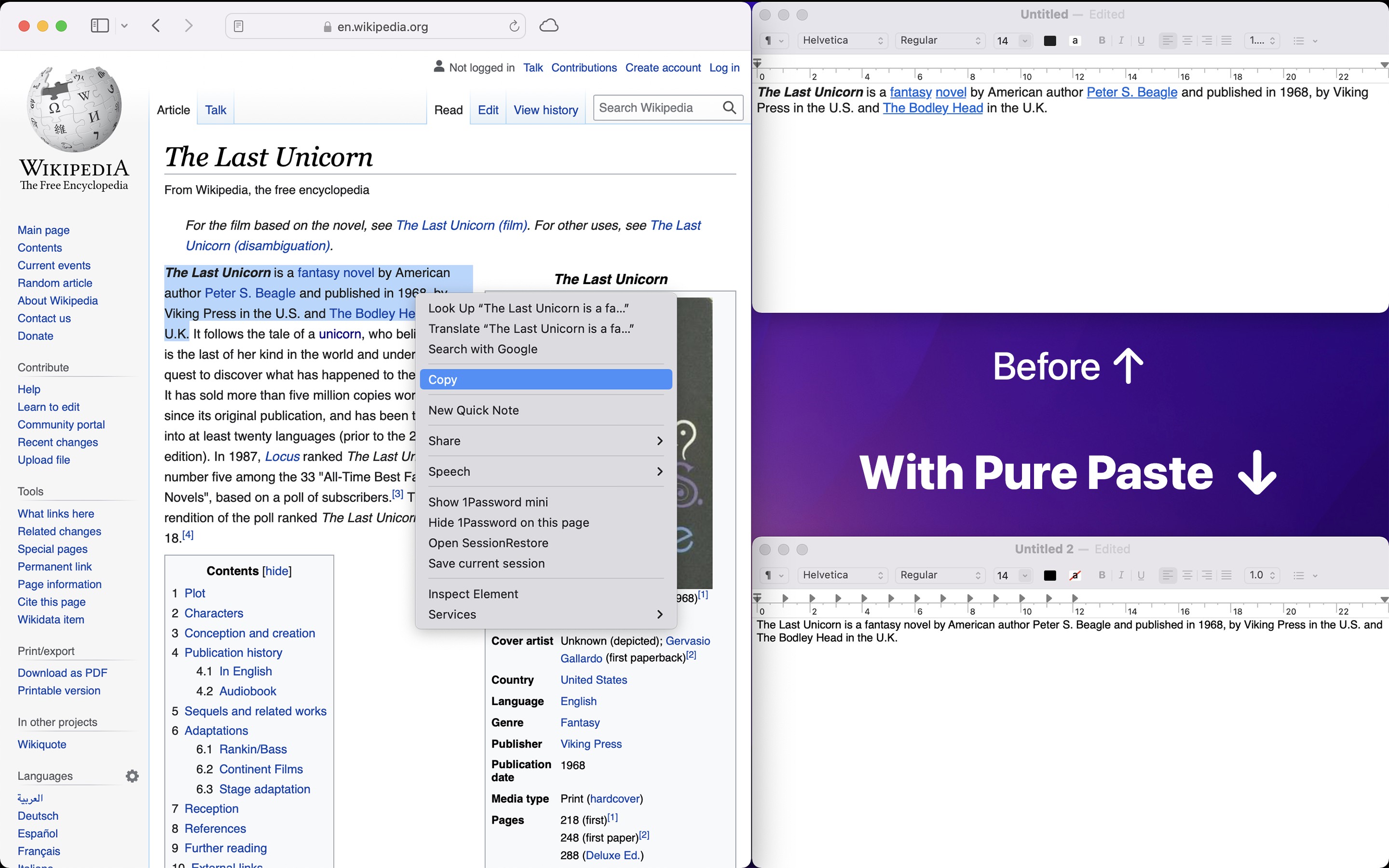
With Pure Paste
Pure Paste clears the formatting (fonts, colors, bold, links, and tables) when you copy text, so you paste plain text with the normal CommandV in every app.
- Open Pure Paste. Its icon is in the menu bar, and “Automatically clear formatting” is on.
- Copy text with CommandC, like from a web page or an email.
- Paste it with CommandV. The text has no formatting.
Pure Paste does not change files, images, or passwords that you copy from a password manager.
Tips
- To keep the formatting one time, press and release Option, and then press CommandC.
- To keep the formatting in some apps, like Keynote, add them in the “Exclude” settings.
- To clear the formatting only when you want, turn off “Automatically clear formatting”, and set a keyboard shortcut for “Clear formatting and paste” in the “Shortcuts” settings.
- Right-click the menu bar icon to turn the automatic mode on or off.
Pure Paste can also keep the links, remove tracking parameters from URLs, change typographic quotes to straight quotes, and remove invisible characters. Turn these on in the “Extras” settings.

Get Pure Paste
Paste as plain text by default

$4, one-time purchase
- Platform
- macOS
- Requires
- macOS 26 or later
- Category
- Utilities
- Released
- March 2022
- Privacy
- No data collected
- Family Sharing
- Yes
- Updated
- September 2026
- Version
- 1.14.6
- Size
- 5 MB
Without an app
Paste and Match Style
Most Mac apps, like Mail, Notes, Pages, and Safari, have “Paste and Match Style” in the Edit menu, with the shortcut OptionShiftCommandV. Some apps use another name or shortcut:
- Google Docs: Press ShiftCommandV, or choose “Edit › Paste without formatting”.
- Microsoft Word: Choose “Edit › Paste and Match Formatting”. It keeps bold and italic on parts of the text.
Some apps do not have the command at all, and the shortcut is hard to remember.
Make CommandV paste without formatting
You can give “Paste and Match Style” the CommandV shortcut in all apps:
- Open “System Settings › Keyboard”, and click “Keyboard Shortcuts…”.
- Choose “App Shortcuts”, and click the add button.
- Keep “All Applications”, and type
Paste and Match Stylein “Menu title”. Type it exactly like in the Edit menu. - Click “Keyboard shortcut”, press CommandV, and click “Done”.
This works only in the apps that have a command with exactly this name, so it does not work in Word, which uses another name. To paste with the formatting, choose “Edit › Paste”. Why Pure Paste does more.