Updated
How to Generate AI Images Offline on Mac
With Imago
Imago is free, and needs an Apple silicon Mac and 20 GB of free disk space. It works best with 16 GB of memory or more. On a Mac with less memory, it shows a warning, and making an image can be slow or fail.
- Open Imago, and click “Download” to get the AI model. It is 16 GB, so this is the only step that needs the internet, and it can take a while.
- Type a description of the image, like “a red fox in the snow, watercolor”, and press Return.
- When the image is ready, click it to see it larger, and press Space to save it.
After the download, Imago makes images without the internet. The prompts and the images stay on your Mac.
Tips
- Add a reference image to guide the style or the content of the new image.
- Right-click an image, and choose “Generate More” for more images of the same prompt.
- To keep the model on another disk, change “Model location” in the settings.
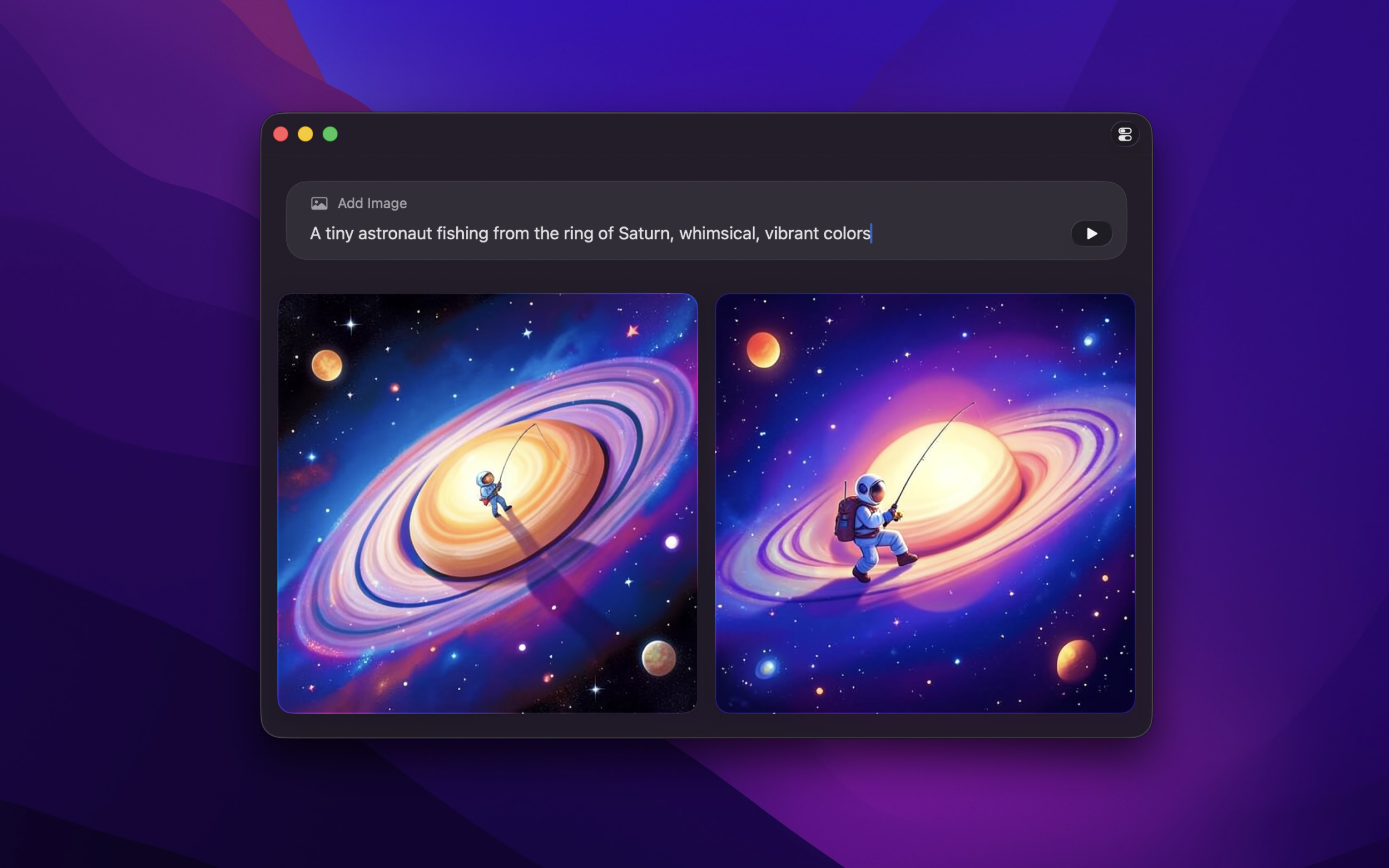

Get Imago
Generate images from text using Flux 2

Free
- Platform
- macOS
- Requires
- macOS 26 or later
- Category
- Graphics & Design
- Released
- March 2026
- Privacy
- Read the policy
- Updated
- April 2026
- Version
- 1.0.3
- Size
- 66 MB
Without an app
The Image Playground app of macOS makes images from a description, in square, portrait, or landscape sizes. Choose a style, or choose “Any Style” and write the style in the description, like “a realistic image of a stork”. It can also make images of people from your photo library. It needs a Mac with Apple Intelligence. Apple says that Image Playground uses server models with a daily limit, and the ChatGPT styles send your description to ChatGPT. So it is not for images that must be made offline. How to use Image Playground.
Image Playground is good for quick images, when your Mac is online. Imago is for images that must be made on your Mac, also without the internet.