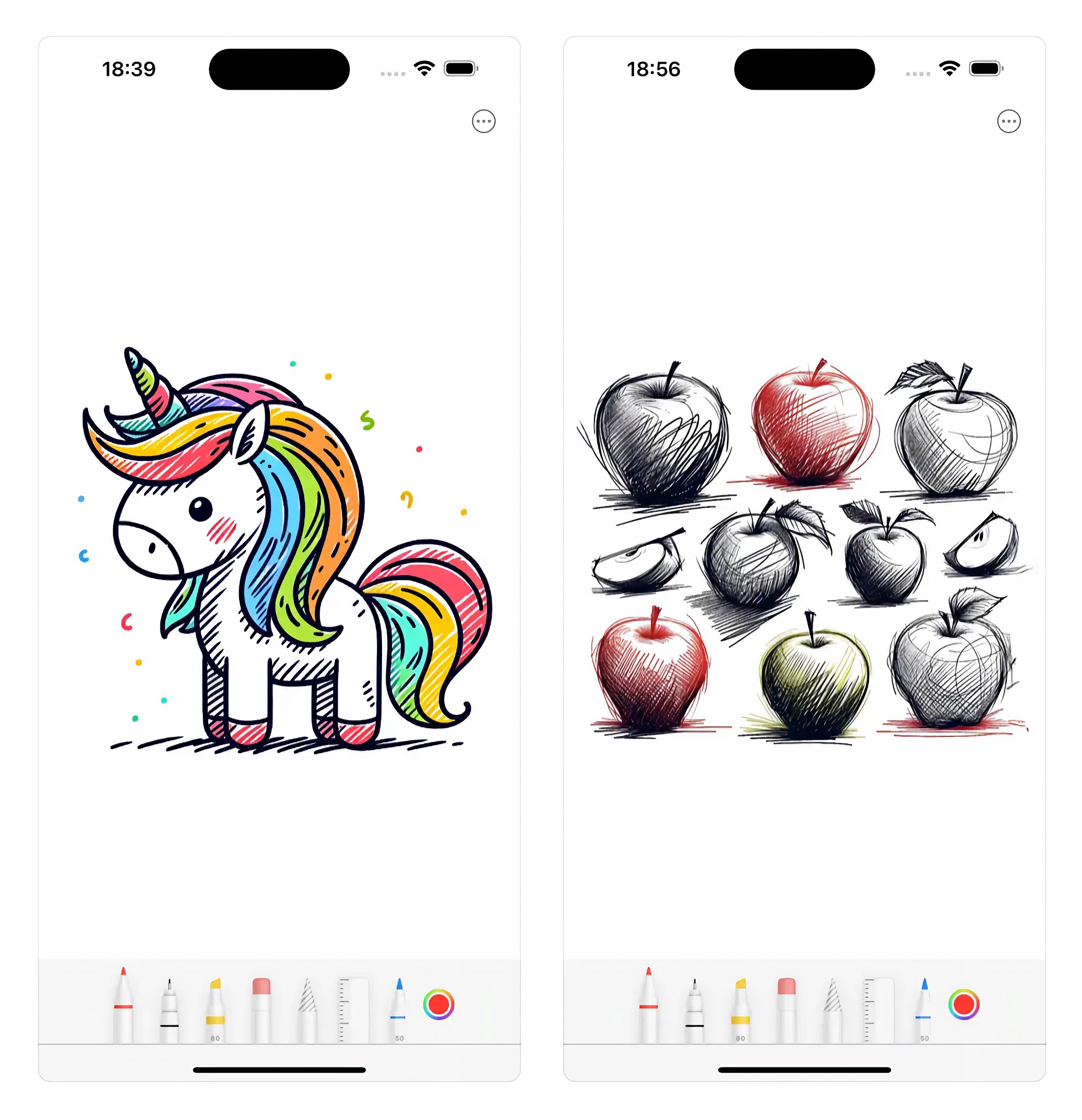
Open Doodle Draw. The canvas and the drawing tools show at once.
Draw with your finger. Choose a pen, a color, or the eraser in the tools below the canvas.
To keep the drawing as an image, tap the … button, and tap “Save”. The PNG image is in the Doodle Draw folder of the Files app. To put it in the Photos app or send it, tap “Share”.
To start again, tap “Clear” in the same menu.
Tips
To continue a drawing later, tap “Export” in the … menu, and tap “Import” to open it again.
To clear the canvas without a question, turn off “Confirm Clear” in “Settings” in the … menu.
Two drawings in Doodle Draw with the drawing tools below them
Tap the Handwriting Tools button, and draw with your finger.
Use the Markup tools to change the color and the tool.
You can also draw in the Freeform app. Notes and Freeform are good when the drawing belongs in a note or on a board. Doodle Draw is for a quick sketch: open the app, and draw, with nothing to set up.
 By Sindre Sorhus, who makes the Doodle Draw app