Back to Randa
Updated
How to Generate a Random Number on iPhone
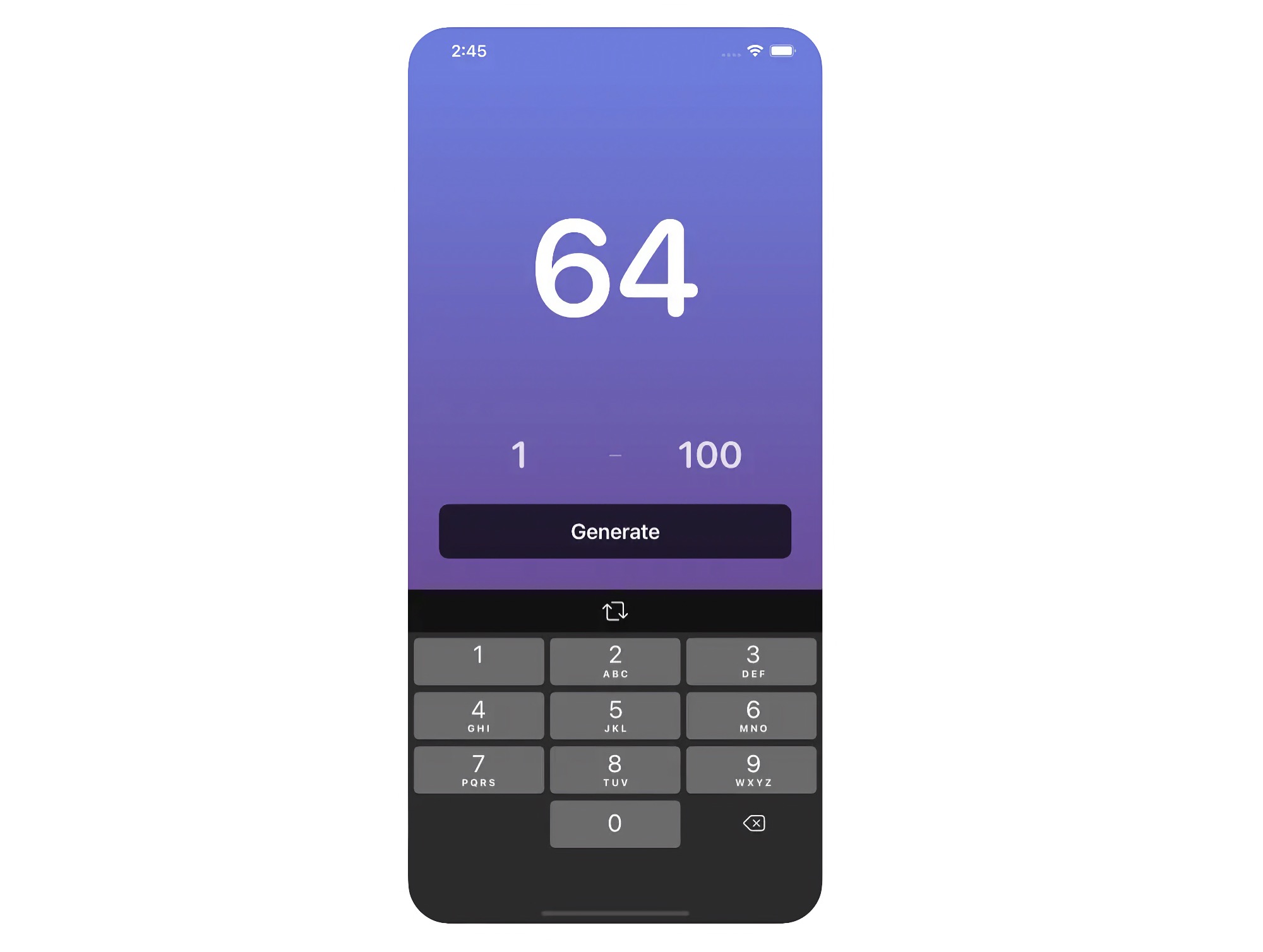
With Randa
- Open Randa.
- Type the lowest number in the first field, and the highest number in the second field, like 1 and 6 for a die.
- Tap “Generate”, or shake the iPhone. Each number in the range can come, also the lowest and the highest.
To copy the number, touch and hold it. Randa is free, and also works on iPad, Mac, Apple Watch, and Apple Vision Pro.
Tips
- For a yes or no decision, like a coin flip, use 0 and 1.
- To pick from a list, like a movie from your watchlist, use 1 and the number of items, and take the item at that position.
- For no repeats two times in a row, tap the more button, and turn on “Consecutively unique numbers”.

Get Randa
Generate random numbers

Free
- Platforms
- macOS, iOS, watchOS, visionOS
- Requires
- macOS, iOS, watchOS, or visionOS 26 or later
- Category
- Utilities
- Released
- December 2022
- Privacy
- No data collected
- Updated
- January 2026
- Version
- 1.5.0
- Size
- 9 MB
Without an app
Shortcuts: Make a shortcut with the “Random Number” action:
- Open the Shortcuts app, tap the add button, and add the “Random Number” action.
- Set the minimum and the maximum in the action. Both numbers can come.
- Add the “Show Result” action, and tap the run button.
Add the shortcut to the Home Screen to get a number with one tap.
Calculator: In the scientific mode of the Calculator app, the “Rand” key gives a random number between 0 and 1. You cannot choose the range, so it is not good for a die or a list.
The Shortcuts action works well when you always use the same range. Randa is faster when the range changes.