Back to One Thing
Updated
How to Add Text to the Menu Bar on Mac
TextBar of Rich Somerfield showed text in the menu bar, often the output of a script. It needs Rosetta on Apple silicon, and Homebrew disabled it in September 2026 because it fails the security check of macOS. One Thing shows the text that you type or set, like from the clipboard or with a shortcut in the Shortcuts app, but it does not run a script on a timer.
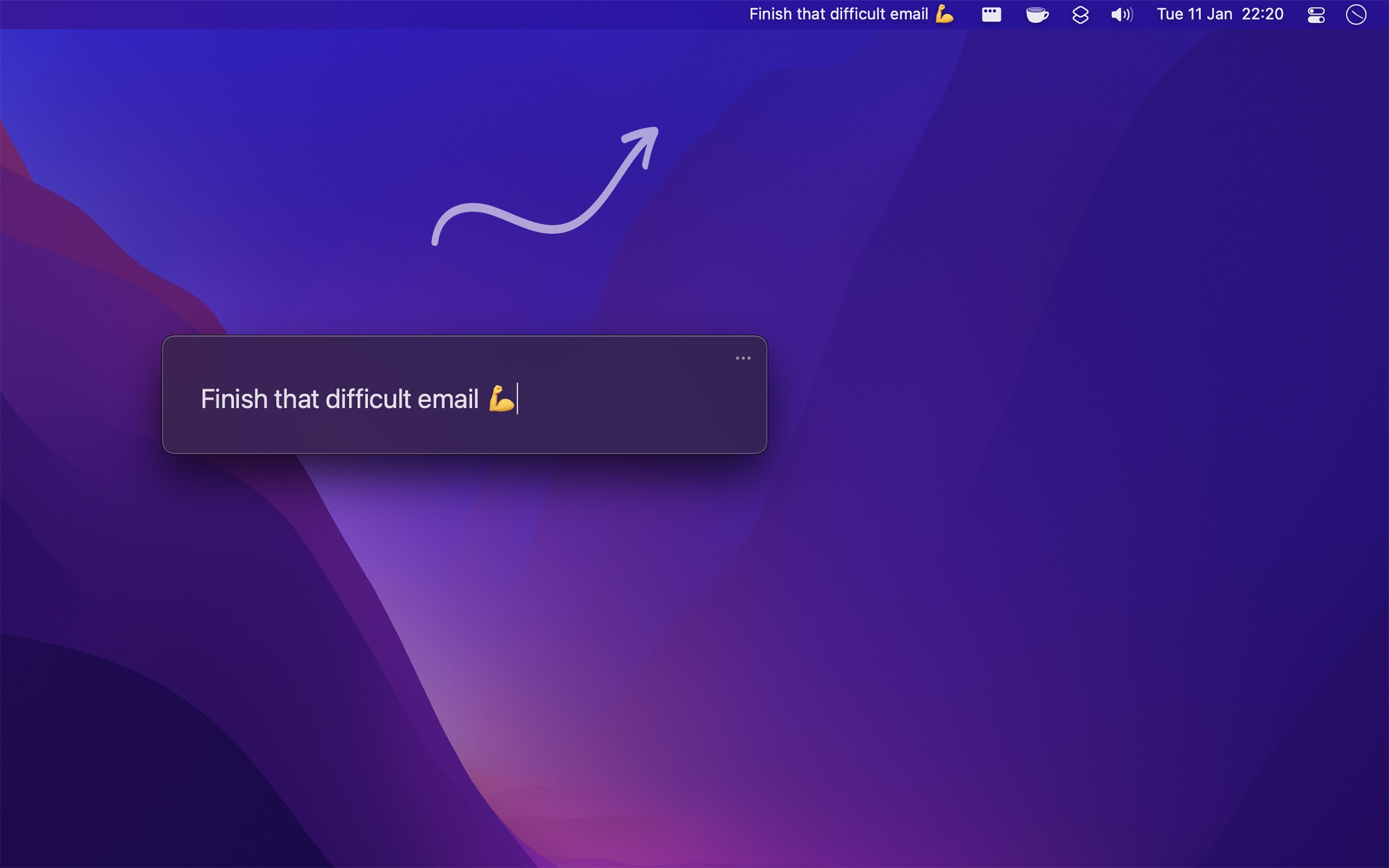
With One Thing
- Open One Thing. Without text, its icon in the menu bar is a 1 in a circle.
- Click the icon. A small edit window opens.
- Type your text. The menu bar shows it as you type. Press Return to close the window.
To change the text, click it again. To clear it, click it while you press Shift.
Tips
- In the “Shortcuts” settings, set a keyboard shortcut to open the edit window, to clear the text, or to set the text from the clipboard.
- If the text is long, set “Maximum width” in the “Appearance” settings, as macOS hides menu bar items that do not fit. The “Appearance” settings also have the text size, bold text, and the color.
- Use Markdown for bold, italic, strikethrough, and links.
- To change the text automatically, like a different text each day, use the “Set Text” and “Set Text Color” actions of One Thing in the Shortcuts app.
Get One Thing
Put a single task or goal in your menu bar

Free
- Platform
- macOS
- Requires
- macOS 26.6 or later
- Category
- Productivity
- Released
- January 2022
- Privacy
- No data collected
- Updated
- November 2026
- Version
- 2.0.5
- Size
- 3 MB
Without an app
macOS cannot show your own text in the menu bar. The nearest built-in way is a note that stays above the other windows:
- Open the Stickies app, and type your text in a note.
- Choose “Window › Float on Top”.
The note covers a part of the windows below it.