System Color Picker
The familiar color picker supercharged
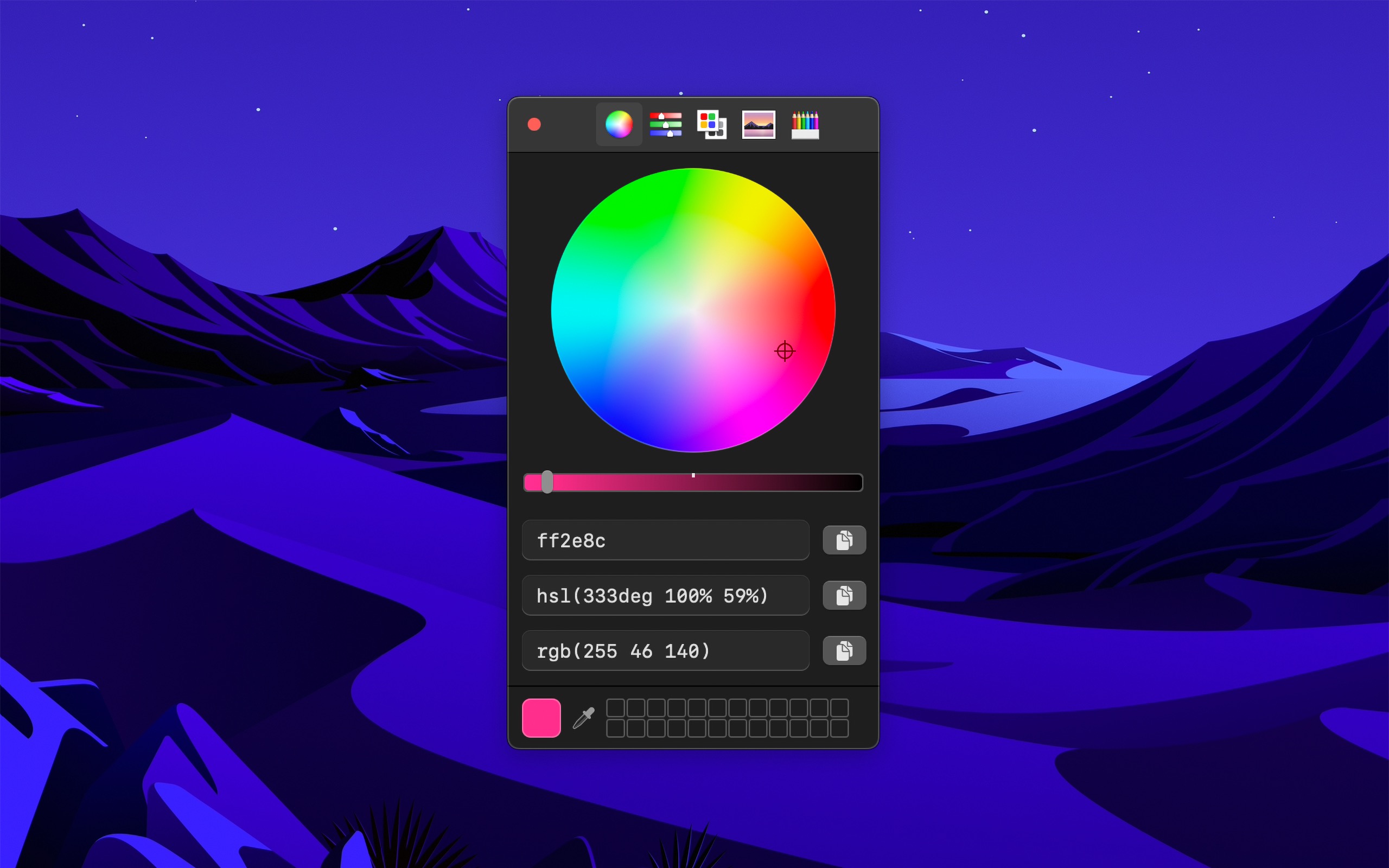
The macOS color picker as an app, with more features. Pick a color from anywhere on the screen, and copy it as Hex, HSL, RGB, OKLCH, and more.

Free · Available on macOS
Recent Reviews
Favorite Color Picker
One of those apps that just works, does what it needs to do really well and nothing else 10/10
Perfect simple solution
I use MacOS’ built in screen capture quite a bit, and this is the perfect companion. Setting window and eyedropper to command-shift-1 and command-shift-2 puts them right inline with the rest of my screen capture shortcuts. Super fast, super helpful, thank you so much for making this app!
Simple, functional software
Does what I need it to! Throwback to when software worked and computers were fun to use.
Thank you for being Free
As a startering web developer learner, I thank you for having such a very useful tool made available to us for free! Thank you.
Features
- Palettes
- Recently picked colors
- Quickly copy, paste, and convert colors in Hex, HSL, RGB, Unit RGB (0-1), OKLCH, LCH, and CMYK format
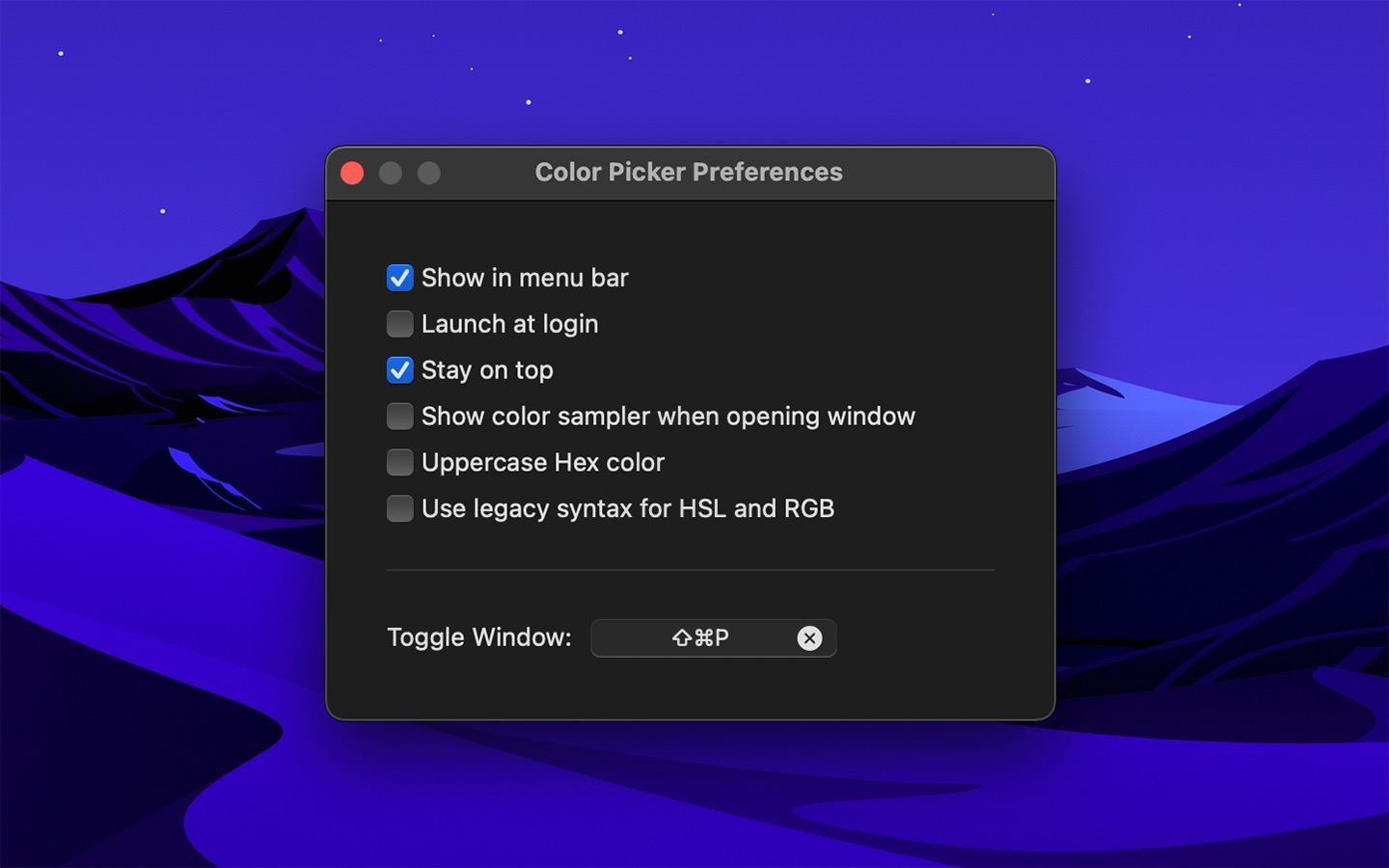
- Show as a normal app or in the menu bar
- Pick a color or toggle the window from anywhere with a global keyboard shortcut
- Make the window stay on top of all other windows
- Launch it at login (when in the menu bar)
- Hide menu bar icon
- Shortcuts support
- Import Simple Color Palette and Adobe Swatch Exchange (ASE) palettes
TIP
You may also like my Simple Color Palette app.
Tips
- Press the Space key while using the color sampler to show the RGB values. The color sampler is a system component and it can unfortunately not show other kinds of color values.
- Press the Option key when copying the Hex color to invert whether to include
#. - Press the Shift key while selecting a color using the color sampler to prevent it from disappearing after your selection.
Keyboard shortcuts
You can use the following keyboard shortcuts in the app:
- Pick color: Command p
- Copy as Hex: Shift Command h
- Copy as HSL: Shift Command s
- Copy as RGB: Shift Command r
- Copy as Unit RGB: Shift Command u
- Copy as OKLCH: Shift Command o
- Copy as LCH: Shift Command l
- Copy as CMYK: Shift Command k
- Paste color: Shift Command v (In the format Hex, HSL, RGB, Unit RGB, OKLCH, LCH, or CMYK)
- Reset opacity: Control Shift o
Switch between picker tabs
You can quickly switch between different color picker tabs:
- Next tab: Control Tab
- Previous tab: Shift Control Tab
- Wheel: Control 1
- Sliders: Control 2
- Color Palettes: Control 3
- Image Palettes: Control 4
- Pencils: Control 5
- Extensions: Control 6-9 (if installed)
Plugins
The built-in color picker supports plugins:
Frequently Asked Questions
I have a feature request, bug report, or some feedback
Click the feedback button in the app or send it here.
Can the color sampler show Hex values?
No. The color sampler in the app is provided by macOS and only supports showing RGB values when you press the Space key. To show Hex (or other formats) directly in the sampler would require a completely custom sampler, which in turn would need extra system permissions like “Screen Recording”. For now, the fastest workflow is to pick a color with the sampler and then copy it in Hex format from the app.
What is OKLCH color?
It’s a more human-friendly color format. Prefer this format.
What is Unit RGB?
It represents RGB values in the range 0-1 instead of 0-255. This format is commonly used for programming (SwiftUI, AppKit, UIKit, etc.) and other graphics programming contexts. For example, 0.5, 0.5, 0.5 in Unit RGB is equivalent to rgb(128, 128, 128) in standard RGB. It accepts values in the format 0.1, 0.1, 0.1 and 0.1 0.1 0.1, including with opacity 0.1, 0.1, 0.1, 0.5.
Can you support HSB?
You can copy a color as HSB by clicking the (…) button in the window and selecting “Copy as HSB”. You can also see live HSB values in the “Sliders” tab by selecting “HSB Sliders”.
HSB is intentionally not one of the main formats. HSB has no CSS syntax, while all the main formats can be pasted directly into CSS. HSL is also easier to reason about: lightness goes from black (0%) through the pure color (50%) to white (100%), so making a tint or shade means changing a single value. In HSB, making a color lighter requires both increasing brightness and decreasing saturation. If you want perceptual control, prefer OKLCH.
The color changes if I copy and then paste it
That is because the default color space in the picker is Display P3, which is part of CSS Color 4, but the color space used for the legacy CSS color formats is sRGB (browsers are starting to handle color spaces but they are not all there yet).
How do I clear the list of recently picked colors?
In the main app window, click the clock icon in the middle toolbar.
How do I use palettes?
You can manage palettes by selecting the third tab in the window toolbar.
The fastest way to add a color to a palette is to paste a Hex color value into the app and then click the + button in the palette. You can also drag and drop a color into the palette from anywhere.
Palettes can be accessed both from the app and the menu bar icon (if enabled). You can even access them in other apps that use the system color picker.
You can find palettes on Coolors. Download the ASE palette type, right-click the file, and select “Open In › Color Picker”.
How can I remove a color in a palette or swatch?
Select the color and press the Delete key or drag and drop the color onto the trash icon in the Dock.
How can I remove all the swatch colors at once?
Unfortunately, this is not possible as swatches are managed by macOS. You will need to delete them individually.
How can I change the color space?
Right-click the color wheel. You want to select “Display P3” if you use LCH or “sRGB” if you use Hex, HSL, or RGB.
Note that the HSL and RGB formats will always be clamped to sRGB color space.
Can you support SwiftUI.Color / UIColor / NSColor formats?
SwiftUI.Color / UIColor / NSColor formats?The best practice is to use Asset Catalog for colors instead of hard-coding the values in code. If you really want to hard-code colors, the Skala color picker plugin supports UIColor and NSColor.
Why does the OKLCH chroma value differ from other sources?
The app displays the OKLCH chroma value as a percentage instead of an absolute value for better user-friendliness. For example, oklch(70% 25% 135) in the app corresponds to oklch(70% 0.1 135) on oklch.com. Both are correct: the percentage form (0-100%) and the decimal form (0-0.4) are standard ways to express OKLCH chroma.
How can I export color palettes?
Simple Color Palette format
- Click the
(…)button in the window and select “Export Palettes”
CLR format
- Open Finder
- Press CommandShiftG
- Enter
~/Library/Colors - Copy the desired palette files
How can I export swatches?
- Go to the color palettes folder (see above)
- Copy
NSColorPanelSwatches.plist
This file is not viewable or editable. It can only be used for backup or transfer between Macs.
Why is this free without ads?
I just enjoy making apps. Consider leaving a nice review on the App Store.
Scripting
URL scheme
The app supports the system-color-picker: URL scheme for programmatic control:
system-color-picker:pick- Start the color sampler (eyedropper)system-color-picker:toggle- Toggle the color picker window
Example:
open --background 'system-color-picker:pick'
This can be used to create custom keyboard shortcuts in tools like Raycast and Alfred.
Shortcuts
You can use the “Sample Color from Screen” action for Shortcuts to sample color from the screen and then do something with it.
TIP
You can run shortcuts from the command-line.
Older Versions
- 2.1.4 for macOS 15+
- 2.0.3 for macOS 14+
- 1.15.0 for macOS 13+
- 1.12.1 for macOS 12+
- 1.9.6 for macOS 11+
Non-App Store Version
A special macOS version for users that cannot access the App Store. It won’t receive automatic updates. I will update it here once a year.
Download (2.2.0 · macOS 26+)
Get System Color Picker
The familiar color picker supercharged
Free