Updated
How to Use a Website as Your Desktop Wallpaper on Mac
With Plash
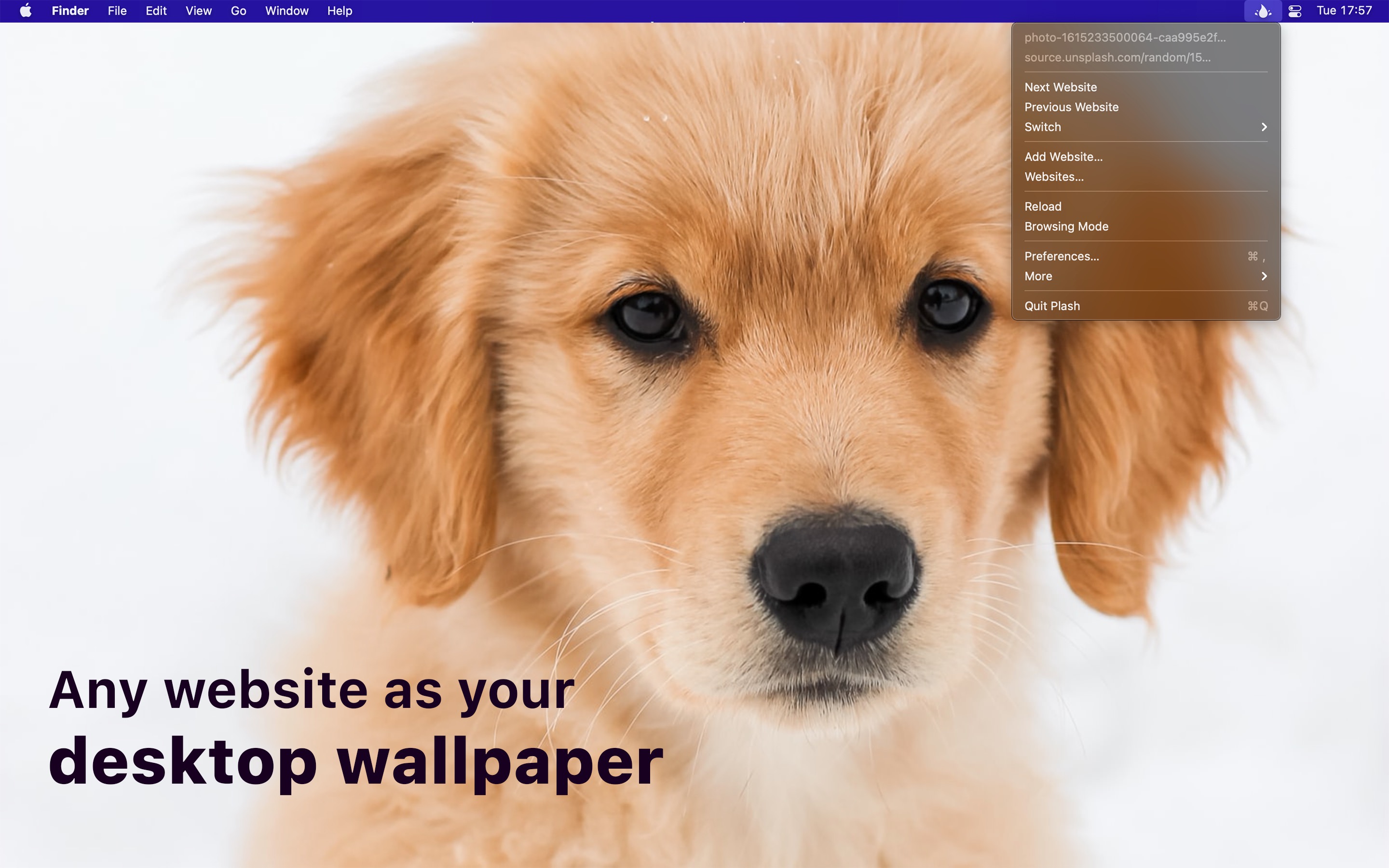
- Open Plash. Its icon is in the menu bar.
- Click the icon, and choose “Add Website…”.
- Enter the URL of the website, and click “Add”.
The website shows behind your windows and desktop icons, and stays up to date. To click links or scroll in it, turn on “Browsing Mode” in the menu, and turn it off when you are done. To sign in, like for Google Calendar, do it in Browsing Mode, and Plash keeps you signed in.
Tips
- Add several websites, and switch between them in the menu, or with a keyboard shortcut that you set in the settings.
- To reload a page that does not update by itself, turn on “Reload every” in the settings.
- A single image or an animated GIF fills the screen. Use
[[screenWidth]]and[[screenHeight]]in a URL to get an image with the size of your screen.

Get Plash
Make any website your desktop wallpaper

Free
- Platform
- macOS
- Requires
- macOS 26.4 or later
- Category
- Utilities
- Released
- January 2020
- Privacy
- No personal data collected
- Developer
- Sindre Sorhus
Without an app
macOS cannot show a website as the wallpaper. In “System Settings › Wallpaper”, you can choose dynamic wallpapers, aerials that move when you lock or unlock the Mac, colors, your own photos, and a folder of photos that changes at an interval. Apple’s instructions.
You can take a screenshot of a website, and use it as the wallpaper: Control-click the screenshot in Finder, and choose “Set Desktop Picture”. But it does not update, so it is only good for a page that never changes.