
Plash
Make any website your desktop wallpaper
Show your calendar, a dashboard, the Bing photo of the day, or an animated GIF as your desktop wallpaper.

Free · Available on macOS
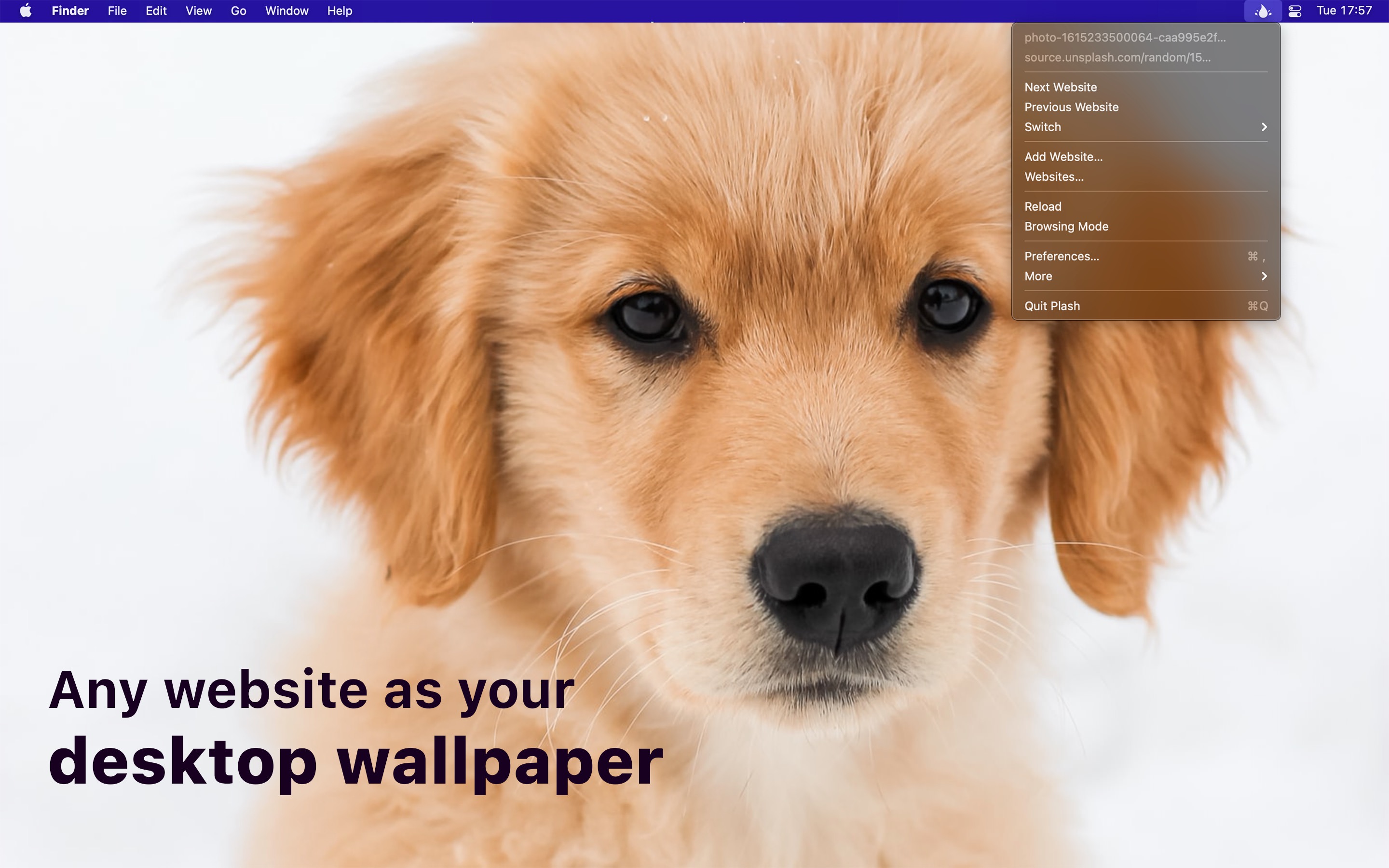
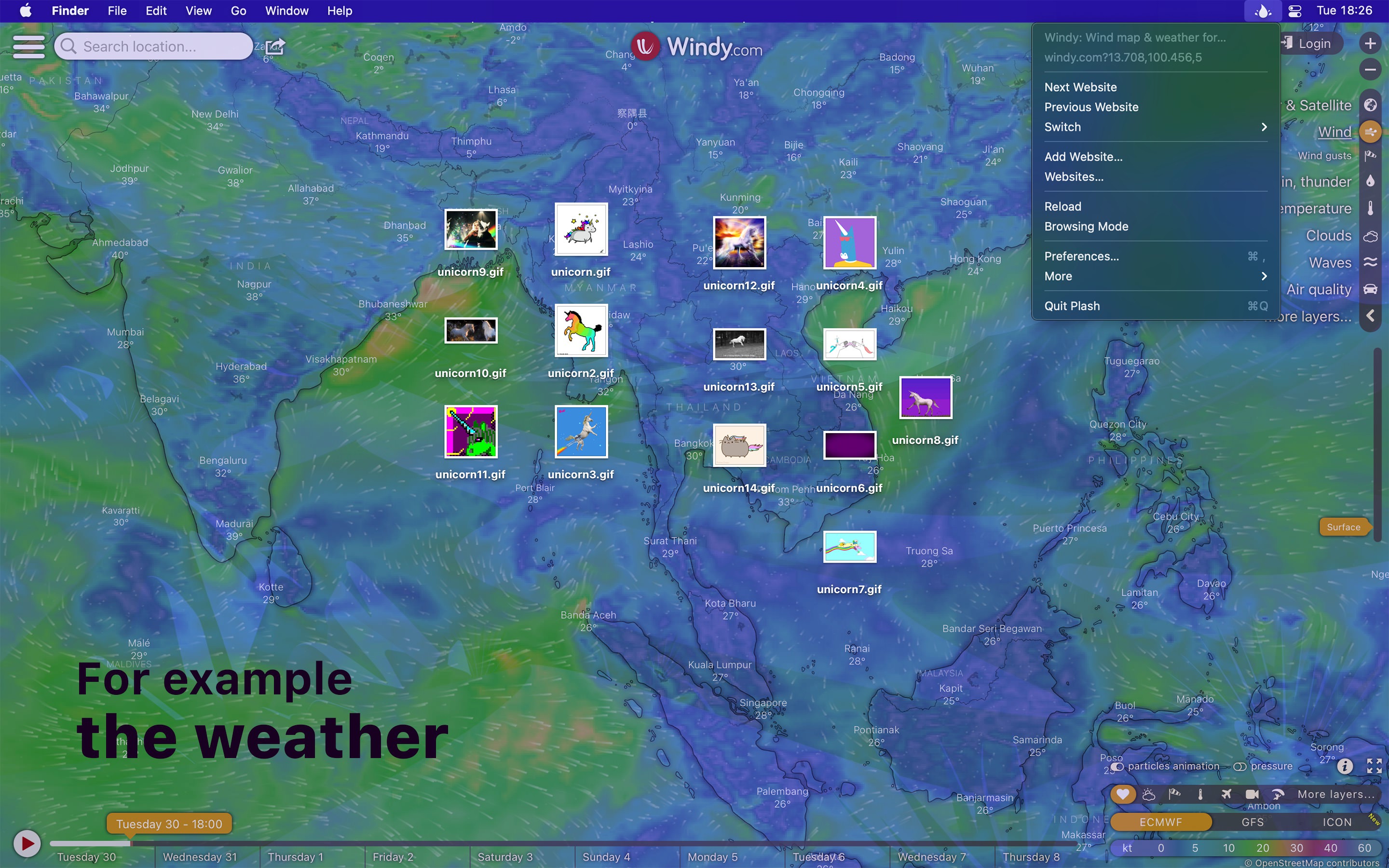
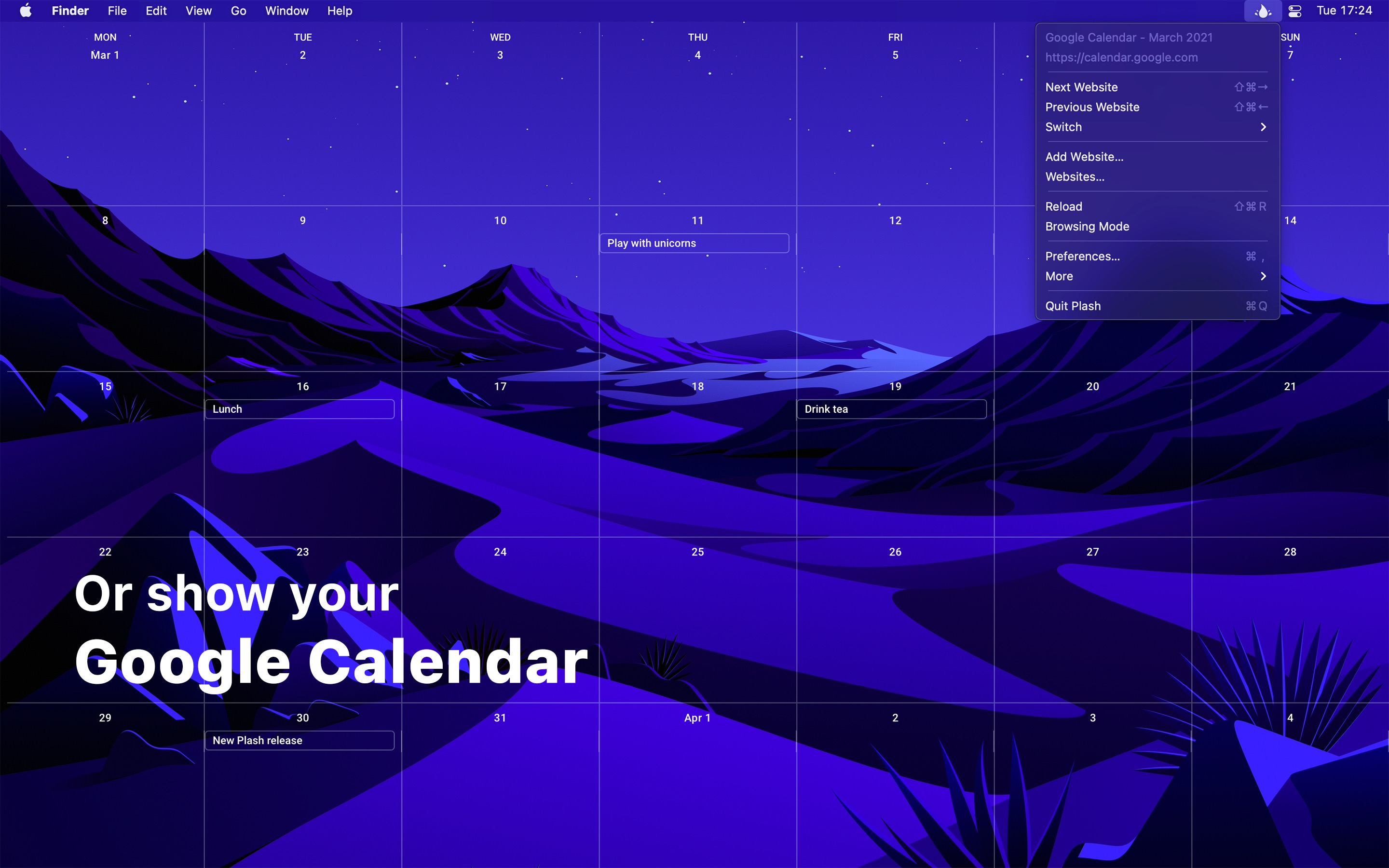
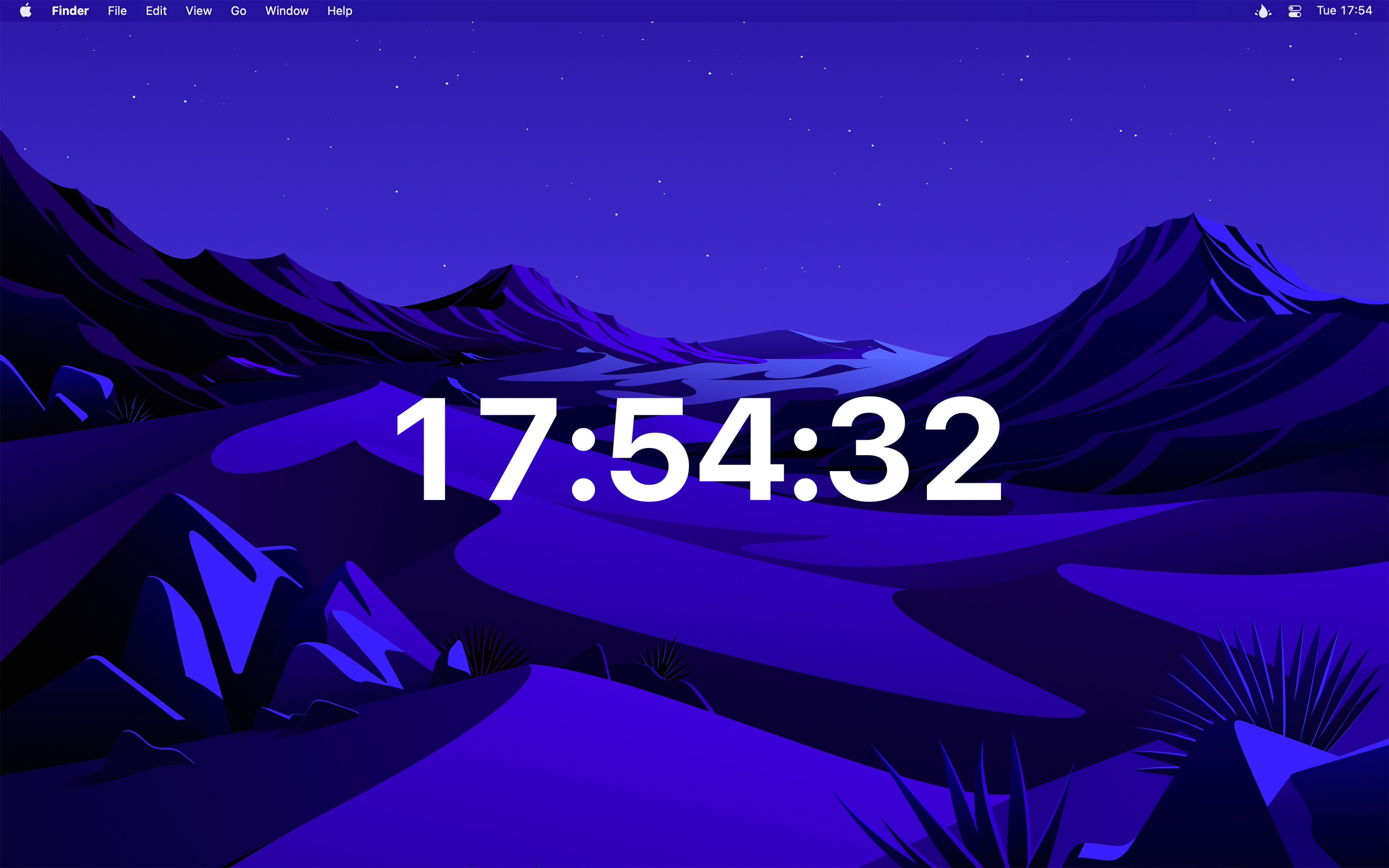
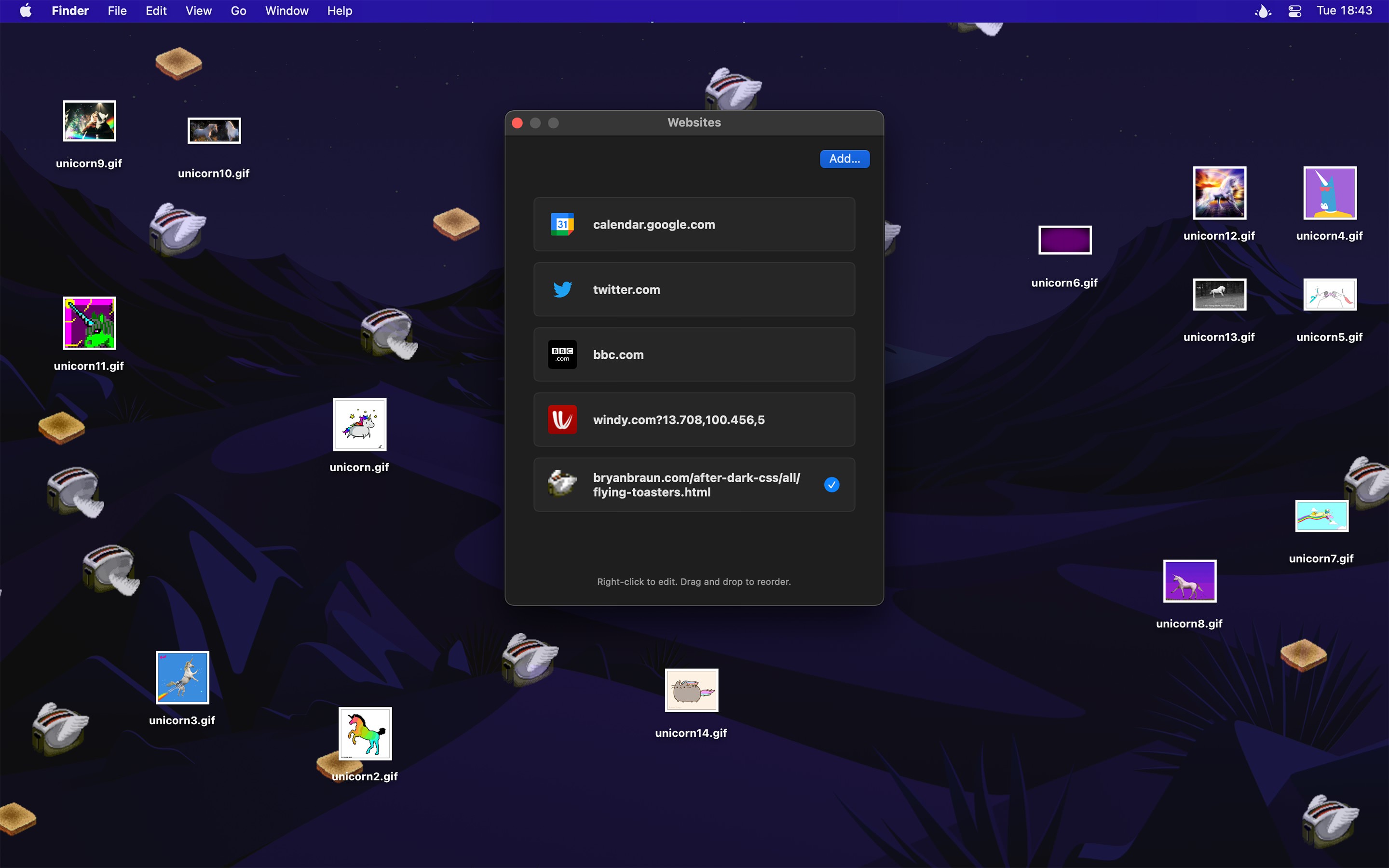
If you’re tired of trying to find the right desktop wallpaper, a free Mac app has the answer.
This is the kind of application you can spend a lot of time playing with, so enjoy.
Recent Reviews
Sindre Sorhus is a genius.
(That’s the name of the developer) I found this app incidentally and immediately recognized the name from Supercharge, another app I consider utterly essential for every Mac I own. This app is thoughtfully designed. It does one thing, and it does it well. And it’s free. Thank you yet again, Sindre.
Love this app
Love this app! I use it to set long YouTube background ambience videos as my desktop wallpaper. Works great with a bit of custom CSS parameters.
AMAZING
I’ve been looking for a way to have my google calendar pinned in my background on my Mac for so long and finally found this today. IT IS AWESOME! The tips provided by the creator are also super helpful. To the person who created this; THANK YOU THANK YOU THANK YOU!
Simple. Effective.
Plash seems extremely easy to use. I can select the display it goes on. I can control the rate the page refreshes. Its great! I use a dashboard a lot at my work and this allows me to have it close by.
Add several websites, switch between them, and turn on Browsing Mode when you want to click around in the page.
Use-cases
- Bing Photo of the Day
- Calendar
For example, Google Calendar or Outlook 365. - Personal stats
You could even make a custom website for this. - Random street view image
- Animated GIF
For example, an animated GIF from Giphy. - Random color
- Build a custom website
You could build something quick and host it on GitHub Pages, jsfiddle, or CodePen.

Features
- Show a remote or local website
- Interact with the website (“Browsing Mode”)
- Automatically reload the website at a custom interval
- Add multiple websites
- Show the website on a different display
- Invert website colors (fake dark mode)
- Add custom CSS and JavaScript to the website
- Lower the opacity
- Transparent background
- Automatically deactivate while on battery
- Audio is muted
- Single image will be aspect-filled to your screen
- Hide menu bar icon
- Shortcuts support
- Scriptable
- Share extension
Tips
Browsing mode
You can interact with the website by enabling “Browsing Mode”. When in this mode, you can right-click to be able to go back/forward, reload, and zoom in the page contents (the zoom level is saved). You can also pinch to magnify. This is different from zooming the page contents in that it will zoom in to a specific part of the page instead of just enlarging everything.
Plash injects a CSS class named plash-is-browsing-mode on the <html> element while browsing mode is active. You could use this class to customize the website for browsing mode.
If clicking a link opens it in a new window, you can hold the Option key while clicking the link to open it in the main Plash window.
Zoom in website
To zoom in the website, activate “Browsing Mode”, right-click the website, and then select “Zoom In”.
URL placeholders for screen width and height
Use [[screenWidth]] and [[screenHeight]] in any URL and Plash will substitute the right values for you. For example, https://source.unsplash.com/random/[[screenWidth]]x[[screenHeight]]?puppy.
Scroll to position
You can scroll a website to a specific position each time it is loaded by putting the following in the website’s “JavaScript” field. Adjust the “500” to how far down it should scroll.
window.scrollTo(0, 500);
You can also scroll to a specific element matching a CSS selector:
document.querySelector('.title')?.scrollIntoView();
Make the website occupy only half the screen
You can use the “CSS” field in the website settings to adjust the padding of the website:
:root {
	margin-left: 50% !important;
}
Detect Plash
Plash injects a CSS class named is-plash-app on the <html> element. You could use this class to customize your website for Plash. For example, if your website has instructions on how to use it in Plash, you could hide those when it’s running in Plash.
Share extension
Plash comes bundled with a share extension. You can, for example, use it to quickly add a website you have open in Safari to Plash.
Frequently Asked Questions
I have a feature request, bug report, or some feedback
Click the feedback button in the app or send it here.
Can it automatically switch websites every 10 minutes?
Plash can be automated with the built-in Shortcuts app, for example, using the “Switch to Next Website” action. Shortcuts automations cannot run at an interval, so use the Shortery app to run the shortcut every 10 minutes.
Does it support multiple displays?
Support for multiple displays is currently limited to the ability to choose which display to show the website on. Support for setting a separate website for each display is planned.
However, there is a workaround.
Can Plash display multiple websites at the same time?
No. Plash only shows one website at a time. Displaying multiple websites simultaneously is out of scope.
Why does Plash use so much memory?
Plash uses very little memory. Usually around 40 MB. However, the websites you display can take up a lot of memory, and sometimes even have memory leaks.
Can Plash block ads?
Not built-in, but you can block ads system-wide with a DNS ad-blocker.
How can I switch to a specific website with a keyboard shortcut?
Make a shortcut in the Shortcuts app that uses the “Set Current Website” action and then set a keyboard shortcut for the shortcut.
Why is this free without ads?
I just enjoy making apps. Consider leaving a nice review on the App Store.
Scripting
You can control Plash using anything that supports opening a URL with a custom scheme.
For example, to reload the current website, run this terminal command:
open -g plash:reload
Tools
- plash-cli: Command-line tool.
- alfred-plash: Alfred workflow.
- Raycast commands
Commands
add
Add a website to Plash.
You can optionally specify a title. If no title is given, a title will be automatically fetched from the website.
open -g 'plash:add?url=https://sindresorhus.com/plash&title=Plash%20website'
Don’t forget to correctly encode query parameters.
NOTE
Local file URLs are not supported.
reload
Reload the current website.
open -g plash:reload
next
Switch to the next website in the list.
open -g plash:next
previous
Switch to the previous website in the list.
open -g plash:previous
random
Switch to a random website in the list.
It will never show the same website twice in a row, unless you only have a single website.
open -g plash:random
toggle-browsing-mode
Toggle browsing mode.
open -g plash:toggle-browsing-mode
Examples
Node.js
import {execFileSync} from 'node:child_process';

execFileSync('open', ['--background', 'plash:reload']);
Swift
import Cocoa

let command = "plash:reload"

let configuration = NSWorkspace.OpenConfiguration()
configuration.activates = false
NSWorkspace.shared.open(URL(string: command)!, configuration: configuration)
AppleScript
do shell script "open --background 'plash:reload'"
Python
import subprocess

subprocess.run(['open', '--background', 'plash:reload'])
Older Versions
- 2.16.0 for macOS 15+
- 2.15.0 for macOS 14+
- 2.14.1 for macOS 13+
- 2.12.1 for macOS 12+
- 2.10.1 for macOS 11+
- 2.1.1 for macOS 10.15+
Non-App Store Version
A special version for users that cannot access the App Store. It won’t receive automatic updates. I will update it here once a year.
Download (2.17.2)
Requires macOS 26 or later
Get Plash
Make any website your desktop wallpaper
Free