Updated
How to Transcribe a Voice Memo on iPhone
With Aiko
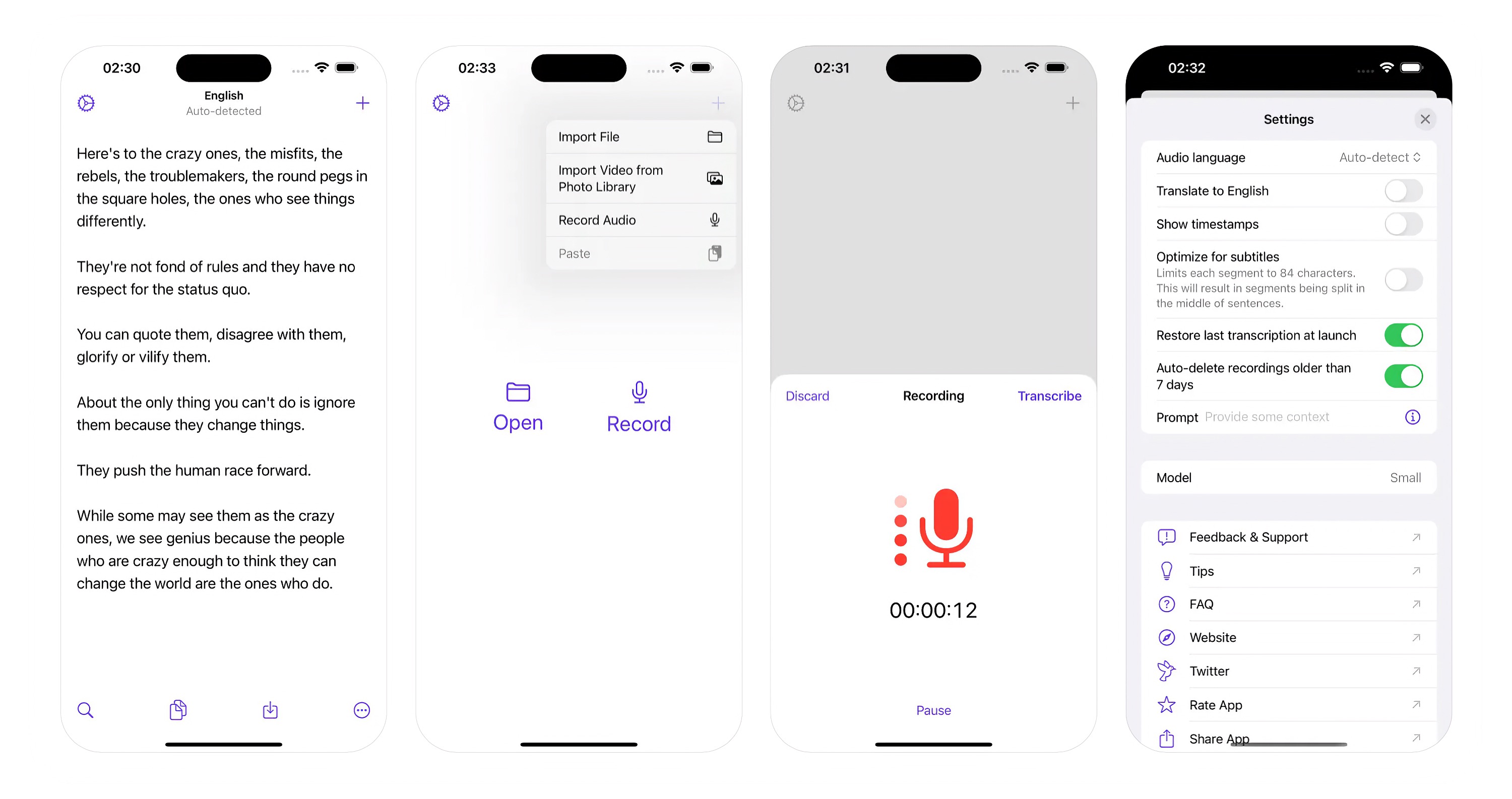
- In Voice Memos, tap the recording, tap the More button, and tap “Share”.
- Choose Aiko in the row of apps. Aiko opens and transcribes the recording.
- Keep Aiko open until it is done, as iPhone cannot transcribe in the background. A long recording takes some minutes.
- Tap the copy button to copy the text, or the export button to save it as text or subtitles.
If Aiko does not open from the share sheet, use the shortcut workaround.
Aiko finds the language itself. If it picks the wrong one, choose it in “Audio language” in the settings. The transcription runs on your iPhone, so your audio is never uploaded. To transcribe a file from the Files app, tap the add button, and choose “Import File”.
Get Aiko
AI-powered audio transcription

$24, one-time purchase for all platforms
- Platforms
- macOS, iOS, visionOS
- Requires
- macOS, iOS, or visionOS 26.6 or later
- Category
- Productivity
- Released
- March 2023
- Privacy
- No data collected
- Family Sharing
- Yes
- Updated
- November 2026
- Version
- 1.11.1
- Size
- 1.84 GB
- US App Store rating
- 4.7/5 (336 ratings)
Without an app
- Open Voice Memos, and tap the recording.
- Tap the More button, and choose “View Transcript”. To copy all of it, choose “Copy Transcript”.
While you record, swipe up from the top of the waveform, and tap the transcription button to see the text live. Voice Memos also transcribes recordings that you made before, if they have speech.
It needs iPhone 12 or later, and it works in English, Spanish, Portuguese, Italian, French, German, Japanese, Korean, and Chinese (Simplified and Traditional). It is not in all countries or regions. For a memo in one of these languages, it is all you need. Aiko is for the other languages, for subtitles, and for audio files from other apps.