Updated
How to Put a Sticky Note on the Mac Desktop and iPhone Home Screen
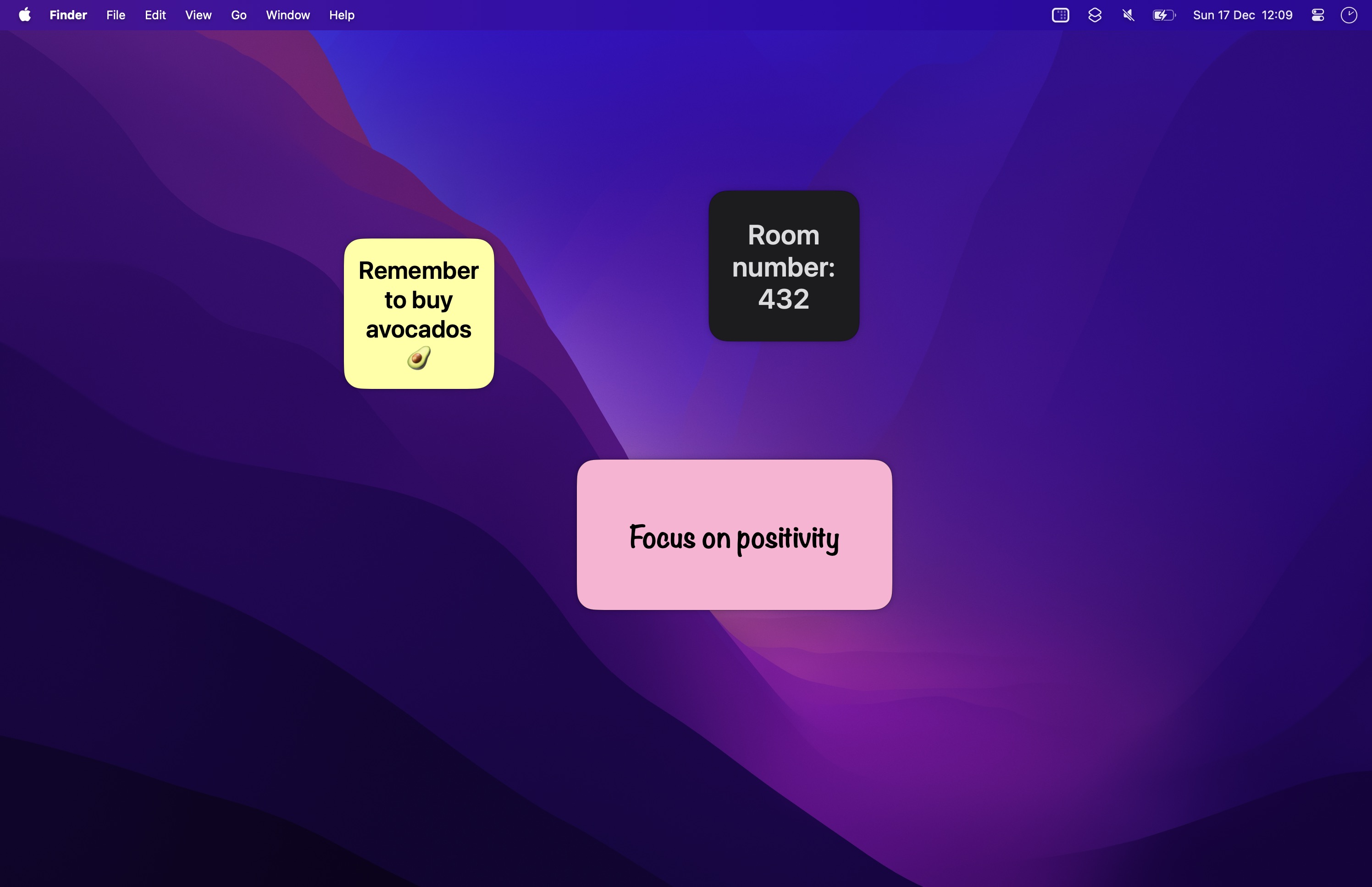
With Memo Widget
On iPhone
- Install Memo Widget. Then go to the Home Screen, and touch and hold the background until the apps jiggle, tap “Edit”, and tap “Add Widget”.
- Find Memo Widget, tap it, swipe to the size you want, and tap “Add Widget”.
- The options of the widget open. Tap “Choose”, and tap the number. Then choose the background color, the font, and the text alignment. Tap outside the options to close them.
- Tap the widget. The app opens. Write your note.
- Go back to the Home Screen. The app saves the text, and the widget shows it.
To change the note, tap the widget again. To change the color or the font, touch and hold the widget, and tap “Edit Widget”.
On Mac
Memo Widget works on a Mac with Apple silicon and macOS 26 or later.
- Control-click the desktop, and choose “Edit Widgets…”.
- Search for “Memo Widget”, and click the size you want. Then click “Done”.
- Control-click the widget, and choose the edit item (“Edit ‘Memo’…”). Click “Choose”, and click the number. Then choose the color, the font, and the text alignment.
- Click the widget. The app opens. Write your note, and close the window. The widget shows the text.
The text is large, and it becomes smaller to fit a longer note.
Tips
- Each widget is its own note, so add one widget for each thing to remember.
- The same widget also works on the Lock Screen and in StandBy on iPhone. On the Lock Screen, it uses the color of the Lock Screen.
- When you remove a widget, its text stays in the app. Tap the more button in the app, and tap “All Notes” to see all your notes.
- The notes do not sync. The notes on your Mac and on your iPhone are separate.

Get Memo Widget
Sticky notes on your Home Screen, Lock Screen, and desktop

$4, one-time purchase for all platforms
- Platforms
- macOS, iOS, visionOS
- Requires
- macOS 26 or later, iOS 26 or later, visionOS 26 or later
- Category
- Utilities
- Released
- December 2023
- Privacy
- No data collected
- Developer
- Sindre Sorhus
Without an app
Stickies on Mac
macOS has the Stickies app, in the Applications folder.
- Open Stickies, and choose “File › New Note”.
- Write the note. Stickies saves it automatically.
- To change the color, choose a color in the “Color” menu. To keep the note above all other windows, choose “Window › Float on Top”.
The notes show only while Stickies is open, and a note is a window, so it is above or below your other windows. Stickies can format the text, and it has many notes at a time. How Memo Widget is different from Stickies.
The Notes widget
The Notes app has a “Note” widget, on iPhone and on Mac. It shows one note that you choose.
- Write the note in the Notes app.
- Add the “Note” widget of the Notes app, like in the steps above.
- Touch and hold the widget (Control-click it on Mac), edit it, and choose the note.
The Notes widget shows the note like a page of the Notes app, with small text, and you cannot change its color or font. It is good when the note is long, or when you already keep it in Notes. For a short reminder that you see at once, like a sticky note on a screen, Memo Widget is easier to read.