Back to Quick Launch
Updated
How to Add a Website to the iPhone Lock Screen
With Quick Launch
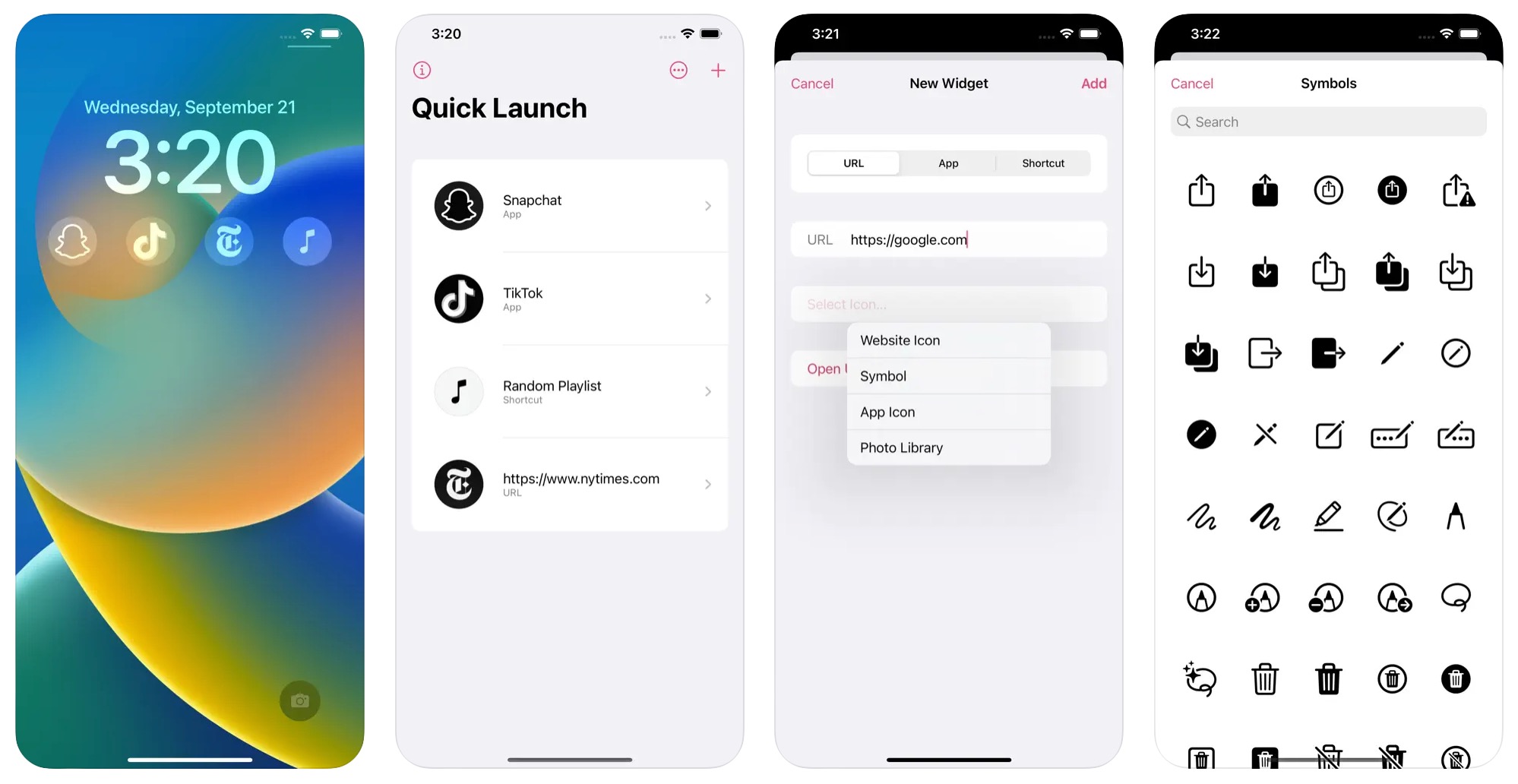
- Open Quick Launch, and tap the add button.
- Choose “URL” as the action, and enter the website, like
https://example.com. Choose a symbol or up to two characters as the icon. - Touch and hold the Lock Screen, and tap “Customize”.
- Tap the widget area below the clock, choose “Quick Launch”, and add the “Open Stuff” widget.
- Tap the widget, and choose the widget that you made.
Tap the widget on the Lock Screen to open the website. You can add up to four Quick Launch widgets, and each can open a website, an app, or a shortcut. If the widget is not in the list, restart the iPhone. Sometimes iOS needs that to find a new widget.
Get Quick Launch
Open websites, apps, and shortcuts from your Lock Screen

$3, one-time purchase
- Platform
- iOS
- Requires
- iOS 26.1 or later
- Category
- Productivity
- Released
- September 2022
- Privacy
- No personal data collected
- Family Sharing
- Yes
- Updated
- February 2026
- Version
- 1.7.2
- Size
- 12 MB
- US App Store rating
- 4.9/5 (48 ratings)
Without an app
iOS cannot put a website on the Lock Screen, but the two buttons at the bottom of the Lock Screen, the flashlight and the camera, can be other controls, like one that runs a shortcut:
- In the Shortcuts app, make a shortcut with the “Open URLs” action and the website.
- Touch and hold the Lock Screen, and tap “Customize”.
- Replace the flashlight or the camera button with the control that runs a shortcut, and choose your shortcut.
There is room for only two controls, so you give up the flashlight or the camera. Quick Launch adds up to four buttons below the clock, in addition to the two controls.