Updated
How to Make a Widget with One Photo on iPhone
With Photo Widget
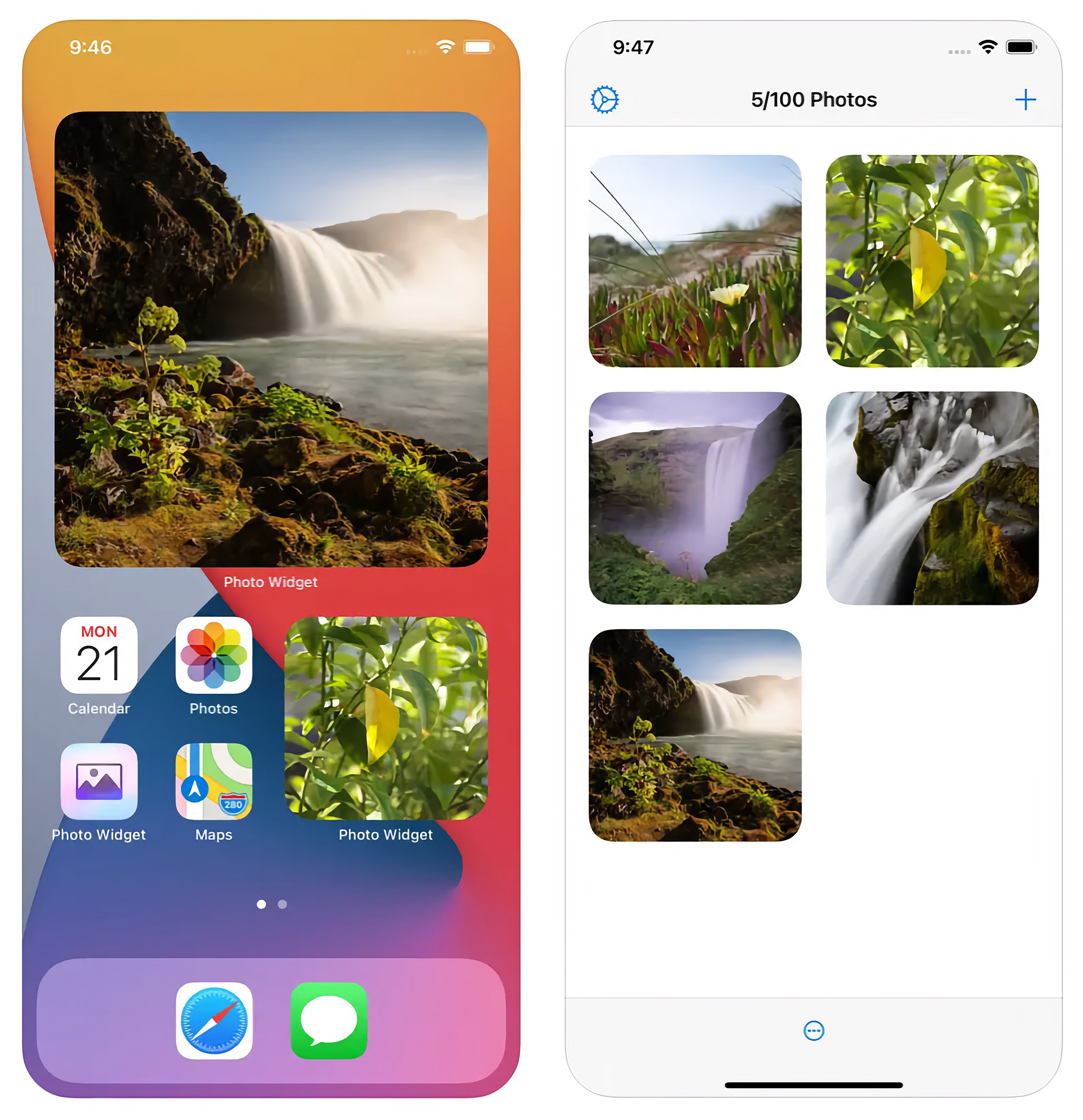
- Open Photo Widget, tap the Add Photos button (“+”), then tap “Photo Library” (or “Files”), and choose the photos. The app can have up to 100 photos.
- Go to the Home Screen. Touch and hold the background until the apps begin to jiggle, tap “Edit”, then tap “Add Widget”.
- Find Photo Widget, tap it, swipe to the “Photos” widget in the size you want, and tap “Add Widget”. Tap “Done”.
- Touch and hold the widget, and tap “Edit Widget”.
- Turn off “All Photos”, tap “Selected Photos”, and choose one photo, or more.
With more than one photo, the widget changes the photo at the interval that you choose in “Minimum Refresh Interval”, like “1 hour”. “Same as App Setting” uses the “Refresh Interval” in the settings of the app, which is 1 hour at first. iOS can update a widget less often than the interval.
“Crop” is on at first, so the photo fills the widget. Turn it off to show all of the photo, with the color of “Background Color” around it.
Tips
- Each widget has its own photos and options, so you can have one widget with one photo, and another widget with a slideshow.
- To show the photos of an album, use the “Album” widget of Photo Widget. It also shows the new photos that you add to the album.
- In the options of the widget, you can choose what happens when you tap it: show the photo, skip to the next photo, open a URL, or run a shortcut.
- Turn on “Hide When Device Is Locked” to hide the photo while the iPhone is locked.
- When two widgets of the same size show the same photos in the same order, give each widget a different “Unique Widget Name”.

Get Photo Widget
Photos on your Home Screen and desktop

$6, one-time purchase for all platforms
- Platforms
- macOS, iOS, visionOS
- Requires
- macOS, iOS, or visionOS 26 or later
- Category
- Lifestyle
- Released
- September 2020
- Privacy
- No data collected
- Family Sharing
- Yes
- Updated
- August 2026
- Version
- 2.3.3
- Size
- 7 MB
- US App Store rating
- 4.6/5 (697 ratings)
Without an app
The Photos app has two widgets: “Featured” shows Memories and Featured Photos that iOS chooses, and “Album” shows the photos of an album that you choose. To show one photo:
- In the Photos app, tap “Collections”, tap “Albums”, tap the Add button, and tap “New Album”. Give the album a name, add only the photo, and tap “Create”.
- Add the “Album” widget of the Photos app to the Home Screen, like in the steps above.
- Touch and hold the widget, tap “Edit Widget”, tap the album (it is “Favorites” at first), and choose your new album below “My Albums”.
The Album widget shuffles the photos of the album throughout the day, so with one photo in the album, it always shows that photo. This works well, and it is free. The widget has no setting for the crop or for how often the photo changes, and you must keep an album for each widget. If that is all you need, you do not need an app.