Back to Online Check
Updated
How to Check Your Internet Connection on Mac
A Wi-Fi icon with full bars only means that the Mac is connected to the router. The internet can still be down, like when the router has no connection.
With Online Check
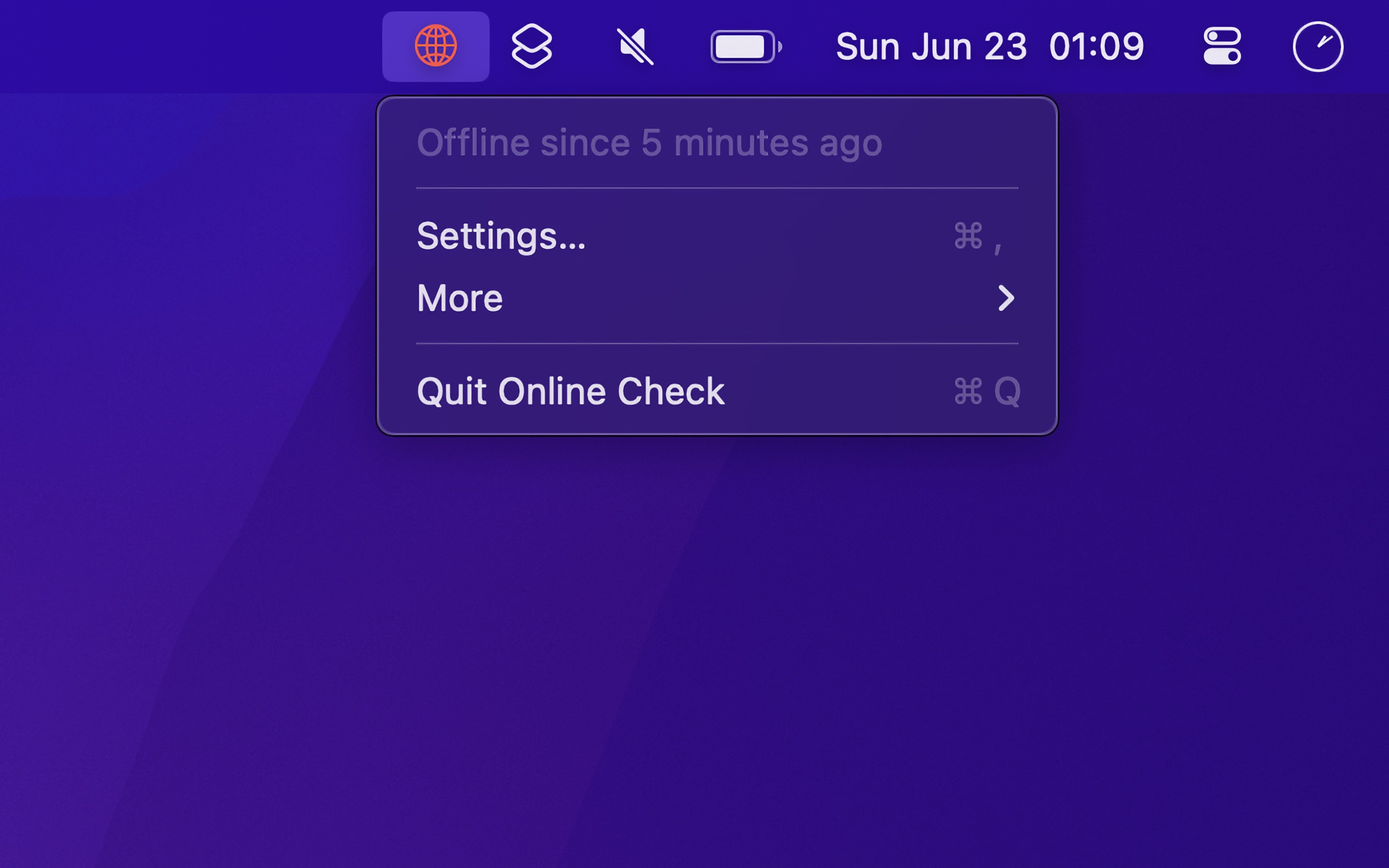
- Open Online Check. Its icon is in the menu bar.
- When the internet stops working, the icon turns red. Click it to see how long the Mac has been offline.
- In the “General” settings, choose whether to get a notification when the Mac goes offline, or also when it is online again.
Online Check loads a small page of Apple, and tries other servers when it fails, so it checks the real internet connection, not only the Wi-Fi. It checks every 10 seconds, and every 2 seconds while offline.
Tips
- Turn on “Show red screen border when offline” in the “General” settings, so you notice it at once.
- To show the icon only while you are offline, set “Show icon” to “when offline” in the “Menu Bar” settings.
- To run a shortcut when the status changes, like one that restarts the Wi-Fi, choose it in the “Advanced” settings.
Get Online Check
Online status in your menu bar

$5, one-time purchase
- Platform
- macOS
- Requires
- macOS 26 or later
- Category
- Utilities
- Released
- June 2024
- Privacy
- Read the policy
- Family Sharing
- Yes
- Updated
- May 2026
- Version
- 1.6.1
- Size
- 3 MB
Without an app
Open the Terminal app, and run:
ping apple.com
If lines with a time, like time=12.3 ms, come, the Mac is online. If you get “Request timeout” or “cannot resolve”, it is offline. Press ControlC to stop it.
It is good for a quick check. To notice when the connection stops while you work, you must keep the Terminal window open and look at it.