Updated
How to Redact a Screenshot on Mac
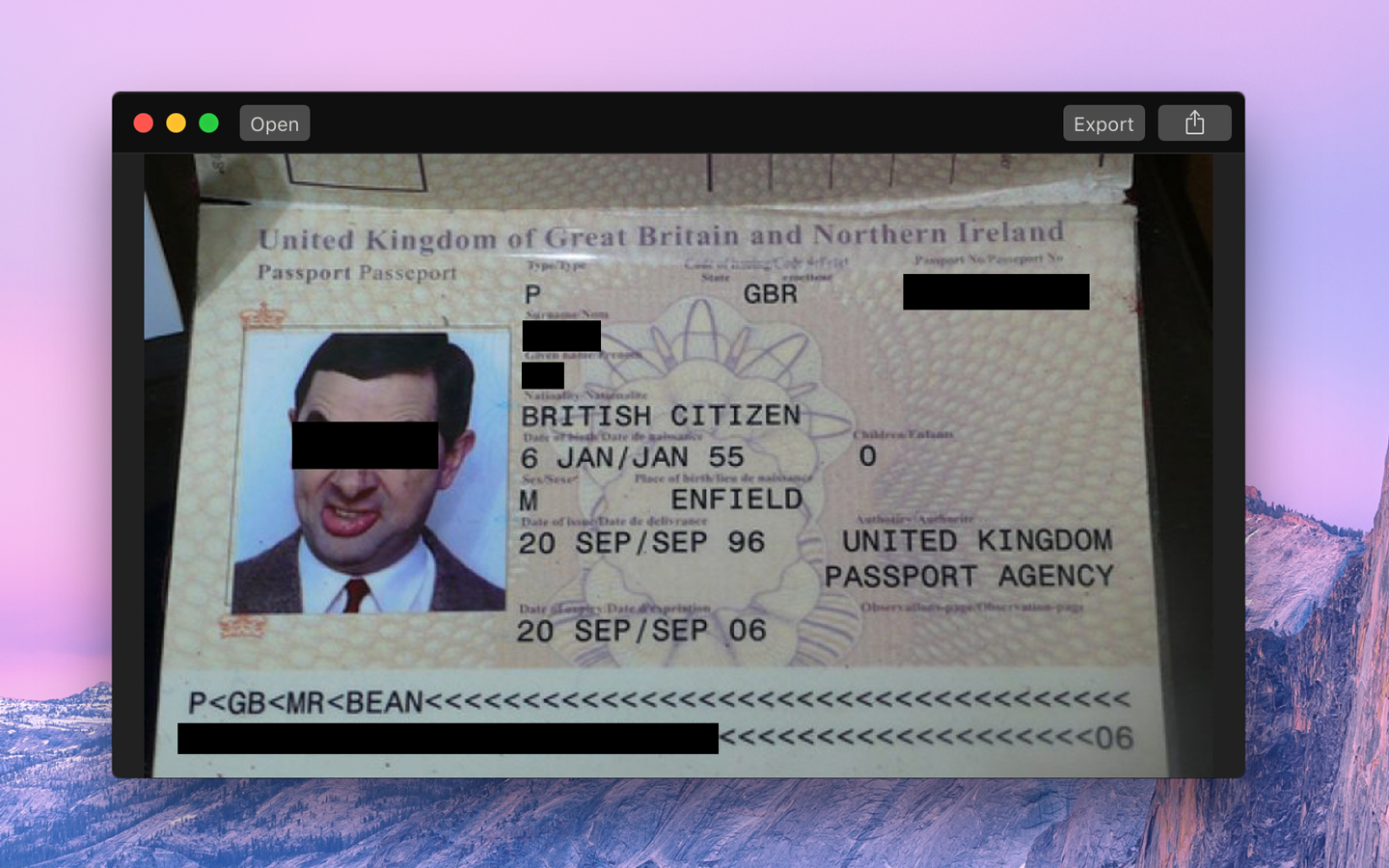
To redact is to hide private information, like names, email addresses, or account numbers, before you share an image. Use a box that is fully black. Blurring and pixelation are not safe, as they can sometimes be reversed.
With Black Out
- Open Black Out, and drop the screenshot on its window. Or click “Open”, or paste an image with CommandV.
- Drag over each part that you want to hide. Each drag makes a black box.
- To remove a box, click it, and press Delete.
- Press CommandC to copy the redacted image, and paste it where you share it. Or click “Export” to save it as PNG, JPEG, or HEIC.
Black Out removes the metadata of the image, like the date and the location where a photo was taken, so the image you share has no hidden information. Many image editors, like Preview, keep it.
To redact an image without opening the app, Control-click the image in Finder, and choose “Quick Actions › Black Out”. Draw the boxes, and click “Done”. If Black Out is not in the menu, choose “Quick Actions › Customize…”, and turn it on.
Get Black Out
Hide sensitive parts of an image

$4, one-time purchase
- Platform
- macOS
- Requires
- macOS 26 or later
- Category
- Graphics & Design
- Released
- December 2017
- Privacy
- No data collected
- Developer
- Sindre Sorhus
Without an app
Preview can draw a black rectangle over a part of an image:
- Open the screenshot in Preview.
- Choose “Tools › Annotate › Rectangle”. A rectangle shows on the image, and the Markup toolbar opens.
- With the rectangle selected, click “Fill Color” in the Markup toolbar, and choose black.
- Drag the rectangle over the text, and drag its handles to change its size. For more boxes, do steps 2 to 4 again.
- Choose “File › Save”, or “File › Export” to save a copy.
Check that the fill is fully black, and not a color with some transparency. You can also do this right after you take a screenshot: click the small image that shows in the corner of the screen, and use the shapes of Markup.
Preview keeps the metadata of the image. To remove the location of a photo, choose “Tools › Show Location Info”, and click “Remove Location Info”. The other metadata, like the date, stays in the image.
A rectangle in a PDF is different: it stays a separate object, so other people can move it or delete it, and the text below it can still be selected and copied. For text in a PDF, use “Tools › Redact” in Preview, which removes the text. Or export the page as an image, and redact the image.