Updated
How to Open a .DS_Store File on Mac
A .DS_Store file is a hidden file that Finder makes in the folders that you open. It keeps the view settings of the folder, like the icon positions, the window size, and the sort order. It has no documents, but it has the names of the items in the folder, and their Finder comments.
With DS_Store Inspector
- Open DS_Store Inspector.
- Choose “File › Open…”, and select a folder. Or drop the folder, or its
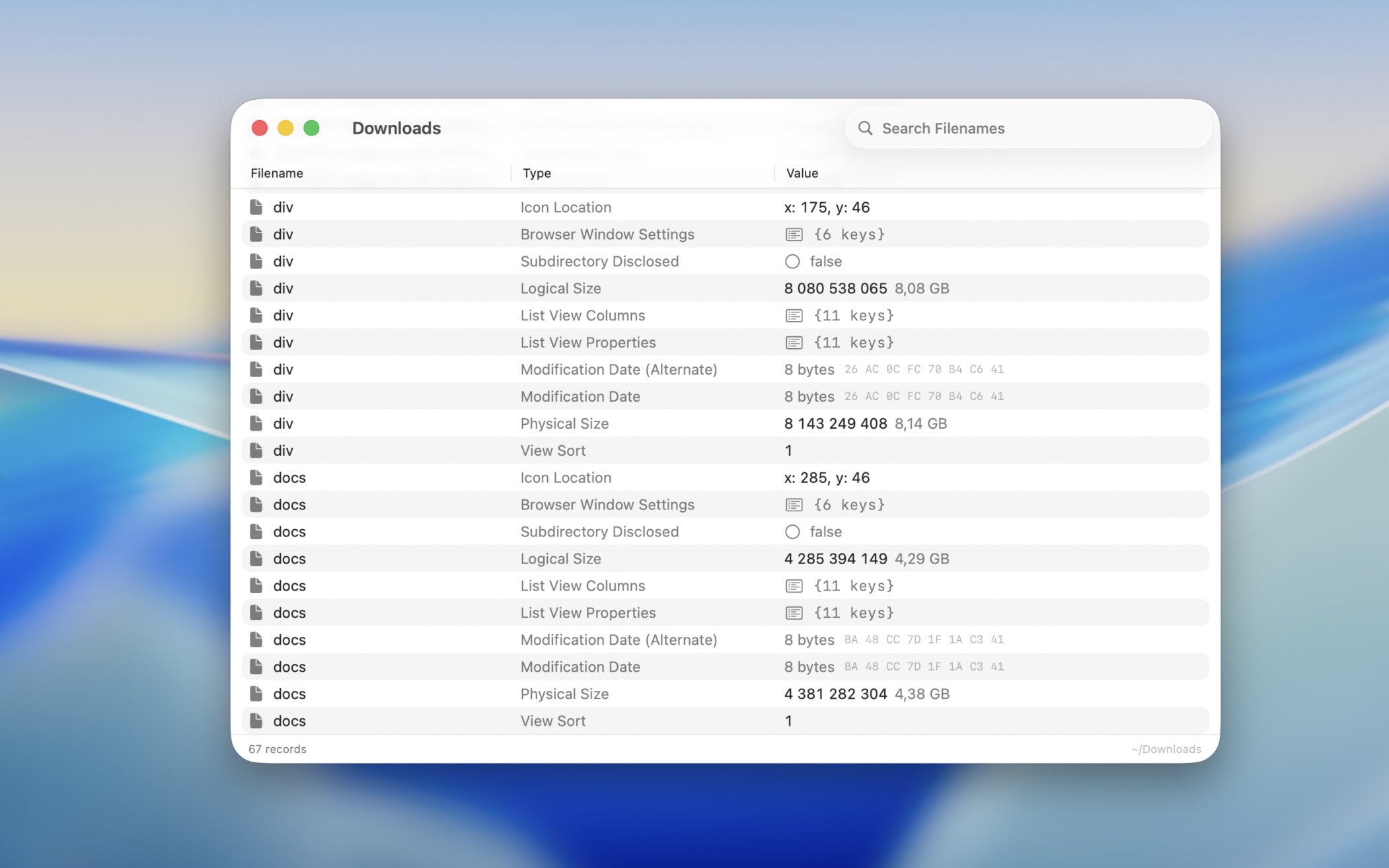
.DS_Storefile, on the window. - The table shows each record of the file: the name of the item, the type of the record, like “Icon Location”, and its value.
Type in the search field to see only the records of some items. The app does not change the file. To make Finder forget the view settings of the folder, choose “File › Delete .DS_Store”, which moves the file to the Trash.
Get DS_Store Inspector
Inspect .DS_Store files

Free
- Platform
- macOS
- Requires
- macOS 26.2 or later
- Category
- Developer Tools
- Released
- January 2026
- Privacy
- No data collected
- Updated
- February 2026
- Version
- 1.0.2
- Size
- 3 MB
Without an app
To see the file in Finder, open the folder, and press ShiftCommand. to show the hidden files. Press it again to hide them.
macOS has no app that can read the file. To see its raw bytes, open the Terminal app, go to the folder with cd, and run:
xxd .DS_Store | less
You can find the names of the items in the bytes, but the values are binary, so the settings are hard to read. You can delete the file safely. Finder then uses its default view for the folder, and makes a new file when you change the view.