Back to QuickGPT
Updated
How to Open ChatGPT with a Keyboard Shortcut on Mac
 By Sindre Sorhus, who makes the QuickGPT app
With QuickGPT
- Open QuickGPT, and sign in to ChatGPT in its window.
- Choose
- Click the field of “Toggle window”, and press the keyboard shortcut that you want, like ControlOptionG.
- Press the shortcut in any app to show ChatGPT, and press it again to hide it.
Tips
- To show ChatGPT below an icon in the menu bar, choose “Menu Bar” in “Show in” in the settings. The app starts again. The window then hides when you click outside it. To keep it open, turn on “Pin window”.
- The shortcut works only while the app is running. Turn on “Launch at login” in the settings.
- Why use this app when ChatGPT has an app for Mac?
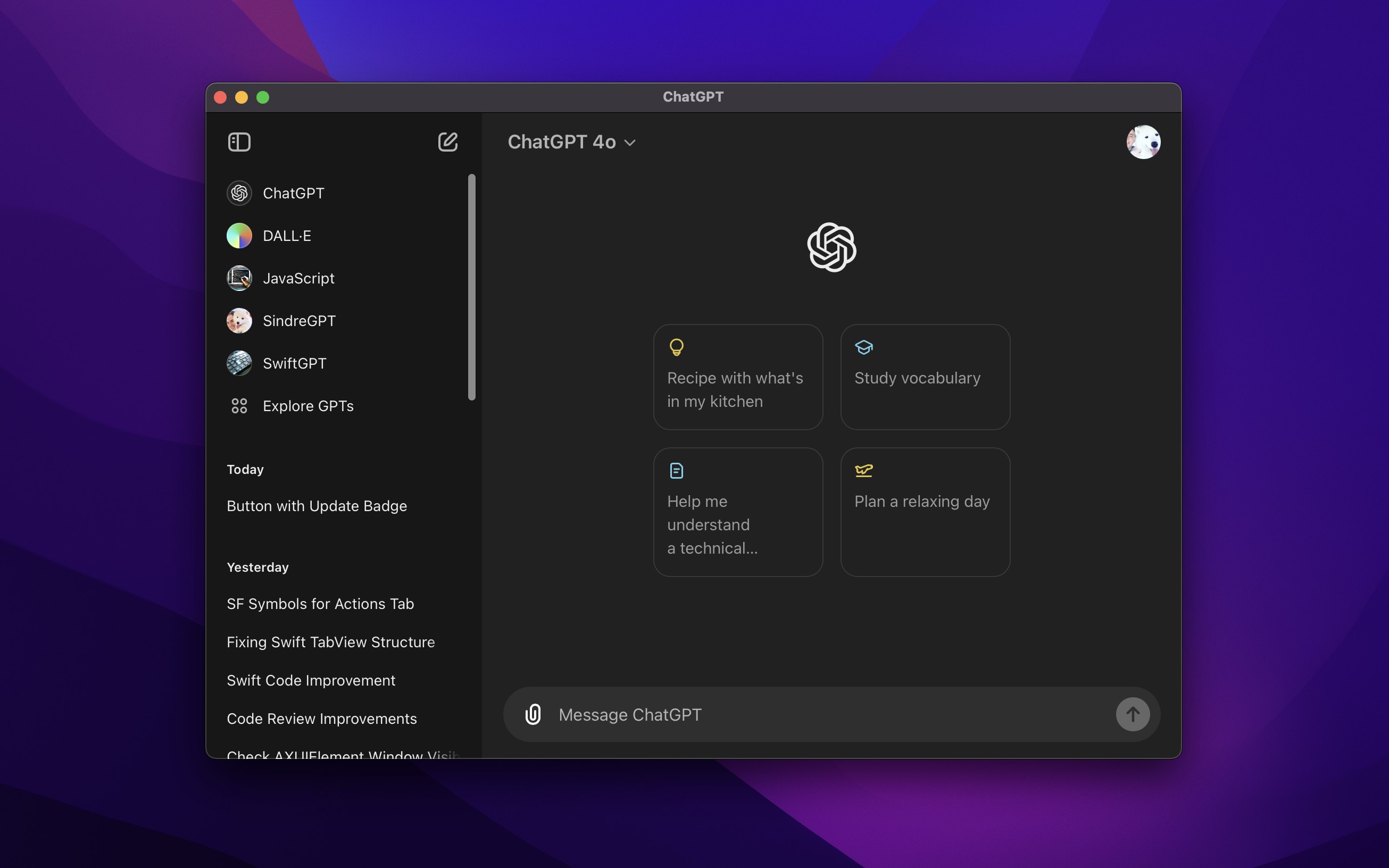

Get QuickGPT
Easy access to ChatGPT
$6, one-time purchase, plus tax where applicable
- Platform
- macOS
- Requires
- macOS 26 or later
- Released
- April 2023
- Privacy
- Read the policy
- Updated
- October 2026
- Free updates
- 25
- Version
- 1.8.3
- Size
- 6 MB
- Gumroad rating
- 4.9/5 (101 ratings)
Without an app
Safari can save ChatGPT as a web app (Apple’s instructions):
- In Safari, open chatgpt.com.
- Choose and click “Add”.
- Open the web app from the Dock, and sign in to ChatGPT. The web app does not share the sign-in of Safari.
The web app is in the Applications folder of your home folder, so you can give it a keyboard shortcut like any app. The shortcut opens the app, but it does not hide it again. QuickGPT shows and hides ChatGPT with the same shortcut, and can show it from the menu bar.